Is your Apple CarPlay navigation suddenly not working when you need it most? It’s frustrating, especially when you rely on it to get around smoothly and safely.
You might wonder why your screen stays blank, or why directions just won’t load. Don’t worry—you’re not alone, and this issue can often be fixed faster than you think. Keep reading to discover the common reasons behind the problem and simple steps you can take to get your navigation back on track.
Your next drive should be stress-free, and we’re here to help make that happen.
Common Carplay Navigation Issues
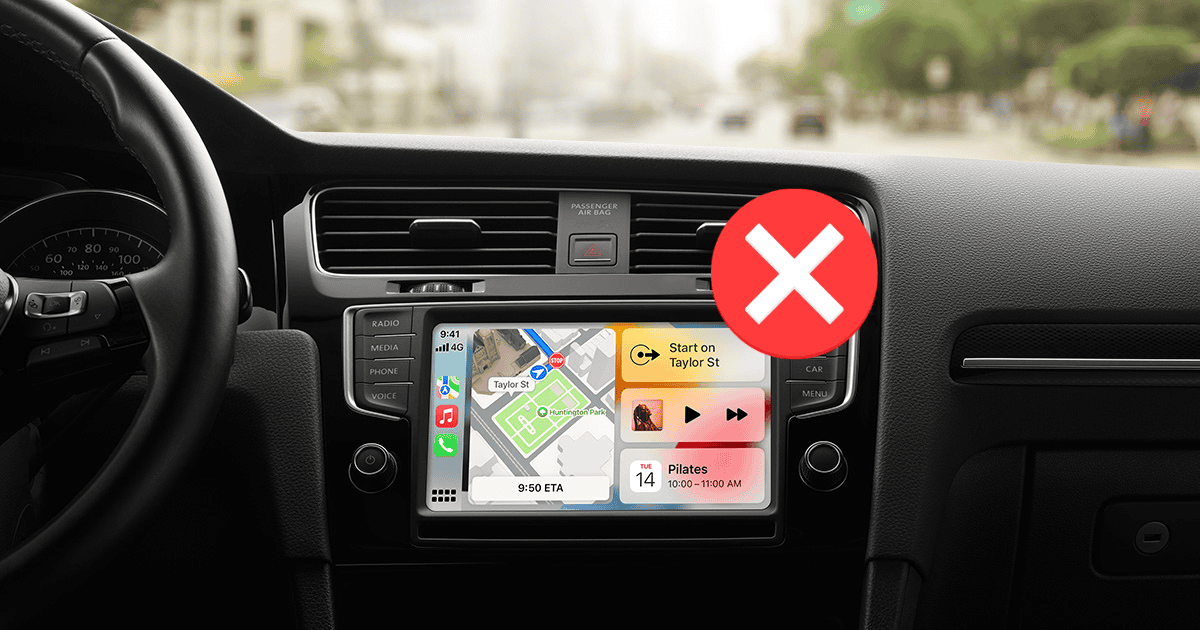
Apple CarPlay is a helpful tool for driving. It shows maps and directions on your car’s screen. Sometimes, it stops working properly. This can cause frustration during trips.
Many users face similar problems. These issues often relate to connections, software, or device compatibility. Understanding these common problems helps fix CarPlay faster.
Connection Problems
CarPlay needs a stable connection between your iPhone and car. A loose cable or poor Bluetooth link can break this connection. Dirt or damage on the cable can also cause issues.
Sometimes, the car’s USB port does not work well. Using a different cable or port may solve the problem. Restarting both the phone and the car system often helps too.
Software Glitches
Software errors on your iPhone or car system may stop CarPlay navigation. Outdated iOS versions can cause bugs. The car’s software might also need updates.
Restarting your phone can clear temporary glitches. Checking for updates and installing them keeps the system smooth. Resetting network settings on your iPhone can fix deeper issues.
Compatibility Concerns
Not all cars or iPhones fully support CarPlay features. Older car models might lack full compatibility. Some apps on your phone might not work with CarPlay navigation.
Checking your car’s manual helps confirm if CarPlay is supported. Using an iPhone with the latest software improves compatibility. Confirming app support ensures navigation runs well.
Checking Your Iphone Settings
Checking your iPhone settings is a key step when Apple CarPlay navigation is not working. Sometimes, simple settings can stop CarPlay from showing directions. It is important to ensure your iPhone is set up correctly. This helps CarPlay get the data it needs to guide you properly.
Location Services Activation
Location Services must be on for navigation apps to work. Without it, CarPlay cannot find your position. Go to Settings, then Privacy, and tap Location Services. Make sure the toggle is green. Also, check the Maps app has permission to access your location.
App Permissions
Apps need permission to use your data and sensors. Open Settings and scroll to the navigation app you use. Tap it and see if all permissions are enabled. This includes access to location, cellular data, and Bluetooth. Denied permissions can block navigation features.
Network Settings
Navigation needs internet to update maps and traffic info. Check if your iPhone is connected to Wi-Fi or cellular data. Go to Settings and tap Cellular or Wi-Fi to confirm the connection. Resetting network settings can fix hidden issues. This option is in Settings under General, then Reset.
Troubleshooting Carplay Connection
Apple CarPlay is a handy tool for navigation while driving. Sometimes, the connection fails, causing frustration. Troubleshooting the CarPlay connection helps fix common issues fast. Follow these simple steps to get your navigation working again.
Usb Cable Inspection
Check the USB cable for any damage. A broken or frayed cable can stop CarPlay from working. Use an original or certified Apple cable. Connect the cable firmly to both your car and iPhone. Try swapping the cable to see if the problem continues.
Bluetooth Pairing
CarPlay uses Bluetooth to connect wirelessly in some cars. Make sure Bluetooth is turned on your iPhone and car system. Check that your phone is paired correctly with your car. Remove old or unused devices from the Bluetooth list. Re-pair your iPhone with the car if needed.
Restarting Devices
Restart your iPhone and car’s infotainment system. This can clear minor software glitches. Turn off both devices completely and wait 30 seconds. Turn them back on and try to connect CarPlay again. Restarting often restores normal function quickly.
Updating Software And Apps
Updating software and apps plays a key role in fixing Apple CarPlay navigation issues. Outdated software often causes errors and slow responses. Keeping your iPhone, navigation apps, and car system up to date ensures smooth performance. Regular updates improve compatibility and add important bug fixes.
Ios Updates
Apple releases iOS updates to improve device functions and security. These updates often include fixes for CarPlay problems. Running the latest iOS version helps your iPhone connect and work better with your car’s system. Check for iOS updates in your iPhone settings and install them promptly.
Navigation App Updates
Navigation apps like Apple Maps or Google Maps need frequent updates. These updates add new features and fix bugs that affect navigation. An outdated app might cause GPS errors or freeze. Open the App Store and update your navigation apps regularly to avoid disruptions.
Car System Firmware
Your car’s firmware controls how CarPlay functions. Manufacturers release firmware updates to improve system stability and compatibility. These updates fix bugs and add support for the latest iOS versions. Visit your car dealer or check the car manufacturer’s website to learn how to update your car’s firmware.
Resetting Carplay And Network Settings
Resetting CarPlay and network settings often solves navigation problems. These steps clear errors and refresh connections. They help fix issues without complex tools or apps.
Try these methods carefully to restore smooth CarPlay navigation. Each step targets different possible causes of the problem.
Reset Network Settings
Resetting network settings removes saved Wi-Fi and Bluetooth connections. This can fix connection problems between your iPhone and car. Go to Settings > General > Reset > Reset Network Settings. Your iPhone will restart. Reconnect to your car after the reset.
Forget And Reconnect Carplay
Forgetting CarPlay on your iPhone and car can clear glitches. On your iPhone, open Settings > General > CarPlay. Select your car and tap Forget This Car. Then, reconnect CarPlay by plugging in your iPhone or connecting wirelessly. This process refreshes the link.
Factory Reset Options
Factory resetting your car’s infotainment system removes all data and settings. This step should be last if others don’t work. Check your car manual for instructions. After reset, set up CarPlay again from scratch. This often solves deeper software issues.

Alternative Navigation Solutions
Apple CarPlay navigation might stop working for various reasons. You can still reach your destination without it. Several alternative navigation solutions help keep you on track. These options work well and need little setup. They provide reliable directions during your drive.
Using Third-party Apps
Many third-party apps work with CarPlay or your phone. Apps like Google Maps, Waze, and HERE WeGo offer clear directions. They often update traffic and road conditions faster. Download and install these apps on your phone. Then connect your phone to your car’s system. This setup gives you a backup when Apple Maps fails.
Offline Maps
Offline maps help when you have no internet. You can download maps on your phone before travel. Google Maps and Maps.me allow easy map downloads. Use these maps without data or Wi-Fi. Offline maps save battery and avoid signal issues. Perfect for trips in remote or low-coverage areas.
Voice Command Tips
Voice commands make navigation safer and hands-free. Speak clearly and use simple phrases. Commands like “Navigate to [place]” or “Find gas station” work well. Practice using your voice assistant often. This keeps you comfortable and efficient while driving. Voice control helps avoid distractions and keeps your focus on the road.
When To Seek Professional Help
Sometimes, Apple CarPlay navigation problems need expert help. Basic fixes may not solve the issue. Professional support ensures your system works correctly and safely. Knowing when to seek help can save time and avoid frustration.
Dealer Support
Car dealers often have technicians trained for your vehicle’s systems. They can diagnose software or hardware issues with CarPlay. Dealers can update your car’s system or fix connection problems. Visiting the dealer is useful if the problem started after a car update.
Apple Support
Apple has experts who understand CarPlay software. They can guide you through troubleshooting steps over the phone or chat. Apple Support can check for software bugs or account issues. Contact them if your iPhone or CarPlay apps are not working properly.
Authorized Service Centers
Authorized centers are certified to repair Apple and car system problems. They use genuine parts and follow official repair methods. These centers offer reliable fixes for hardware faults or complex software errors. Choosing an authorized center protects your warranty and device safety.
Frequently Asked Questions
Why Is Apple Carplay Navigation Suddenly Not Working?
Apple CarPlay navigation may stop working due to software glitches or outdated iOS. Restart your iPhone and car system. Update your iPhone to the latest iOS version to fix bugs and improve compatibility.
How To Fix Apple Carplay Navigation Connection Issues?
Check your USB cable or wireless connection for faults. Restart both your iPhone and car’s infotainment system. Ensure CarPlay is enabled in your iPhone settings under “General” > “CarPlay. ”
Can App Permissions Affect Apple Carplay Navigation?
Yes, restricted location or app permissions can disrupt navigation. Verify that Maps or third-party navigation apps have location access enabled in iPhone settings.
Does Ios Update Impact Apple Carplay Navigation Functionality?
Yes, outdated or buggy iOS versions can cause navigation problems. Always update to the latest iOS release for optimal CarPlay performance and bug fixes.
Conclusion
Apple CarPlay navigation issues can frustrate any driver. Simple checks often solve the problem fast. Ensure your phone and car software stay updated. Restarting devices can clear temporary glitches. Check cable connections or try a new cable. Sometimes, settings need a quick review.
Staying patient helps fix the issue calmly. With these tips, navigation should work smoothly again. Keep your driving safe and stress-free. Don’t let tech troubles slow your journey.