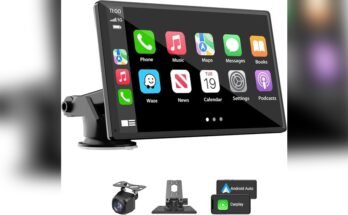
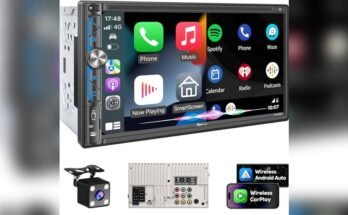
Do you want to enjoy Apple CarPlay in full screen on your car’s display? Seeing everything clearly makes driving safer and more enjoyable.
But many users don’t realize how easy it is to switch to full screen mode. In this post, you’ll learn simple steps to maximize your Apple CarPlay experience. Keep reading, and you’ll soon have a bigger, clearer view that lets you focus on the road while staying connected.
Benefits Of Full Screen Apple Carplay
Using Apple CarPlay in full screen mode offers several key benefits. It improves how you see information, makes the system easier to use, and helps keep driving safe. These advantages make the full screen option a smart choice for many drivers.
Improved Visibility
Full screen Apple CarPlay shows more details clearly. Icons and text appear larger and easier to read. This reduces the need to squint or lean closer to the screen. Brightness and contrast are better balanced. It helps drivers spot important information quickly.
Enhanced User Experience
The full screen layout feels more natural and smooth. Apps fit the entire display, avoiding clutter or small buttons. Touch controls respond better with larger targets. Switching between maps, music, and calls becomes seamless. The system feels less distracting and more enjoyable.
Safer Driving
Full screen Apple CarPlay helps keep eyes on the road. Bigger visuals mean drivers spend less time looking away. It lowers the chance of missing crucial navigation or alerts. Quick access to controls means hands stay on the wheel longer. Overall, it supports safer habits behind the wheel.

Compatibility Requirements
To use Apple CarPlay in full screen, certain compatibility requirements must be met. These requirements ensure the system works smoothly and displays properly on your car’s screen. Understanding these basics helps avoid frustration and makes the setup process easier.
Supported Car Models
Not all cars support full-screen Apple CarPlay. Most newer models from major brands like Ford, Honda, BMW, and Toyota offer this feature. Check your car’s manual or the manufacturer’s website to confirm support. Older models may only allow partial screen use.
Iphone And Ios Versions
Apple CarPlay needs an iPhone running a compatible iOS version. Generally, iPhones with iOS 13 or later support full-screen mode. The iPhone 6s and newer models work best. Keeping your iPhone updated improves performance and compatibility.
Necessary Hardware
Your car’s infotainment system must support full-screen display. Some systems require a wired connection via Lightning cable. Others allow wireless connection but need Wi-Fi and Bluetooth enabled. Using certified cables and adapters helps avoid connection issues.
Settings To Enable Full Screen Mode
Enabling full screen mode on Apple CarPlay makes your driving experience smoother. It allows apps to use the entire display. This helps you see more information clearly and reduces distractions. Adjusting settings is key to get full screen mode working.
Adjusting Display Settings
Start by checking your car’s display settings. Some cars have options to change screen size or layout. Go to your car’s settings menu. Look for options like “Screen Mode” or “Display Size.” Select the option that allows full screen or maximizes app display. This change helps CarPlay use the entire screen space.
Carplay Interface Customization
Apple CarPlay itself offers some customization. On your iPhone, open the Settings app. Tap “General,” then “CarPlay.” Choose your car from the list. Here, you can rearrange app icons and adjust how they appear. Some apps support full screen mode better than others. Customizing the layout lets you prioritize full screen apps for easier access.
Using Car Manufacturer Apps
Many car makers provide apps that enhance CarPlay. These apps can offer more control over the display. Check your car manufacturer’s app store or website. Download any available apps that support CarPlay full screen mode. These apps often improve compatibility and add features not found in standard CarPlay. Using them can help achieve a better full screen experience.

Troubleshooting Full Screen Issues
Apple CarPlay offers a smooth driving experience, but sometimes the full screen mode does not work properly. Troubleshooting these problems helps restore the clear, large display you want. Simple steps can fix common issues and improve your CarPlay use.
Common Display Problems
CarPlay may not fill the screen because of a poor connection or wrong settings. The screen might show black bars or a small window. Sometimes, the image looks stretched or cut off. These issues often come from incompatible cables or a cluttered interface. Checking the connection and settings can solve most display problems fast.
Resetting Carplay Settings
Resetting CarPlay settings can clear hidden glitches. On your iPhone, go to Settings, then General, and tap CarPlay. Choose your car and select Forget This Car. Restart your phone and reconnect to the car. This process refreshes the system and often fixes screen size errors. It is a simple way to restore full screen display without complex steps.
Software Updates And Fixes
Software updates fix bugs that affect CarPlay display. Check your iPhone for the latest iOS version. Go to Settings, then Software Update, and install any available updates. Also, update your car’s infotainment system if possible. Keeping both systems updated ensures smooth full screen performance and fewer errors. Regular updates keep your CarPlay running well.
Third-party Apps For Enhanced Display
Third-party apps offer new ways to make Apple CarPlay full screen. These apps provide extra features to customize your display. They can change how apps show on your car screen.
Using these apps can improve your driving experience. They give more control over the screen layout and app size. Many apps focus on better visibility and easier access while driving.
Popular Apps For Screen Customization
Several apps help customize Apple CarPlay screens. Apps like “CarBridge” allow full screen use of apps. “NGXPlay” supports more app types on CarPlay. “ScreenKit” offers layout changes and custom icons. These apps expand what you can see and use.
Installation And Setup Tips
Install apps from trusted sources only. Some require jailbreaking your iPhone. Follow app instructions carefully for setup. Always back up your device before changes. Test the app in a safe place first. Adjust settings to fit your screen size. Restart your car and phone after installation. Update apps regularly for best performance.
Safety Considerations
Use apps that do not distract while driving. Avoid apps that require complex input. Focus on apps that improve visibility only. Do not use apps that block essential controls. Always keep attention on the road. Safety is the top priority with screen changes. Check local laws about CarPlay modifications.

Tips To Maximize Carplay Display
Maximizing your Apple CarPlay display enhances safety and usability. A clear, well-organized screen helps you focus on driving. Use simple tips to get the best CarPlay experience. Making your display full screen is just the start. Learn how to optimize the layout, use voice commands, and keep your system running smoothly.
Optimizing Screen Layout
Arrange apps by priority on your CarPlay home screen. Place your most used apps at the front. This reduces distractions while driving. Customize the layout through your iPhone’s settings. Keep the screen clean and uncluttered for easy navigation. Use larger icons for quick access. Avoid overcrowding the display with too many apps.
Using Voice Commands
Voice commands let you control CarPlay without touching the screen. Activate Siri to send messages or get directions. Speak clearly and use simple phrases. Voice commands keep your eyes on the road. They make driving safer and more convenient. Practice common commands to get comfortable quickly.
Maintaining System Performance
Keep your iPhone’s software updated for smooth CarPlay use. Close unused apps to free up memory. Restart your phone regularly to avoid slowdowns. Use certified cables for stable connections. Clean your car’s touchscreen to improve responsiveness. A well-maintained system ensures a full-screen CarPlay works well every time.
Frequently Asked Questions
How To Enable Full Screen On Apple Carplay?
To enable full screen on Apple CarPlay, update your iOS to the latest version. Then, go to your car’s display settings and select the full-screen mode option if available. Some vehicles automatically support full-screen CarPlay without manual settings.
Why Is Apple Carplay Not Displaying Full Screen?
Apple CarPlay may not show full screen due to outdated iOS or incompatible car software. Ensure your iPhone and car system are updated. Also, check if your vehicle supports full-screen CarPlay, as some older models have limitations.
Can I Customize Apple Carplay Full Screen Layout?
Yes, you can customize the Apple CarPlay full screen layout by rearranging app icons on your iPhone. Go to Settings > General > CarPlay, select your car, and drag apps to your preferred order for a personalized experience.
Does Full Screen Carplay Improve User Experience?
Full screen CarPlay enhances user experience by maximizing the display space. It provides clearer navigation, easier access to apps, and a more immersive interface, reducing distractions while driving and improving safety.
Conclusion
Making Apple CarPlay full screen improves your driving experience. It shows apps bigger and clearer. This helps you focus on the road. Follow simple steps to change the display size. Check your car’s system settings for options. Keep your device updated for best results.
Enjoy easier access to maps, music, and calls. A full-screen view makes using CarPlay safer and more fun. Try these tips to get the most from Apple CarPlay. Your drive will feel smoother and more connected.