Imagine having your trusted navigation right on your car’s dashboard, guiding you smoothly to every destination without distractions. If you use Apple CarPlay and rely on Google Maps, you might wonder how to make the most of this powerful combo.
In this guide, you’ll discover simple steps to use Google Maps on Apple CarPlay effortlessly. Whether you’re heading to a new restaurant or exploring a different city, mastering this will save you time and keep your focus on the road.

49% off Today's Exclusive Deals
Limited-time Exclusive Deals. Check current discount on Amazon.
Check Price on Amazon As an Amazon Associate I earn from qualifying purchases.Ready to unlock the full potential of your drive? Let’s dive in.
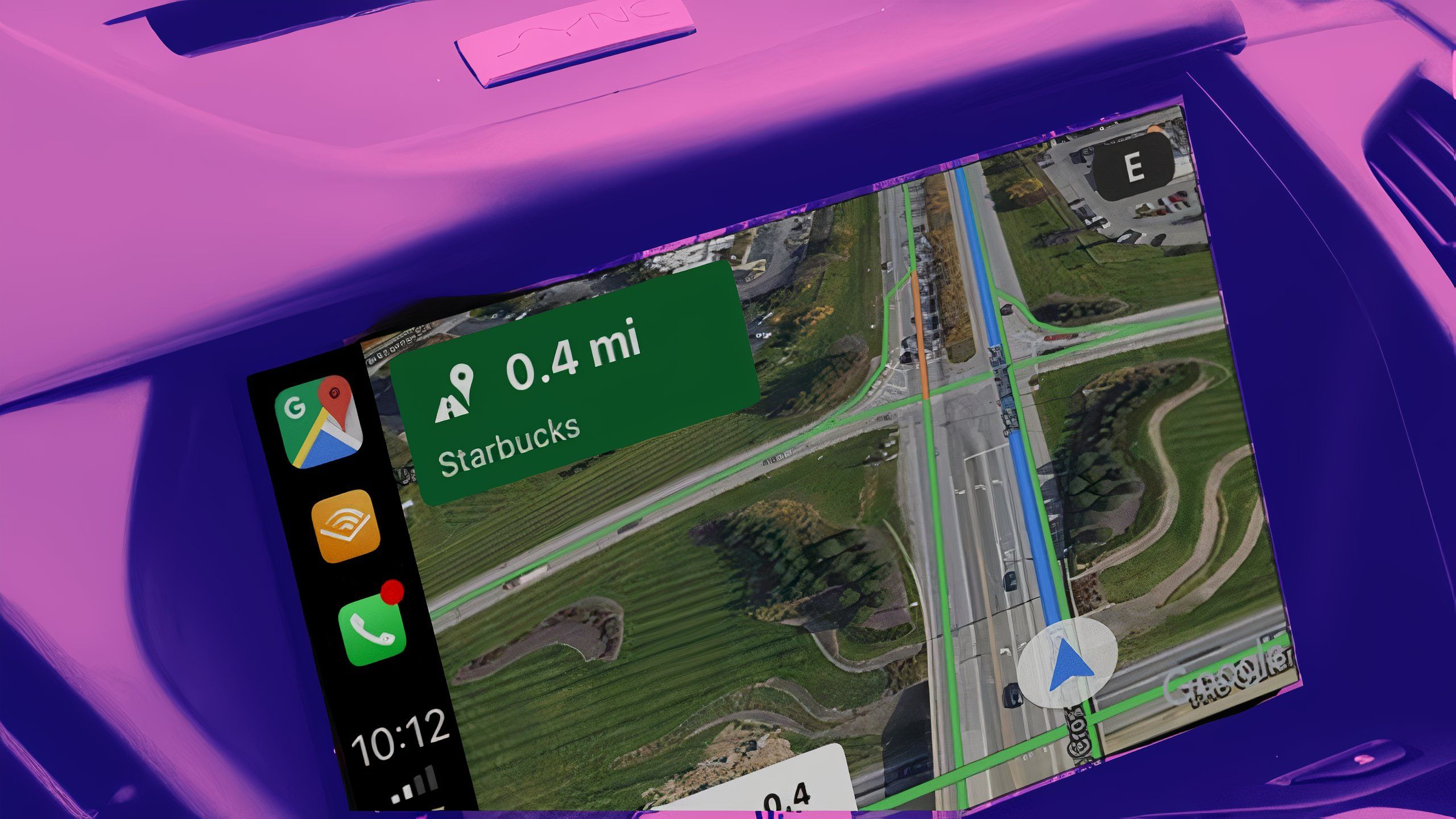
Setting Up Google Maps On Apple Carplay
Setting up Google Maps on Apple CarPlay is simple and quick. This setup helps you navigate safely while keeping your focus on the road. Follow easy steps to connect your iPhone and start using Google Maps in your car.
Connecting Your Iphone To Carplay
Start by connecting your iPhone to your car’s USB port. Use a Lightning cable to ensure a stable connection. Your car screen will detect your iPhone and display the CarPlay interface. Some cars support wireless CarPlay; check your car manual for this option. Once connected, your iPhone screen may lock automatically, allowing safe use of CarPlay features.
49% off Today's Exclusive Deals
Limited-time Exclusive Deals. Check current discount on Amazon.
Check Price on Amazon As an Amazon Associate I earn from qualifying purchases.Enabling Google Maps Access
Open the Settings app on your iPhone. Tap on “General” and then select “CarPlay.” Choose your car from the list of available devices. You will see a list of apps compatible with CarPlay. Make sure Google Maps is enabled and allowed to appear on the CarPlay screen. If not, tap and add Google Maps to your CarPlay apps.
Customizing Carplay Home Screen
In the CarPlay settings, tap “Customize.” Drag and drop apps to arrange them the way you want. Place Google Maps in the first row for easy access. Remove apps you do not use often to keep your screen clean. Changes will reflect immediately on your car’s display. Personalizing the screen helps you find Google Maps faster while driving.
Navigating With Google Maps In Carplay
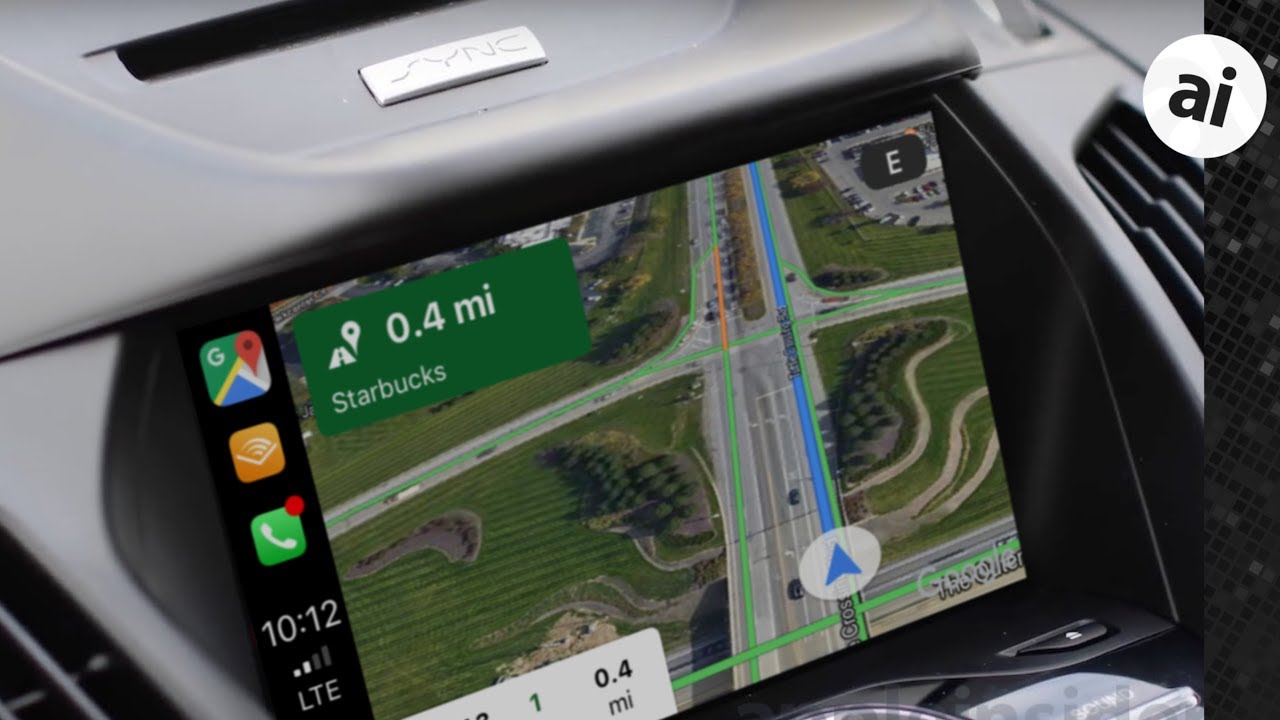
Using Google Maps on Apple CarPlay makes driving easier and safer. The app shows clear directions on your car’s screen. You can focus on the road while getting turn-by-turn guidance. The interface is simple and works well with CarPlay’s controls.
Let’s explore how to navigate smoothly with Google Maps on CarPlay. Learn how to start routes, use voice commands, and handle multiple stops. These tips help you get the most from your driving experience.
49% off Today's Exclusive Deals
Limited-time Exclusive Deals. Check current discount on Amazon.
Check Price on Amazon As an Amazon Associate I earn from qualifying purchases.Starting A Route
Open Google Maps on your CarPlay screen. Tap the search bar to enter your destination. You can type the address or use saved places. After entering the location, tap “Go” to start the route. The app will show the fastest path and estimated time. Follow the on-screen directions to reach your destination.
Using Voice Commands
Speak to Siri to control Google Maps hands-free. Press the voice button on your steering wheel or CarPlay screen. Say commands like “Navigate to [place]” or “Find gas stations nearby.” Siri will open Google Maps and set the route for you. This keeps your hands on the wheel and eyes on the road.
Managing Multiple Stops
Google Maps allows adding more than one stop on your trip. After setting your first destination, tap the menu to add stops. Enter the address of each location you want to visit. The app will plan the best route covering all stops. You can also change the order of stops by dragging them. This feature helps plan trips with several destinations easily.
Optimizing Google Maps For Driving
Optimizing Google Maps on Apple CarPlay makes your drive safer and smoother. It helps you avoid delays and find the best routes. Small settings can improve your experience a lot. Here is how to use key features for better navigation.
Real-time Traffic Updates
Google Maps shows traffic information live. It warns you about slow traffic and accidents ahead. You can see this on your CarPlay screen easily. This helps you avoid jams and save time.
The app updates routes based on traffic changes. So, your directions stay accurate throughout your trip.
Avoiding Tolls And Highways
You can choose to skip toll roads or highways. This is useful if you want a cheaper or calmer drive. Tap the settings on Google Maps in CarPlay. Select your preferences to avoid tolls or highways.
Google Maps will then suggest routes that match your needs. This keeps your drive cost-effective and stress-free.
Using Alternative Routes
Google Maps offers alternate routes for your destination. These routes appear automatically on the screen. You can pick a different path with one tap.
Alternatives help if your usual road is busy or closed. They give you options to reach your destination faster or easier.
Troubleshooting Common Issues
Troubleshooting common issues with Google Maps on Apple CarPlay is important for a smooth drive. Problems can happen even with the best tools. This section helps fix usual troubles fast. Follow these tips to keep your navigation clear and reliable.
Google Maps Not Showing On Carplay
Sometimes Google Maps may not appear on the CarPlay screen. Check if your iPhone is properly connected to the car. Use a certified Lightning cable or a stable wireless connection. Restart both your phone and the car’s system. Also, ensure Google Maps is allowed in CarPlay settings under your iPhone.
Route Not Updating
Routes may not update during a trip. This can cause wrong directions. Make sure your phone has a strong internet connection. Turn on Location Services for Google Maps. Close other apps running in the background. Restart the app to refresh the route data. Check for app updates to fix bugs.
Audio And Voice Command Problems
Audio may be too low or voice commands may not work. Check the car’s volume and mute settings. Ensure Google Maps voice is turned on in the app settings. Confirm your microphone and speakers work well with CarPlay. Restart your phone and the car system if problems persist. Try disconnecting and reconnecting CarPlay.
Tips For Safe And Efficient Driving
Driving safely with Google Maps on Apple CarPlay is very important. It helps you reach your destination without distractions. Following simple tips keeps you focused and saves time. These steps make your trip smooth and stress-free.
Use your phone and Apple CarPlay features smartly. Keep your attention on the road. Plan your route before you start driving. These small actions improve your driving experience.
Keeping Eyes On The Road
Look at the road, not the screen. Listen to voice directions from Google Maps. The voice guide tells you when to turn or change lanes. Use the car’s controls to change settings. Avoid touching your phone while driving. This helps prevent accidents and keeps you safe.
Using Do Not Disturb Mode
Activate Do Not Disturb mode on your phone. This blocks calls and messages while driving. You will not get distracted by notifications. Important alerts from navigation still come through. This mode helps you focus fully on the road ahead.
Planning Ahead With Saved Locations
Save your frequent places in Google Maps before driving. Add your home, work, or favorite spots. This lets you start navigation fast and easy. Planning ahead reduces the need to search while driving. It keeps your trip organized and safe.
Frequently Asked Questions
How Do I Connect Google Maps To Apple Carplay?
To connect Google Maps, plug your iPhone into the car’s USB port. Ensure CarPlay is enabled in settings. Open Google Maps on your iPhone. It will appear automatically on your CarPlay screen for easy navigation.
Can I Use Google Maps Voice Commands On Carplay?
Yes, use Siri voice commands by pressing the voice button on your steering wheel. Say commands like “Navigate to [destination] with Google Maps. ” Siri will use Google Maps for hands-free navigation via CarPlay.
Is Google Maps Free To Use On Apple Carplay?
Yes, Google Maps is completely free on Apple CarPlay. You only need an internet connection on your iPhone. No additional charges or subscriptions are required to use Google Maps for navigation.
How To Update Google Maps For Better Carplay Use?
Update Google Maps via the App Store on your iPhone regularly. Keeping it updated ensures the latest features and improved CarPlay compatibility. Updates fix bugs and enhance navigation accuracy.
Conclusion
Using Google Maps on Apple CarPlay makes driving easier and safer. It helps you find places quickly without using your phone. The clear directions and voice guidance keep your focus on the road. Setting up is simple and takes only a few steps.
Now, you can enjoy smoother trips and avoid getting lost. Try using Google Maps with Apple CarPlay on your next drive. You will see how much more convenient navigation can be. Safe travels!





