Are you wondering if you can watch YouTube videos while driving using Apple CarPlay? You’re not alone.
Many drivers want to enjoy their favorite content on the road but worry about safety and compatibility. What if you could safely access YouTube without taking your eyes off the road? You’ll discover exactly how YouTube works with Apple CarPlay, what’s possible, and what you should avoid.

49% off Today's Exclusive Deals
Limited-time Exclusive Deals. Check current discount on Amazon.
Check Price on Amazon As an Amazon Associate I earn from qualifying purchases.Keep reading to find out how to make the most of your driving entertainment without risking distractions.
Youtube And Apple Carplay Compatibility
YouTube is one of the most popular video apps worldwide. Many users want to watch videos while driving. Apple CarPlay connects iPhones to car displays. It allows safe use of certain apps on the road.
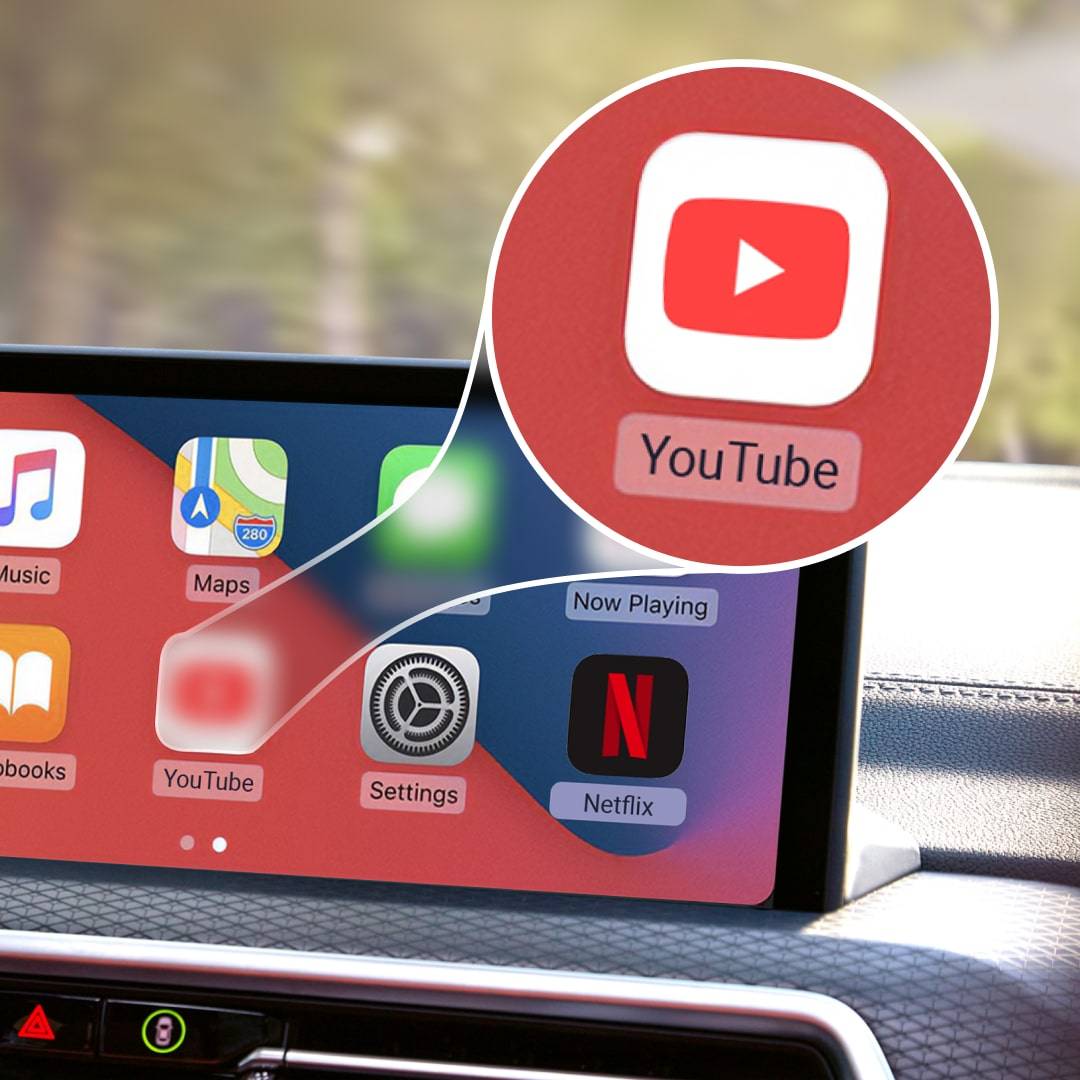
Despite its popularity, YouTube is not available on CarPlay. This can confuse users. Understanding the reasons helps explain the situation better.
49% off Today's Exclusive Deals
Limited-time Exclusive Deals. Check current discount on Amazon.
Check Price on Amazon As an Amazon Associate I earn from qualifying purchases.Why Youtube Isn’t Natively Supported
YouTube shows videos that need full attention. Watching videos while driving is unsafe. Apple designs CarPlay to reduce distractions. It blocks apps that can divert driver focus.
YouTube’s core function is video playback. This conflicts with Apple’s safety rules. Apple wants drivers to keep eyes on the road. This is why YouTube is not supported.
Apple Carplay’s App Restrictions
Apple CarPlay limits apps to certain types. Only apps for navigation, calls, messages, and music are allowed. Video streaming apps are excluded for safety.
Apps must follow strict guidelines to work with CarPlay. These rules prevent apps that cause distractions. YouTube does not meet these rules. That is why it cannot run on CarPlay.
49% off Today's Exclusive Deals
Limited-time Exclusive Deals. Check current discount on Amazon.
Check Price on Amazon As an Amazon Associate I earn from qualifying purchases.Ways To Access Youtube On Carplay
YouTube is a popular platform for videos, and many want to enjoy it in their cars. Apple CarPlay does not support YouTube directly. Still, there are ways to access YouTube safely while driving. These methods help you watch or listen to videos using CarPlay’s screen and controls.
Explore different options to find what fits your needs best. Each method has its own setup and features. Choose the one that works well with your car and phone.
Using Third-party Apps
Some apps on the App Store let you watch YouTube on CarPlay. These apps act as a bridge between YouTube and CarPlay. They often limit video playback to ensure safety. Most apps focus on audio or voice control instead of video. Check app reviews and ratings before downloading. Make sure the app updates regularly for smooth use.
Screen Mirroring Options
Screen mirroring lets you show your phone’s screen on CarPlay. This way, you can open YouTube on your phone and see it on the car display. Use Apple’s AirPlay or third-party devices for mirroring. Be careful: this method can be distracting while driving. It works best when the car is parked. Screen mirroring may not allow full control through the CarPlay interface.
Voice Control And Siri Shortcuts
Siri can help access YouTube content without touching the screen. Create Siri Shortcuts to play specific videos or playlists. Use voice commands to pause, play, or skip videos. This method keeps your focus on the road. Siri Shortcuts require setup on your iPhone first. Once ready, they offer a hands-free way to enjoy YouTube.
Safety Concerns With Youtube In Car
Using YouTube in the car raises important safety questions. Watching videos while driving can distract drivers. This distraction can lead to accidents and dangerous situations on the road.
Even using YouTube through Apple CarPlay can create risks. The app is not designed for safe use during driving. Drivers must stay focused on the road at all times.
Legal Implications
Many places have strict laws about using screens while driving. Watching videos is often illegal. Breaking these laws can lead to fines or other penalties.
Police may stop drivers who appear distracted. Using YouTube can be seen as reckless behavior. It puts drivers and others at risk.
Driver Distraction Risks
Looking at videos takes attention away from driving. Even a few seconds of distraction can cause crashes. The eyes should always watch the road ahead.
Listening to audio from YouTube is safer than watching. But the temptation to look at the screen remains. Drivers should avoid any activity that divides their focus.
Best Practices For Using Youtube Safely
Using YouTube on Apple CarPlay can be fun but also risky if not done safely. It is important to follow certain rules to keep your focus on driving. Safe use helps prevent accidents and distractions.
Simple habits make a big difference. Plan ahead and use features that reduce screen time. This way, you enjoy YouTube without losing attention on the road.
Using Audio-only Mode
Audio-only mode lets you listen to YouTube videos without watching them. This reduces distractions while driving. You can hear music, podcasts, or talks safely.
Activate this mode before starting your trip. It keeps your eyes on the road and hands on the wheel. Use voice commands to control playback. This way, you avoid touching the screen.
Setting Up Playlists Before Driving
Create playlists before you begin driving. This helps you avoid searching for videos on the road. Choose your favorite songs or videos and add them to one list.
Playlists keep your entertainment ready and easy to access. You can focus on driving and switch videos with simple commands. Preparing playlists saves time and keeps you safe.
Troubleshooting Common Issues
Using YouTube on Apple CarPlay can enhance your driving experience. Sometimes, issues may stop it from working right. Knowing how to fix common problems helps you enjoy YouTube without delays.
Connection Problems
Connection issues often cause YouTube to not show on CarPlay. Check your USB cable for damage. Use the original or certified cable for best results. Restart your iPhone and car system to refresh the link. Make sure both devices have the latest software updates. Try disconnecting and reconnecting the cable. Avoid wireless connections, as CarPlay supports USB better for video apps.
App Crashes And Freezes
YouTube may crash or freeze on CarPlay due to app bugs. Close the app fully and reopen it. Clear the app cache by restarting your phone. Update YouTube to the newest version for better stability. If crashes continue, uninstall and reinstall the app. Also, check your iPhone storage; low space can cause slowdowns. Keep your phone cool, as overheating affects performance.

Alternatives To Youtube For Car Entertainment
YouTube is not available on Apple CarPlay. This can be a problem for some drivers. Still, there are good options to enjoy entertainment safely while driving. These alternatives focus on audio content. They keep your eyes on the road and hands on the wheel.
Car entertainment should be simple and distraction-free. Audio content fits this need perfectly. It allows you to enjoy stories, music, and information without looking at your screen.
Podcasts And Audiobooks
Podcasts offer a wide range of topics. News, stories, education, and comedy are all available. You can find something for every mood and interest. Audiobooks let you enjoy books without reading. They are great for long drives and daily commutes. Most podcast and audiobook apps work smoothly with Apple CarPlay. They provide easy controls and clear sound.
Music Streaming Services
Music apps like Apple Music, Spotify, and Amazon Music work well with CarPlay. They offer millions of songs and playlists. You can choose your favorite genre or artist. Many apps have personalized playlists for a better experience. Music streaming is perfect for creating a fun and relaxing drive. The apps are easy to control with voice commands or simple taps.

Frequently Asked Questions
Can I Watch Youtube Videos On Apple Carplay?
No, Apple CarPlay does not support watching YouTube videos directly. It focuses on safe driving with audio apps only. Video playback is restricted to avoid driver distraction.
How To Play Youtube Audio Through Apple Carplay?
You can stream YouTube audio by playing it on your iPhone. Then, use CarPlay to route the sound through your car speakers. The video won’t display on the CarPlay screen.
Are There Apps To Watch Youtube On Apple Carplay?
Currently, no official apps allow YouTube video playback on Apple CarPlay. Apple prioritizes driver safety and limits video content on the CarPlay interface.
Can I Use Youtube Music With Apple Carplay?
Yes, YouTube Music works with Apple CarPlay. You can browse and play music safely using the CarPlay interface while driving.
Conclusion
Using YouTube on Apple CarPlay is not supported for safety reasons. CarPlay focuses on apps that help drivers stay focused. Watching videos while driving is risky and illegal in many places. Audio apps like Apple Music and Podcasts work well instead.
Staying safe on the road matters most. You can still enjoy your favorite content through voice commands and audio apps. Keeping your eyes on the road protects you and others. Apple CarPlay aims to make driving safer and easier. Choose apps that help you drive, not distract you.





