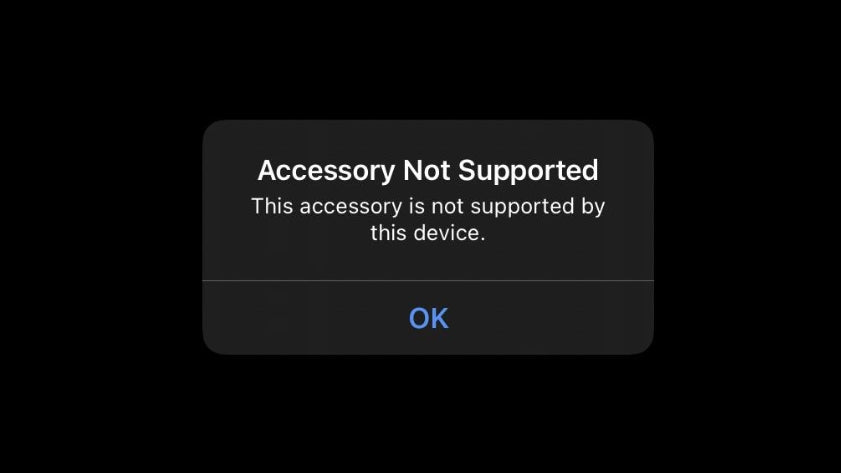
Are you frustrated because your CarPlay keeps showing the “Device Not Supported” error? You’re not alone.
This common issue can stop you from using your phone safely while driving, and it feels like your tech just won’t cooperate. But don’t worry—fixing this problem is easier than you think. You’ll discover simple, step-by-step solutions that will get CarPlay working smoothly again.

49% off Today's Exclusive Deals
Limited-time Exclusive Deals. Check current discount on Amazon.
Check Price on Amazon As an Amazon Associate I earn from qualifying purchases.Keep reading, and you’ll be back on the road with hands-free control in no time.
Check Carplay Compatibility
CarPlay may show “Device Not Supported” if your phone or car is not compatible. Checking compatibility helps you identify the problem fast. This section explains which iPhone models and car models support CarPlay.
Supported Iphone Models
CarPlay works with iPhone 5 and newer models. Your iPhone needs iOS 7.1 or later. Older iPhones do not support CarPlay. Make sure your phone software is up to date. This ensures smooth connection with your car’s system.
49% off Today's Exclusive Deals
Limited-time Exclusive Deals. Check current discount on Amazon.
Check Price on Amazon As an Amazon Associate I earn from qualifying purchases.Compatible Car Models
Many car brands support CarPlay. Most models made after 2014 include CarPlay support. Check your car manual or manufacturer website to confirm. Some cars need a software update to enable CarPlay. Compatibility varies by make and model.

Inspect Usb And Lightning Cables
Inspecting the USB and Lightning cables is a key step in fixing the CarPlay “Device Not Supported” error. Cables connect your iPhone to the car’s system. Faulty or low-quality cables often cause connection problems. Checking these cables helps identify the root of the issue quickly. This simple step saves time and ensures a stable CarPlay connection.
Use Certified Accessories
Always use Apple-certified USB and Lightning cables. These cables meet Apple’s strict quality standards. Non-certified cables might not work properly with CarPlay. Certified cables support data transfer and charging without errors. They reduce the chances of the “Device Not Supported” message. Using certified accessories improves connection stability and safety.
Replace Damaged Cables
Check your cables for visible damage like frays or bends. Damaged cables often cause connection failures. Even minor damage can disrupt data flow. Replace cables that look worn out or broken. Using a new, undamaged cable can fix the CarPlay error. Regularly inspect cables to keep your connection smooth.
49% off Today's Exclusive Deals
Limited-time Exclusive Deals. Check current discount on Amazon.
Check Price on Amazon As an Amazon Associate I earn from qualifying purchases.Update Ios And Car Firmware
Updating your iPhone and car system is key to fixing the CarPlay “Device Not Supported” error. Both need the latest software to work well together. Old versions can cause connection problems. Keeping them updated helps your CarPlay run smoothly and avoid errors.
Update Iphone Software
Start by checking your iPhone for iOS updates. Open Settings and tap General, then Software Update. If an update is available, tap Download and Install. Updates include bug fixes and new features that improve CarPlay support. Make sure your phone has enough battery or is charging during the update. Restart your iPhone after the update finishes.
Update Vehicle System
Car manufacturers often release firmware updates for their infotainment systems. These updates fix bugs and add compatibility with newer iOS versions. Check your car’s manual or the manufacturer’s website for update instructions. Some cars update via USB, others over Wi-Fi, or at the dealer. Follow the steps carefully to avoid problems. Regular updates keep your car system ready for CarPlay.
Adjust Carplay Settings
Adjusting your CarPlay settings can solve the “Device Not Supported” error quickly. Sometimes, the problem is a simple setting on your iPhone. Checking and changing these settings helps CarPlay work smoothly with your car system.
Start with the basics and make sure CarPlay is enabled on your iPhone. If settings seem correct but the error stays, resetting CarPlay preferences might fix the issue. These steps are easy and often restore proper connection without extra tools.
Enable Carplay On Iphone
Open the Settings app on your iPhone. Scroll down and tap on “General”. Find and select “CarPlay”.
Check if your car is listed under “My Cars”. If not, tap “Available Cars” to add it. Make sure “Allow CarPlay While Locked” is turned on. This lets CarPlay work even when your phone screen is locked.
Reset Carplay Preferences
Go to Settings and tap on “General”. Scroll down and select “CarPlay”. Find your car in the list and tap it. Tap “Forget This Car” to remove old settings.
After this, reconnect your iPhone to your car’s system. This resets the connection and clears any glitches. Try connecting again to see if the error disappears.
Restart Devices
Restarting devices can often fix many technical problems. This includes the CarPlay “Device Not Supported” error. A quick reboot refreshes system settings. It clears temporary glitches that block connections. Try restarting both your iPhone and car system. This simple step may restore CarPlay functionality fast.
Reboot Your Iphone
Turn off your iPhone completely. Wait for about 10 seconds. Then, turn it back on. This resets the phone’s background processes. It helps clear minor software bugs. After restarting, connect your iPhone to CarPlay again. Check if the error still appears.
Restart The Car Infotainment System
Switch off your car’s infotainment system. Some cars require holding the power button. Others need you to turn off the ignition. Wait for a few seconds before turning it back on. This resets the system’s internal software. Try connecting your iPhone to CarPlay after restart. This often solves connection issues.
Reset Network Settings
Resetting network settings can solve many connection problems with CarPlay. It clears old data and fixes issues causing the “Device Not Supported” error. This step refreshes your phone’s network connections to improve compatibility.
Resetting does not delete personal files but removes saved Wi-Fi passwords and Bluetooth pairings. You will need to reconnect to networks and devices afterward. This process is simple and often restores CarPlay functionality quickly.
How To Reset Network Settings On Iphone
Open the Settings app on your iPhone. Scroll down and tap “General.” Next, tap “Reset.” Choose “Reset Network Settings.” Enter your passcode if asked. Confirm by tapping “Reset Network Settings” again. Your phone will restart and clear all network data.
Reconnecting Carplay After Reset
After reset, turn on your car’s ignition. Connect your iPhone to the car using a USB cable or Bluetooth. Follow on-screen prompts to set up CarPlay. Re-enter Wi-Fi passwords if needed. Check if CarPlay works without the error message.
Benefits Of Resetting Network Settings
This reset clears bugs in network data that block CarPlay. It removes corrupted Bluetooth and Wi-Fi settings. It helps your iPhone create fresh connections with your car. Many users fix the “Device Not Supported” error this way.
Try Wireless Carplay Connection
Trying a wireless CarPlay connection can solve the “Device Not Supported” error. Many users face this problem due to connection issues. Switching to wireless mode allows your iPhone and car to communicate better. It can fix compatibility problems and improve overall performance.
Pair Iphone Via Bluetooth
Start by turning on Bluetooth on your iPhone. Go to Settings, then Bluetooth, and make sure it is active. In your car’s infotainment system, open the Bluetooth menu. Search for your iPhone and select it from the list. Confirm the pairing code on both devices to complete the connection. Pairing via Bluetooth enables the basic link needed for wireless CarPlay.
Enable Wi-fi For Carplay
Wireless CarPlay also needs Wi-Fi to work. On your iPhone, go to Settings and tap Wi-Fi. Turn Wi-Fi on and connect to your car’s network, if available. Some vehicles create a private Wi-Fi network for CarPlay. This connection allows data transfer between your iPhone and car. Enabling Wi-Fi helps CarPlay run smoothly without cables.
Consult Vehicle Manual Or Support
When CarPlay shows a “Device Not Supported” error, your vehicle’s manual can help. It holds key information about compatibility and settings. Consulting it ensures you follow the right steps for your car model.
Sometimes, the manual lists specific phone models or software versions that work with CarPlay. It may also explain how to enable or reset CarPlay in your vehicle’s system. Reading these instructions can save time and avoid mistakes.
Check Manufacturer Guidelines
Start by locating the section about CarPlay in your vehicle manual. Look for any notes about supported devices or software updates. Some cars need certain firmware versions for CarPlay to work properly.
These guidelines often include troubleshooting tips. Follow them step-by-step to see if your issue resolves. Pay attention to warnings about cable types or Bluetooth settings, too.
Contact Customer Service
If the manual does not solve the problem, contact your car maker’s support team. They can provide specific advice based on your vehicle model and year. Prepare your car details and phone model before calling.
Customer service can guide you through advanced fixes or confirm any hardware issues. They may also inform you about upcoming updates that improve CarPlay compatibility.
Frequently Asked Questions
Why Does Carplay Say “device Not Supported”?
CarPlay shows this error when your iPhone or car system is incompatible. Check if both support CarPlay. Update your iPhone to the latest iOS version. Also, verify the car’s infotainment system firmware is current.
How To Check If My Car Supports Carplay?
Consult your car’s user manual or manufacturer’s website. Look for CarPlay compatibility under infotainment features. You can also visit Apple’s official list of CarPlay-supported vehicles for confirmation.
Can A Faulty Cable Cause “device Not Supported”?
Yes, a damaged or non-certified Lightning cable can trigger this error. Use an Apple-certified cable for best results. Replace the cable if it shows wear or connectivity issues.
How To Update My Iphone For Carplay Compatibility?
Go to Settings > General > Software Update on your iPhone. Install the latest iOS version available. Updating ensures your device supports all CarPlay features and fixes known bugs.
Conclusion
Fixing the CarPlay “Device Not Supported” error can be simple. Check your iPhone and car software versions first. Use a compatible cable and try reconnecting. Restart your phone and car system if needed. These steps often solve the issue quickly.
Stay patient and follow each step carefully. Enjoy smooth CarPlay use without interruptions. Keep your devices updated for best results. This will help avoid future errors and improve performance.