Imagine driving hands-free while still staying fully connected to your phone. With Siri and Apple CarPlay, you can do just that—making calls, sending messages, and getting directions without taking your eyes off the road.
If you want to learn how to use Siri with Apple CarPlay effortlessly, you’re in the right place. This guide will show you simple steps to make your driving safer and more convenient. Ready to take control with just your voice?

49% off Today's Exclusive Deals
Limited-time Exclusive Deals. Check current discount on Amazon.
Check Price on Amazon As an Amazon Associate I earn from qualifying purchases.Let’s dive in.
Setting Up Siri With Carplay
Setting up Siri with Apple CarPlay is simple and quick. Siri helps you stay safe by letting you control your phone with voice commands. You can call, send messages, and get directions without taking your hands off the wheel.
This guide shows how to set up Siri with CarPlay in easy steps. Follow along to make your driving more convenient and connected.
49% off Today's Exclusive Deals
Limited-time Exclusive Deals. Check current discount on Amazon.
Check Price on Amazon As an Amazon Associate I earn from qualifying purchases.Enabling Siri On Your Iphone
First, make sure Siri is turned on your iPhone. Go to Settings, then tap on Siri & Search. Turn on “Listen for ‘Hey Siri’” and “Press Side Button for Siri.” This allows Siri to respond to your voice and button presses.
Check that your language and voice preferences are correct for better understanding.
Connecting Iphone To Carplay
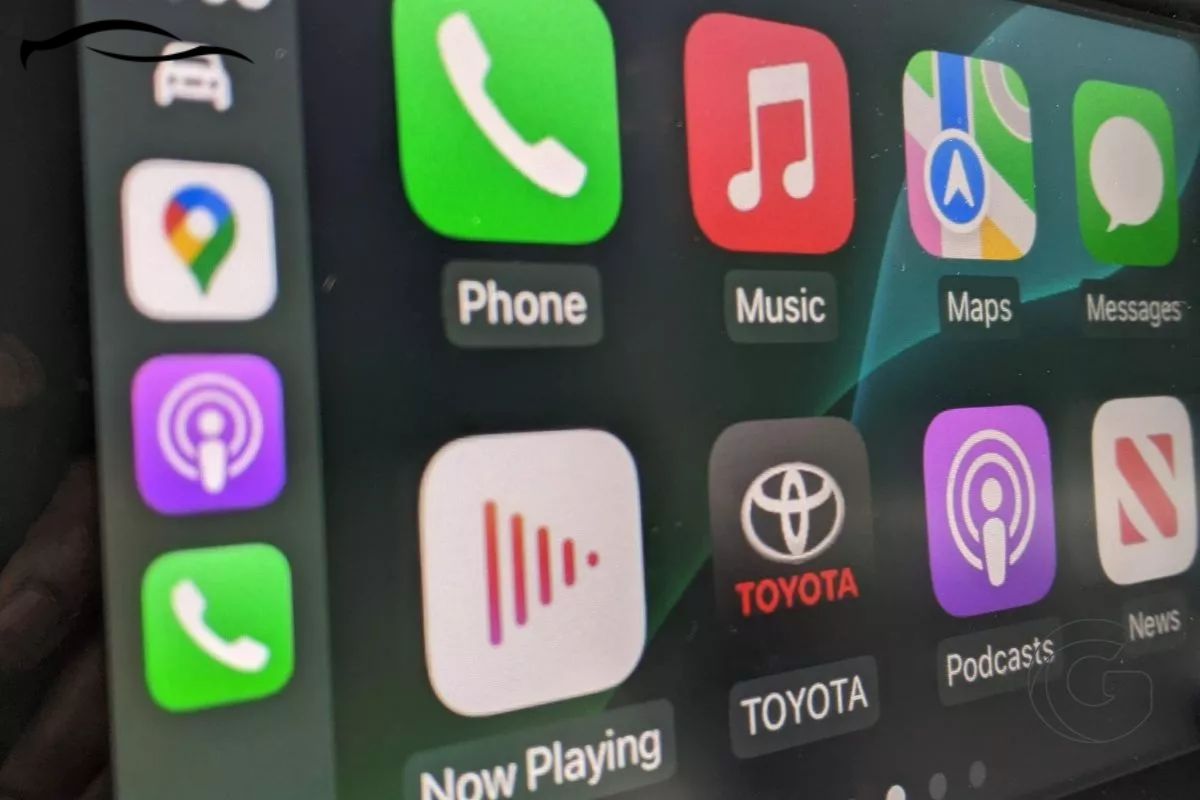
Next, connect your iPhone to your car’s CarPlay system. Use a lightning cable or Bluetooth, depending on your car model. Once connected, your iPhone screen will show the CarPlay interface on your car’s display.
Ensure your car supports CarPlay and that the connection is stable.
49% off Today's Exclusive Deals
Limited-time Exclusive Deals. Check current discount on Amazon.
Check Price on Amazon As an Amazon Associate I earn from qualifying purchases.Configuring Siri Settings For Carplay
After connecting, customize Siri settings for CarPlay. Open Settings on your iPhone and tap General, then CarPlay. Select your car from the list.
Enable or disable Siri suggestions and allow Siri to announce messages. These settings help Siri assist you better while driving.

Activating Siri While Driving
Activating Siri while driving with Apple CarPlay keeps your focus on the road. Siri helps you control music, navigation, and calls without touching your phone. It makes driving safer and easier. You can start Siri in several simple ways.
Using Voice Commands
Say “Hey Siri” aloud to activate Siri hands-free. Your voice must be clear and loud enough to hear over the car noise. This method lets you keep both hands on the wheel. It is the safest way to use Siri while driving.
Pressing The Carplay Dashboard Button
Tap the Siri button on your CarPlay screen to start Siri. The button usually looks like a microphone icon. This method is quick and easy when your eyes are on the road. Make sure to press the button gently to avoid distractions.
Using The Steering Wheel Controls
Most cars with CarPlay have a dedicated Siri button on the steering wheel. Press and hold this button to activate Siri. This keeps your hands in a natural driving position. Using steering wheel controls helps you stay safe and connected.
Common Siri Commands For Carplay
Siri on Apple CarPlay helps you control your car’s features with your voice. It keeps your hands on the wheel and eyes on the road. Knowing common Siri commands makes driving safer and easier. Here are useful commands you can try.
Navigation And Maps
Ask Siri to find places or show routes. Say, “Take me home” or “Find the nearest gas station.” Siri can give turn-by-turn directions. You can also ask for traffic updates or estimated arrival times.
Making Calls And Messaging
Use Siri to call or send messages without touching your phone. Say, “Call Mom” or “Send a text to John.” Siri reads incoming messages aloud. You can reply hands-free, keeping your focus on driving.
Playing Music And Podcasts
Tell Siri to play your favorite songs or podcasts. Commands like “Play jazz music” or “Start my news podcast” work well. Siri can pause, skip, or repeat tracks. You control audio without distractions.
Setting Reminders And Calendar Events
Siri helps manage your schedule on the road. Say, “Remind me to buy groceries” or “Add a meeting at 3 PM.” Siri sets reminders and calendar events quickly. Stay organized without stopping your drive.

Customizing Siri Responses
Customizing Siri responses makes your Apple CarPlay experience more personal and useful. You can change how Siri talks and interacts. This helps you hear exactly what you want. It also controls how much Siri interrupts your drive. Small changes make a big difference. Siri fits your style and needs better.
Adjusting Voice Feedback
Voice feedback controls when Siri speaks aloud. You can set Siri to always talk, talk only with headphones, or stay silent. This keeps your drive quiet if you prefer. Or, hear every response clearly when you need it. Adjust this in your iPhone’s settings under Siri & Search. Choose the feedback option that suits your driving style.
Changing Siri’s Language And Voice
Siri speaks many languages and voices. Pick the one you understand best. Change Siri’s language to match your own. You can also select a male or female voice. This makes Siri feel more natural. To change these, open Siri & Search settings. Tap Language or Siri Voice and explore options. Test different voices until you find the right one.
Managing Notifications Through Siri
Siri can read your notifications aloud while you drive. This helps you stay updated without looking at your phone. You control which apps send notifications to Siri. Turn off alerts from apps you don’t want to hear. Manage this in Notifications settings on your iPhone. Let Siri keep you informed, but not overwhelmed.
Troubleshooting Siri Issues
Siri on Apple CarPlay makes driving safer and easier. Sometimes, Siri may not work as expected. Troubleshooting these issues helps you get back on track quickly. This guide covers common problems and simple fixes.
Fixing Connection Problems
Check your iPhone’s Bluetooth and Wi-Fi settings. Both must be on for CarPlay to work. Restart your iPhone and your car’s system. Use a certified Lightning cable if connecting with a wire. Loose or damaged cables can cause issues. Make sure CarPlay is enabled in your car’s settings menu.
Resolving Voice Recognition Errors
Speak clearly and avoid background noise. Use short and simple commands. Train Siri by adjusting the language and voice settings on your iPhone. Reset Siri by turning it off and on in Settings. Clean your car’s microphone for better sound pickup. These steps improve Siri’s understanding of your requests.
Updating Software For Compatibility
Keep your iPhone updated to the latest iOS version. CarPlay also requires the latest car system updates. Check your car manufacturer’s website for update instructions. Software updates fix bugs and improve Siri’s performance. Regular updates ensure smooth and reliable CarPlay experience.
Tips For Safe Voice Control
Using Siri with Apple CarPlay can improve your driving experience. Voice control helps keep your hands on the wheel and eyes on the road. Safe use of Siri is important to avoid distractions and stay focused. Follow these tips for safe voice control to use Siri effectively and drive safely.
Minimizing Distractions
Talk to Siri clearly and calmly. Avoid long or complex commands. Keep your focus on driving, not on the screen. Use voice control only for simple tasks. Let Siri handle the details while you stay alert. Silence notifications that are not urgent. This reduces interruptions and keeps your attention on the road.
Using Siri For Hands-free Tasks
Ask Siri to send messages without typing. Make calls using voice commands instead of touching your phone. Use Siri to play music or podcasts safely. Get directions without looking at maps. Set reminders or alarms without stopping. These hands-free tasks save time and keep your hands free for driving.
Best Practices For Voice Commands
Speak clearly and use short sentences. Use specific commands like “Call John” or “Play jazz music.” Avoid slang or unclear words. Wait for Siri to finish before speaking again. Repeat commands if Siri does not understand. Practice using Siri in a quiet place before driving. This helps you get comfortable with voice control.
Frequently Asked Questions
How Do I Activate Siri On Apple Carplay?
To activate Siri on Apple CarPlay, press and hold the voice command button on your steering wheel. Alternatively, say “Hey Siri” if voice activation is enabled. This allows hands-free control for safer driving.
Can Siri Send Messages Using Apple Carplay?
Yes, Siri can send messages via Apple CarPlay. Simply say “Send a message to [contact name],” and dictate your message. Siri will confirm before sending, allowing you to stay connected without distractions.
What Siri Commands Work With Apple Carplay?
Siri supports calls, messages, navigation, music, and calendar commands on Apple CarPlay. You can ask Siri to play songs, get directions, or read texts aloud. This enhances your driving experience with hands-free convenience.
Is Siri Voice Activation Available Without Touching The Screen?
Yes, Siri voice activation works hands-free if “Hey Siri” is enabled on your iPhone. This feature lets you use Siri without pressing buttons, improving safety and ease of use while driving.
Conclusion
Using Siri with Apple CarPlay makes driving safer and easier. Just speak to control music, maps, and calls. No need to touch your phone while on the road. It helps you stay focused and hands-free. Try simple commands to get started quickly.
Siri listens and responds fast, saving time. Enjoy a smoother, more connected driving experience every day. Give it a go and see how it fits your routine. Safe driving is always the best choice.





