Are you tired of hunting for your favorite apps every time you use Apple CarPlay? Imagine having your most-used apps right where you want them, making your drive smoother and safer.
Rearranging apps on Apple CarPlay is easier than you think, and it can transform how you navigate, listen to music, or make calls on the road. You’ll discover simple steps to customize your CarPlay screen just the way you like it.

49% off Today's Exclusive Deals
Limited-time Exclusive Deals. Check current discount on Amazon.
Check Price on Amazon As an Amazon Associate I earn from qualifying purchases.Keep reading to take control of your driving experience with a personalized app layout that works perfectly for you.
Accessing Carplay Settings
Accessing CarPlay settings is the first step to rearrange your apps. This process is simple and quick. You control how your apps appear on the CarPlay screen from your iPhone.
By adjusting these settings, you can place your favorite apps in easy reach. This makes your driving experience safer and more convenient.
49% off Today's Exclusive Deals
Limited-time Exclusive Deals. Check current discount on Amazon.
Check Price on Amazon As an Amazon Associate I earn from qualifying purchases.Open Your Iphone Settings
Start by unlocking your iPhone. Tap the “Settings” icon to open the menu. This is where you find all your device controls.
Navigate To General Settings
Scroll down and tap “General.” This section holds many important options, including CarPlay settings.
Find And Select Carplay
Inside General, tap “CarPlay.” This opens a list of connected cars. Choose the car you want to customize.
Access The Carplay Home Screen Layout
Tap “Customize” to view your app layout. Here, you see all apps arranged as they appear in your car.
49% off Today's Exclusive Deals
Limited-time Exclusive Deals. Check current discount on Amazon.
Check Price on Amazon As an Amazon Associate I earn from qualifying purchases.Ready To Rearrange Your Apps
After accessing this screen, you can move apps around. Drag apps to new positions to set your preferred order.

Connecting Your Iphone
Connecting your iPhone to Apple CarPlay is the first step to rearranging your apps. It allows your phone to show its apps on your car’s display. This makes it easier to use your favorite apps while driving.
Apple CarPlay works with most iPhones running iOS 7.1 or later. The connection can be wired or wireless, depending on your car model.
Using A Usb Cable To Connect
Plug your iPhone into the car’s USB port with a Lightning cable. The car should recognize the phone and open CarPlay automatically. If it does not, look for the CarPlay icon on your car’s display and tap it.
Connecting Wirelessly Via Bluetooth
Turn on your car’s Bluetooth and Wi-Fi. On your iPhone, go to Settings and select “General.” Tap “CarPlay” and choose your car from the list. Follow the on-screen instructions to complete the connection.
Checking Car Compatibility
Not all cars support Apple CarPlay. Check your car’s manual or the manufacturer’s website. Make sure your car has CarPlay and supports the connection method you want to use.
Using The Iphone To Rearrange Apps
Using your iPhone to rearrange apps in Apple CarPlay is simple and fast. It gives you control over how apps appear on your car’s screen. This lets you put your favorite apps in easy reach. The process uses your iPhone’s settings. No need to touch the car’s display. This method is user-friendly and helps keep your CarPlay neat.
Opening Carplay Settings On Iphone
Start by unlocking your iPhone. Open the Settings app next. Scroll down and tap on “General.” Then find and select “CarPlay.” You will see a list of connected cars here. Choose your car from the list. This opens the CarPlay settings for that car. Now you can change app layouts and settings.
Dragging And Dropping Apps
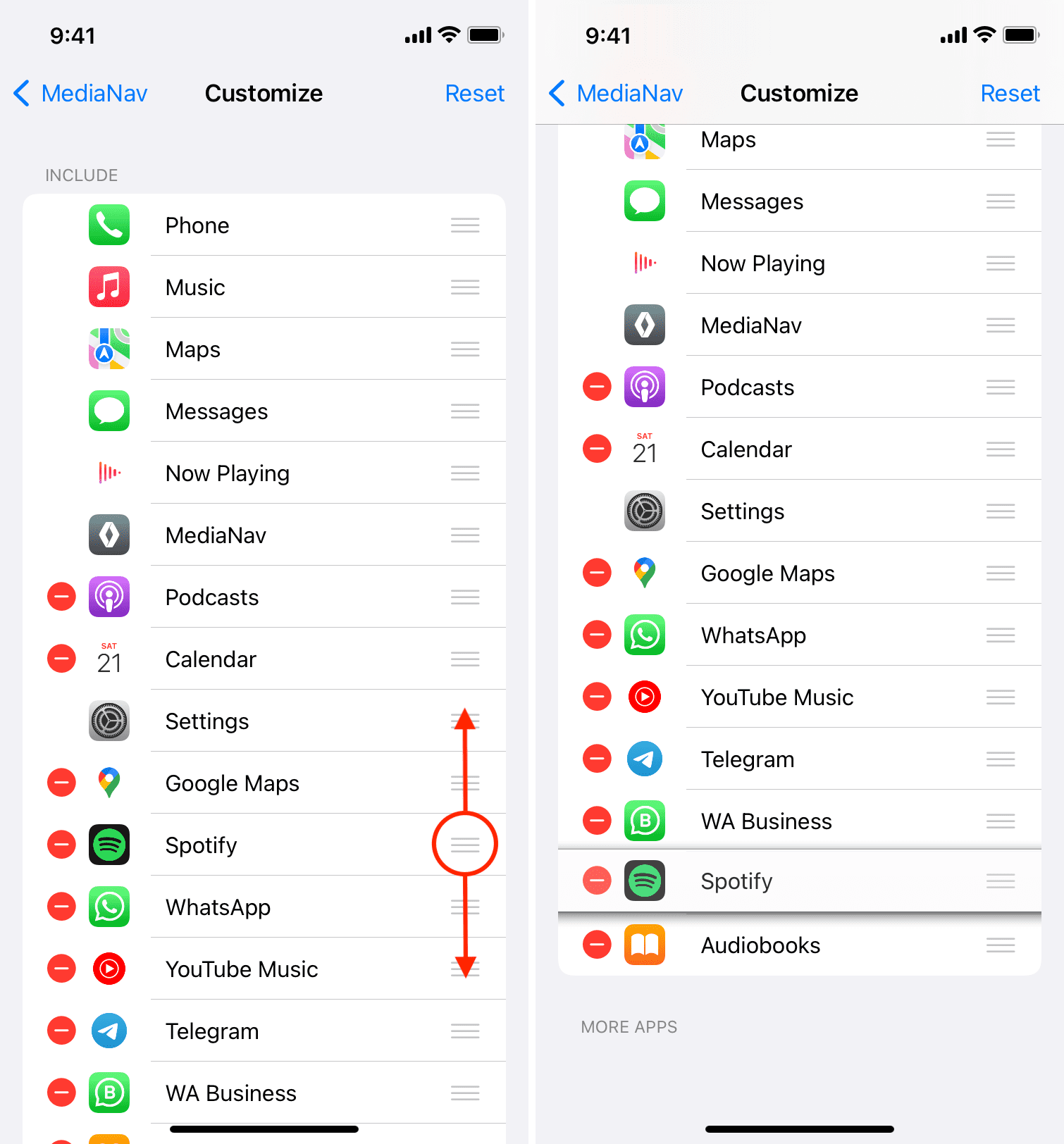
Inside CarPlay settings, you will find the app grid. This shows all apps currently on CarPlay. To rearrange, tap and hold an app icon. Drag it to a new spot in the grid. Drop the app where you want it. Repeat this for any other apps you want to move. The changes save automatically. Your car will show the new layout next time you connect.
Removing Apps From Carplay
To remove an app, tap the minus sign next to the app icon. The app disappears from your CarPlay screen. It does not delete the app from your iPhone. You can add it back later if needed. Removing apps helps reduce clutter and keeps important apps visible. This keeps your CarPlay screen clean and easy to use.
Customizing Via Your Vehicle’s Display
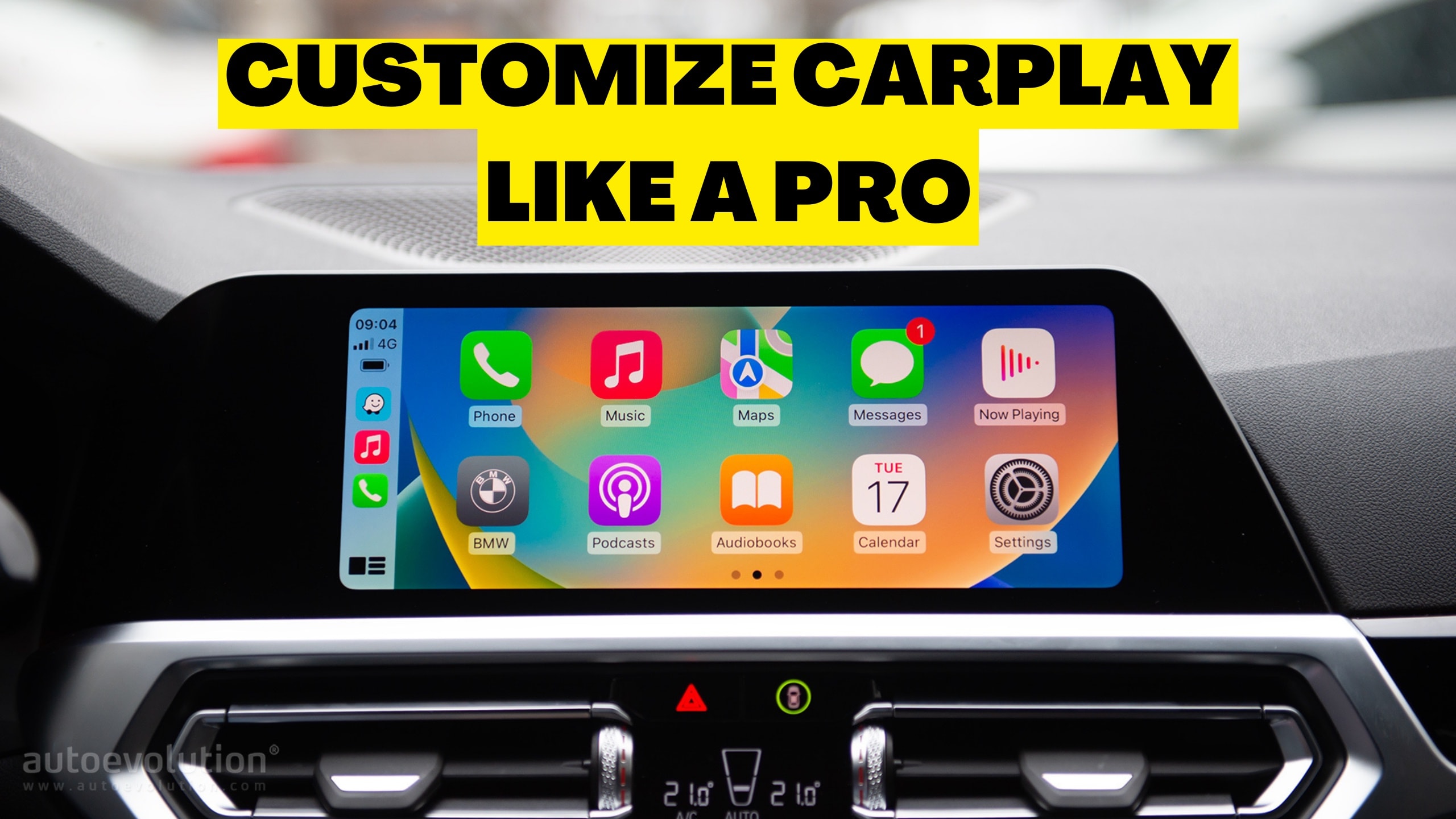
Customizing Apple CarPlay through your vehicle’s display lets you arrange apps quickly. This method uses the touchscreen or control knob in your car. It is simple and avoids using your iPhone during driving.
You can move apps around to suit your needs. Place the most used apps where they are easy to find. This makes your driving experience safer and more convenient.
Accessing The Carplay Interface
Start your car and connect your iPhone to the CarPlay system. The CarPlay screen will show on your vehicle’s display. Use the touchscreen or control knob to navigate the apps.
Selecting And Moving Apps
Touch and hold an app icon until it starts to wiggle or shows a move option. Drag the app to a new spot on the screen. You can also use the control knob to select and move apps.
Saving The New Layout
Once apps are in the order you want, press the home button or tap done. The system will save your changes automatically. Your custom app layout is ready to use every time.
Tips For Organizing Apps
Organizing apps on Apple CarPlay helps you find them quickly and drive safely. A neat layout reduces distractions and makes your journey smoother. Simple tricks can improve your app arrangement and usability.
Prioritizing Essential Apps
Put your most used apps at the front. Navigation, music, and phone apps should be easy to reach. This saves time and keeps your eyes on the road. Avoid placing rarely used apps in prime spots.
Grouping Similar Apps
Group apps by their function for quick access. For example, place all music apps together. Keep navigation apps in one area and communication apps in another. This organization makes your CarPlay screen logical and tidy.
Keeping The Interface Simple
Limit the number of apps shown on the main screen. Too many apps cause clutter and confusion. Use only the apps you need most while driving. A clean interface helps you focus on the road ahead.
Troubleshooting Common Issues
Sometimes, rearranging apps in Apple CarPlay does not go as planned. Common issues can stop apps from moving or changes from showing. Troubleshooting helps solve these problems quickly. It saves time and frustration during setup.
Below are easy steps to fix common CarPlay app rearrangement issues. Follow them to get your apps in the right order.
Apps Not Moving
Apps might not move if the touchscreen is unresponsive. Clean the screen gently to remove dirt or grease. Make sure your iPhone is connected properly to the CarPlay system. Restart your iPhone and car display to refresh the connection. Check if the app is allowed in CarPlay settings on your iPhone. Some apps may be restricted and cannot be rearranged.
Carplay Not Reflecting Changes
Changes may not show if CarPlay has a syncing issue. Disconnect your iPhone and reconnect it to the car. Restart both devices to clear temporary glitches. Update your iPhone and car system software to the latest version. Older software can cause syncing problems. Use the iPhone’s Settings app to confirm the app order. Sometimes the phone and car take time to sync changes.
Resetting Carplay Layout
Resetting the layout can fix stubborn problems with app order. Open your iPhone’s Settings, then tap General. Choose CarPlay and select your car. Tap “Reset” to clear custom app arrangements. This restores the default layout. After resetting, rearrange apps again to your preference. This step often solves persistent issues with app movement or display.
Updating Ios For Best Performance
Keeping your iPhone’s iOS updated is important for smooth Apple CarPlay use. Updates fix bugs and improve app functions. They help your CarPlay run faster and more reliably. New features often come with updates. These can improve how you rearrange apps on CarPlay. Staying current with iOS updates ensures the best experience.
How To Check For Ios Updates
Open the Settings app on your iPhone. Scroll down and tap “General.” Then tap “Software Update.” Your phone will check for updates. If an update is available, you will see a description. Tap “Download and Install” to start the process.
Tips For Updating Ios Safely
Make sure your iPhone is connected to Wi-Fi. Plug your phone into a power source. This prevents battery drain during the update. Back up your data before starting. This keeps your information safe if something goes wrong. Follow the on-screen instructions to complete the update.
Benefits Of Updating Ios For Carplay
Updates improve app compatibility with CarPlay. They fix issues that may cause app crashes. New updates can add support for more apps. Performance enhancements make app rearranging smoother. Security updates protect your data while using CarPlay.
Frequently Asked Questions
How Can I Rearrange Apps In Apple Carplay?
To rearrange apps, connect your iPhone to CarPlay. Open Settings > General > CarPlay. Select your car, then drag apps to reorder them. Changes reflect immediately on your CarPlay screen.
Can I Customize App Layout On Apple Carplay?
Yes, you can customize the app layout. Use the CarPlay settings on your iPhone to drag and drop apps, placing your favorites where you want for easy access.
Does Rearranging Apps Affect Iphone Home Screen?
No, rearranging apps on CarPlay does not change your iPhone’s home screen. The app layout is unique to CarPlay and only affects the in-car display.
Is It Possible To Remove Apps From Apple Carplay?
Yes, you can remove apps from CarPlay via iPhone settings. Go to Settings > General > CarPlay, select your vehicle, and tap the minus icon next to apps to remove.
Conclusion
Rearranging apps in Apple CarPlay helps you drive safer and smarter. You can quickly find your favorite apps without distractions. Changing the order is easy and takes just a few steps. Personalize your CarPlay screen to fit how you use your phone.
Spend less time searching and more time enjoying your drive. Try adjusting your apps today to see the difference. Your driving experience will feel smoother and more organized. Simple changes can make a big impact on your daily trips.





