Pioneer DMH-WT8600NEX troubleshooting usually comes down to power, wiring, settings, or firmware issues.
If you have ever stared at a blank screen, a frozen menu, or a Bluetooth connection that refuses to cooperate, you are not alone. I have worked through enough car audio setups to know that the Pioneer DMH-WT8600NEX troubleshooting process gets much easier when you break it into simple checks and fix the basics first. This guide walks you through the most common problems, the real causes behind them, and the practical steps that actually help.

49% off Today's Exclusive Deals
Limited-time Exclusive Deals. Check current discount on Amazon.
Check Price on Amazon As an Amazon Associate I earn from qualifying purchases.
Common Pioneer DMH-WT8600NEX Problems and What They Usually Mean
The Pioneer DMH-WT8600NEX is a feature-rich floating screen receiver, so small setup mistakes can feel bigger than they are. In many real-world cases, the issue is not a bad unit at all. It is usually a loose harness, a weak ground, an outdated firmware version, or a setting that changed without you noticing.
Here are the problems people run into most often:
49% off Today's Exclusive Deals
Limited-time Exclusive Deals. Check current discount on Amazon.
Check Price on Amazon As an Amazon Associate I earn from qualifying purchases.• The unit will not power on
This usually points to wiring, fuse, ignition source, or ground issues.
• The screen is on but frozen
This can happen after a software glitch, a bad app connection, or a failed start-up sequence.
• Bluetooth will not pair or drops often
Interference, old pairings, or phone settings are often the cause.
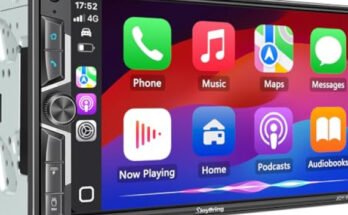
• Apple CarPlay or Android Auto does not launch
Cable problems, phone permissions, or firmware bugs are common here.
49% off Today's Exclusive Deals
Limited-time Exclusive Deals. Check current discount on Amazon.
Check Price on Amazon As an Amazon Associate I earn from qualifying purchases.• No sound from speakers
This often involves amp settings, RCA connections, mute state, or speaker wiring.
• Camera or steering wheel controls are not working
These usually need correct interface setup and vehicle-specific configuration.
A good rule I learned early is this: do not assume the head unit is broken until you check the basics. That simple habit has saved a lot of time and a few unnecessary returns.

Before You Start Troubleshooting the Pioneer DMH-WT8600NEX
Before digging deep, take a calm, step-by-step approach. Think of the unit like a small computer in a moving metal box. It needs stable power, clean signals, and correct settings to work the way it should.
Start with these quick checks:
• Turn the car fully off, then restart it
A reset in the vehicle can clear temporary glitches.
• Inspect the fuse
Check both the vehicle fuse and any inline fuse in the radio harness.
• Confirm the wiring harness is fully seated
Even one loose connector can cause strange behavior.
• Check the ground wire
A weak ground can cause boot loops, noise, or random shutdowns.
• Test with a known good USB cable
Cheap or damaged cables cause a surprising number of CarPlay and Android Auto issues.
• Remove extra devices
Unplug add-ons like USB hubs, adapters, or external modules during testing.
I have seen people chase software problems for hours when the real issue was a slightly loose power lead. That is why a careful visual inspection should always come first in Pioneer DMH-WT8600NEX troubleshooting.

How to Fix Power and Startup Issues
If the Pioneer DMH-WT8600NEX does not turn on, turns on and off, or keeps rebooting, focus on power delivery first. These symptoms often mean the unit is not getting stable voltage.
Try these steps:
-
Check the yellow constant power wire
This wire keeps memory and core settings alive. If it is disconnected or weak, the unit may act odd. -
Check the red accessory wire
If this wire is not getting ignition power, the unit may never fully wake up. -
Verify the black ground wire
The ground should be tight, clean, and attached to bare metal. -
Inspect the fuse
Replace any blown fuse with the exact same rating. -
Test the battery voltage
A weak car battery can create unstable startup behavior, especially during cold mornings. -
Reseat the harness
Unplug and reconnect the radio harness and all related adapter plugs.
If the unit still fails, test it on a bench power supply or have an installer confirm voltage at the harness. In my experience, intermittent power problems are often hidden in the wiring, not inside the receiver itself.
Fixing a Frozen or Unresponsive Screen
A frozen screen can feel alarming, but it is often a temporary software issue. The Pioneer DMH-WT8600NEX uses modern processing, so like any smart device, it can hang if an app, update, or accessory causes trouble.
Use this process:
• Do a soft reset
Use the reset function if available on your setup.
• Power cycle the vehicle
Turn the car off, open the door, wait a minute, then restart.
• Disconnect USB devices
A bad flash drive or cable can freeze the system.
• Remove paired phones
Delete old Bluetooth pairings and reconnect from scratch.
• Update firmware
Firmware updates can fix bugs and improve stability.
• Check for external accessories
Rear cameras, adapters, and steering wheel interfaces can sometimes trigger startup delays.
A frozen screen is a lot like a jammed drawer. You usually do not need to replace the whole cabinet. You just need to remove the thing blocking it.
Pioneer DMH-WT8600NEX Bluetooth Troubleshooting
Bluetooth issues are among the most common Pioneer DMH-WT8600NEX troubleshooting concerns. Pairing problems often come from old profiles, phone settings, or too many devices saved in memory.
Try these fixes:
• Forget the unit on your phone
Then delete the phone from the Pioneer memory too.
• Reboot both devices
Restart the receiver and the smartphone.
• Keep the phone close during pairing
Range matters during the first connection.
• Turn off other Bluetooth devices nearby
Smartwatches, tablets, and older pairings can interfere.
• Check call and audio permissions
Your phone must allow both media and contact sharing if you want full function.
• Update your phone’s software
Some Bluetooth bugs come from the phone, not the stereo.
One mistake I made years ago was assuming the radio was the problem when the phone had dozens of old Bluetooth pairings saved. Clearing those out often fixes the issue fast.
CarPlay and Android Auto Problems
When Apple CarPlay or Android Auto will not launch, the issue is usually not the whole receiver. More often, it is the cable, USB port, phone settings, or firmware. This is one of the most searched parts of Pioneer DMH-WT8600NEX troubleshooting because the system is supposed to feel seamless.
Check these points:
• Use an original or high quality USB cable
Low-grade cables may charge but fail data transfer.
• Use the correct USB port
Some installs route only one port for smartphone integration.
• Unlock your phone before plugging it in
Many phones need permission after connection.
• Check CarPlay or Android Auto settings on the phone
Make sure the feature is enabled.
• Clear app cache or connection history
This can help when the phone remembers a bad handshake.
• Update the receiver firmware
Compatibility issues often improve after an update.
If your phone charges but never starts projection, that is a strong sign the cable is power-only or damaged. I have seen that exact issue more times than I can count.
Fixing No Sound, Low Sound, or Distorted Sound
Sound problems can be frustrating because the screen may work perfectly while audio stays silent. With the Pioneer DMH-WT8600NEX, this often points to settings, amp integration, or speaker wiring rather than the head unit itself.
Look at these areas:
• Check mute and volume limits
It sounds simple, but these are easy to overlook.
• Confirm the source is playing audio
A video app or map app may not be outputting sound the way you expect.
• Inspect RCA connections
Loose preamp cables can cause no output or weak sound.
• Review amplifier remote turn-on wiring
If you use an external amp, it needs the proper trigger signal.
• Verify speaker wiring
A short or open wire can silence a channel.
• Check audio settings
Balance, fader, EQ, and crossover settings can make the sound seem broken.
If the sound is distorted only at higher volume, the issue may be gain staging. Too much gain can make a good system sound rough, almost like a speaker cone is trying to shout through a pillow.
Camera and Steering Wheel Control Troubleshooting
Backup cameras and steering wheel controls often depend on extra modules and proper vehicle integration. That means the Pioneer DMH-WT8600NEX may be fine, but the interface behind it may need adjustment.
For camera issues:
• Confirm the reverse wire is connected
The radio needs to know when the car is in reverse.
• Check the camera power source
A camera with unstable power may show a black screen.
• Inspect the video cable
Pinched or damaged RCA video cables are common trouble spots.
• Verify camera settings in the menu
The input may need to be enabled.
For steering wheel controls:
• Make sure the interface module is compatible
Different vehicles need different adapters.
• Relearn the button mapping
The controls may need to be programmed again.
• Check the key wires
Incorrect wire pairing can stop function completely.
• Confirm the module has proper power and ground
An interface can fail if its own power feed is weak.
I like to remind people that these add-on systems are a chain. If one link is wrong, the whole feature can look dead even when the receiver is working fine.
Firmware Updates and Why They Matter
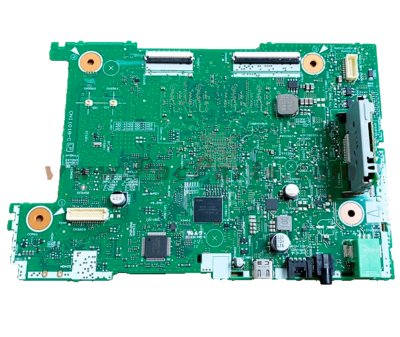
Firmware updates are one of the smartest maintenance steps in Pioneer DMH-WT8600NEX troubleshooting. They can improve stability, fix bugs, and improve compatibility with newer phones and accessories.
Here is a safe update approach:
-
Check the current firmware version
Compare it with the latest available version. -
Use the correct file format
Follow the update instructions carefully. -
Use a clean USB drive
Format it properly before loading the update. -
Keep the vehicle powered
Do not let the unit shut off during the update. -
Do not remove the USB drive early
Wait until the update fully completes.
A bad update attempt can create more problems than it solves, so patience matters here. I always tell people to treat firmware updates like surgery, not like clicking “next” a few times and hoping for the best.
Factory Reset: When and How to Use It
A factory reset is useful when the unit has strange settings, repeated freezes, or persistent connection problems. It clears custom settings and puts the receiver back to a clean start.
Use a factory reset when:
• Bluetooth keeps failing
• CarPlay or Android Auto refuses to launch
• The screen behavior is inconsistent
• Audio settings seem corrupted
• You want to start fresh after an installation change
Important things to remember:
• Save your settings first if possible
• Expect to re-enter sound and vehicle settings
• Re-pair all devices after the reset
• Recheck camera and steering wheel settings
A reset is not magic, but it often clears software clutter the same way restarting a phone can solve half of its weird problems.
Preventing Future Pioneer DMH-WT8600NEX Issues
Good troubleshooting is helpful, but prevention is even better. Many problems with the Pioneer DMH-WT8600NEX can be avoided with clean installation habits and regular checks.
Use these best practices:
• Use quality wiring and adapters
Cheap parts fail more often and create confusing symptoms.
• Secure all connections
Vibration in a vehicle can loosen weak plugs over time.
• Keep firmware current
Updates can prevent known bugs.
• Use a trusted USB cable
This matters more than most people realize.
• Avoid overloading the system
Too many add-ons can create interference.
• Check the ground during installation
A solid ground prevents many future headaches.
Think of your stereo install like a roof. If the base is sealed well, you do not spend the rainy season chasing leaks.
Frequently Asked Questions of Pioneer DMH-WT8600NEX Troubleshooting
Why does my Pioneer DMH-WT8600NEX keep restarting?
This usually points to unstable power, a weak ground, or a wiring issue. It can also happen if an external accessory is drawing too much power or causing interference.
Why is my Pioneer DMH-WT8600NEX screen black but the unit is on?
A black screen can come from a loose display connection, dimming settings, or a temporary software fault. Check the brightness settings first, then inspect the wiring and try a reset.
Why won’t my phone connect to CarPlay or Android Auto?
The most common causes are a bad USB cable, the wrong port, or phone permission settings. Updating firmware and trying a different cable often solves the problem quickly.
Why is there no sound from my Pioneer DMH-WT8600NEX?
No sound usually means a mute setting, amp trigger issue, or speaker wiring problem. If you use an external amplifier, confirm it is turning on properly.
How do I reset my Pioneer DMH-WT8600NEX?
You can usually perform a reset from the unit’s settings or with the reset button, depending on your setup. After the reset, you will need to re-pair devices and recheck your audio settings.
Should I update the firmware if everything seems fine?
Yes, if Pioneer has released a stable update for your version, it can help prevent future bugs. Just make sure you follow the instructions carefully so the update finishes without interruption.
Conclusion
Pioneer DMH-WT8600NEX troubleshooting becomes much easier when you work from the basics upward. Start with power, ground, cables, and settings before assuming the receiver has failed. In a lot of cases, the fix is simple once you know where to look.
If you take one thing from this guide, let it be this: slow, careful checks save time, money, and frustration. Use the steps above, keep your firmware current, and do not ignore small wiring issues. If this helped, bookmark it, share it with a fellow installer, or leave a comment with the problem you are facing.