The Dual Electronics XGPS150A usually troubleshoots best by checking power, Bluetooth pairing, GPS signal, and app settings first.
If you use the Dual Electronics XGPS150A, you already know it can be a very handy GPS receiver for tablets, phones, and navigation apps. I’ve worked through enough connection and signal issues with portable GPS gear to know that most XGPS150A problems are simple once you narrow them down. In this guide, I’ll walk you through Dual Electronics XGPS150A troubleshooting in a clear, practical way so you can fix the issue faster and get back to accurate location tracking.

49% off Today's Exclusive Deals
Limited-time Exclusive Deals. Check current discount on Amazon.
Check Price on Amazon As an Amazon Associate I earn from qualifying purchases.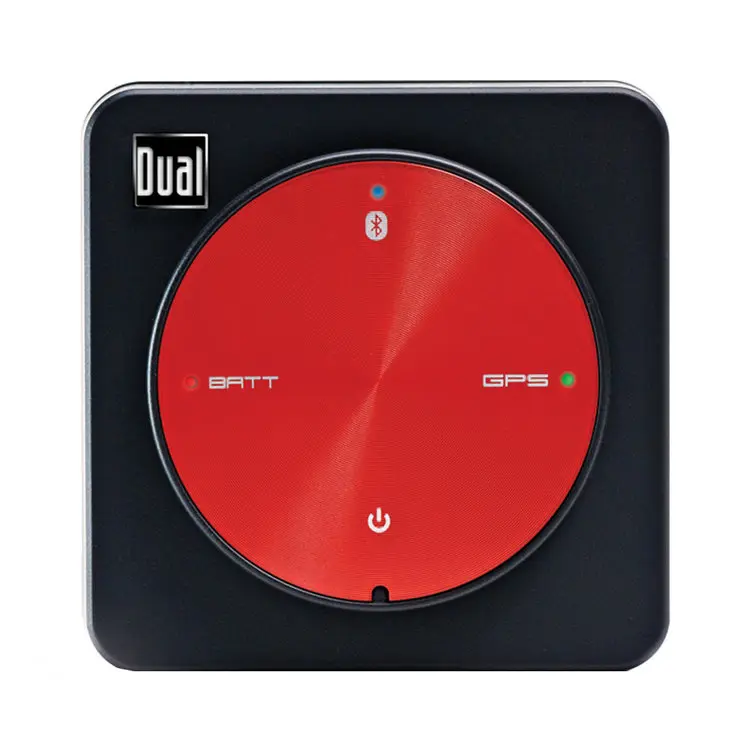
What the Dual Electronics XGPS150A Does and Why Problems Happen
The Dual Electronics XGPS150A is a portable Bluetooth GPS receiver. It sends location data to a paired device, such as an iPhone, iPad, Android tablet, or laptop. People use it when built-in GPS is weak, slow, or not available.
When the XGPS150A acts up, the cause is often one of a few common things:
49% off Today's Exclusive Deals
Limited-time Exclusive Deals. Check current discount on Amazon.
Check Price on Amazon As an Amazon Associate I earn from qualifying purchases.- Low battery or failed charging
- Bluetooth pairing issues
- Weak satellite view
- App permission problems
- Outdated firmware or software
- Interference from nearby devices
In my experience, most users assume the device is broken when it is really just not paired, not charged enough, or not getting a clean satellite view. That is good news, because those problems are usually fixable.

First Things to Check Before Deep Troubleshooting
Before you dive into advanced steps, start with the basics. This saves time and often solves the issue right away.
- Make sure the XGPS150A is fully charged
- Confirm the power light is on
- Check that Bluetooth is enabled on your phone or tablet
- Make sure the GPS receiver is paired with only one device at a time
- Move outdoors or near a window for a better signal
- Close other apps that may be using location services
A simple reset of your expectations helps too. GPS devices need time, space, and a good sky view. They are a bit like trying to hear a quiet voice in a crowded room. If the signal is blocked, the receiver may still be working, but the location will look wrong or delayed.
49% off Today's Exclusive Deals
Limited-time Exclusive Deals. Check current discount on Amazon.
Check Price on Amazon As an Amazon Associate I earn from qualifying purchases.Dual Electronics XGPS150A Troubleshooting by Problem Type
The Device Will Not Turn On
If your Dual Electronics XGPS150A will not power up, the battery is the first place to look. Plug it into a known working charger and give it time to charge fully.
Try these steps:
- Use a different USB cable
- Use a wall charger instead of a laptop port
- Let it charge for at least an hour
- Check for any charging light or indicator
- Press and hold the power button again after charging
I have seen people plug in a GPS receiver and assume it is charging when the cable is actually the problem. A bad cable can act like a dead battery. That small detail wastes a lot of time.
Bluetooth Pairing Fails
Bluetooth pairing is one of the most common Dual Electronics XGPS150A troubleshooting issues. If your device does not show up or will not connect, clear the old pairing and try again.
Follow these steps:
- Turn Bluetooth off on your phone or tablet.
- Power off the XGPS150A.
- Turn Bluetooth back on.
- Power on the receiver.
- Search for nearby Bluetooth devices again.
- Pair with the XGPS150A and confirm the connection.
If the receiver has been paired with another device before, remove that old connection first. Bluetooth devices can act stubborn when they are “remembering” a different host. This is one of those small tech habits that causes big frustration.
The GPS Signal Is Weak or Missing
If the app shows no satellites or poor accuracy, the receiver may not have a clear view of the sky. GPS signals do not like walls, roofs, tunnels, or heavy tree cover.
Try this:
- Move outside into an open area
- Hold the receiver steady for a few minutes
- Avoid standing near tall buildings
- Keep the device away from metal surfaces
- Wait for the receiver to lock onto satellites
The first fix I always suggest is patience. A cold GPS start can take longer than expected, especially if the device has been off for a while or moved a long distance since the last use. Think of it like waking up and trying to remember where you are.
Location in the App Is Wrong or Lagging
Sometimes the XGPS150A connects fine, but the app still shows a wrong position. That usually points to app settings, permission issues, or a stale GPS lock.
Check the following:
- Location permissions are turned on for the app
- The app is allowed to use precise location
- Bluetooth access is enabled
- The app is set to use external GPS data
- The app is fully updated
If you are using navigation, mapping, or field service software, make sure it supports an external GPS receiver. I have seen users test the receiver in the wrong app and think the device failed. In reality, the app simply was not reading the external GPS feed correctly.
Battery Drains Too Fast
If the XGPS150A battery seems to die too quickly, age may be part of the story. Rechargeable batteries naturally wear down over time.
To reduce battery drain:
- Turn the receiver off when not in use
- Charge it fully before trips
- Keep it out of extreme heat
- Avoid leaving it stored empty for long periods
- Replace the battery if performance has dropped sharply
Battery life is one of those issues that sneaks up on you. At first, it is just a little shorter. Then one day, the device stops lasting through a normal outing. That gradual decline is usually a battery wear issue, not a signal problem.
The Receiver Works Intermittently
Intermittent performance can be frustrating because it feels random. In many cases, the problem is a loose cable, weak battery, or Bluetooth drop.
Try these fixes:
- Restart both the receiver and the paired device
- Forget the Bluetooth connection and pair again
- Keep the receiver close to the host device
- Test in a different outdoor location
- Check for interference from other wireless devices
Intermittent problems are often the hardest to diagnose because they come and go. When that happens, I recommend testing one change at a time. That way you know what actually fixed it.
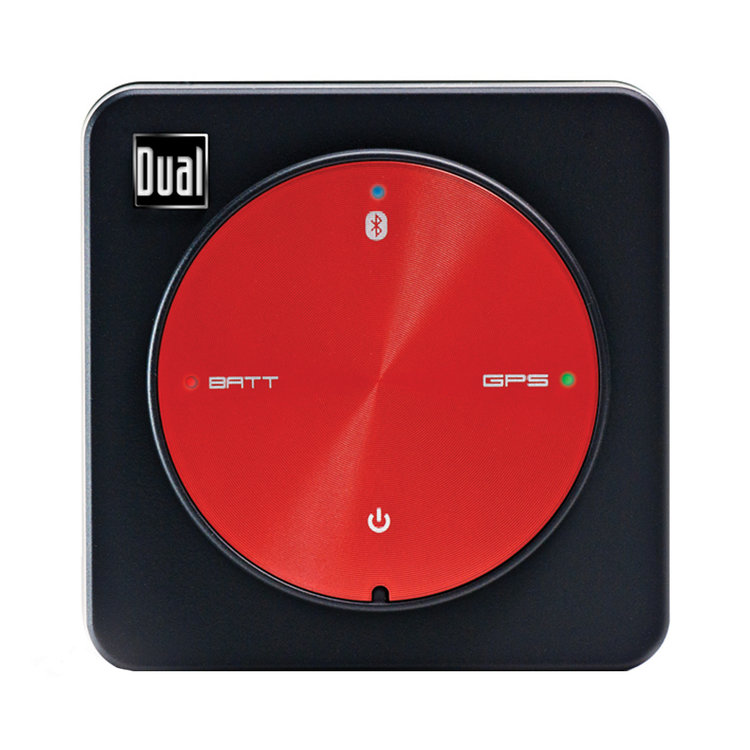
Step-by-Step Troubleshooting Workflow for the XGPS150A
When you want a clean, practical approach, use this order. It prevents guesswork and helps you isolate the fault.
- Charge the receiver fully.
- Restart the receiver and your phone or tablet.
- Turn Bluetooth off and back on.
- Remove old pairings and reconnect.
- Test outdoors in open sky.
- Check app permissions and app support.
- Try another device or another app.
- If needed, update software or reset settings.
This is the same sequence I use when helping someone with Dual Electronics XGPS150A troubleshooting. It starts with the easiest fixes first and moves toward deeper causes only if needed. That saves time and reduces the chance of changing too many things at once.
App Settings That Often Get Overlooked
A lot of people focus on the hardware and forget the app. But the app is the final place where the GPS data shows up, so it matters just as much.
Look for settings like:
- External GPS input
- Location source
- Mock location or developer mode on Android
- Precise location permission on iPhone or iPad
- Background location access
- Map refresh rate
If your app has a setup guide for external receivers, follow it carefully. Even a good GPS unit can look “broken” if the app is not configured to accept outside location data. That is one of the most common hidden issues in Dual Electronics XGPS150A troubleshooting.
How to Improve Signal Accuracy
Once the receiver is connected, you still want the best possible accuracy. Small changes can make a real difference.
Use these tips:
- Place the receiver where it can see the sky
- Avoid covering it with bags or dashboards
- Keep it away from other electronics
- Let it settle for several minutes before judging accuracy
- Use it in open outdoor areas when possible
I like to think of GPS accuracy like a conversation in a quiet room. The cleaner the environment, the clearer the result. The XGPS150A performs much better when the signal path is open and stable.
When a Factory Reset or Replacement Makes Sense
Sometimes you do everything right and the device still does not work as expected. At that point, the issue may be hardware failure, worn battery life, or internal damage.
A reset or replacement may be worth considering if:
- The receiver will not charge at all
- It will not power on after using known good cables
- Bluetooth never appears on any device
- It loses connection even after repeated pairing
- Battery life has become unusably short
Be honest about the age and condition of the unit. Portable electronics do not last forever, and GPS receivers are no exception. If your XGPS150A has been heavily used for years, replacement can be the most practical fix.
Common Mistakes to Avoid
A few mistakes can make Dual Electronics XGPS150A troubleshooting much harder than it needs to be.
- Pairing with multiple devices at the same time
- Testing indoors and expecting a strong GPS lock
- Ignoring battery health
- Using a damaged charging cable
- Forgetting to grant app permissions
- Skipping app updates
- Assuming the receiver is faulty before checking settings
I have made some of these mistakes myself, especially the indoor testing one. GPS gear can seem broken inside a house, but outside it works fine. That is why location hardware needs real-world testing, not just desk testing.
Practical Real-Life Example
A common case I have seen is a user who says the XGPS150A is “not working” because the map keeps jumping. After checking, the receiver was fully charged and paired correctly. The real issue was that the user was standing near tall buildings, and the app did not have precise location permissions enabled.
Once we moved to an open parking lot and fixed the app settings, the accuracy improved right away. That kind of outcome is very common with Dual Electronics XGPS150A troubleshooting. The device may be fine, but the environment or software setup is getting in the way.
Frequently Asked Questions of Dual Electronics XGPS150A Troubleshooting
Why is my Dual Electronics XGPS150A not pairing with my phone?
This is usually caused by an old Bluetooth connection, low battery, or a pairing conflict with another device. Turn Bluetooth off and back on, forget the old pairing, and try again with only one host device nearby.
Why does my XGPS150A connect but show no GPS signal?
The receiver may not have a clear view of the sky, which blocks satellite reception. Move outdoors and give it a few minutes to acquire satellites.
How do I know if the battery is the problem?
If the unit will not power on, charges slowly, or dies very quickly after a full charge, battery health may be the issue. Test with a known good cable and charger before assuming the battery has failed.
Does the XGPS150A work with all GPS apps?
Not always. Some apps support external GPS receivers, while others rely only on the phone’s built-in location system. Check the app’s settings and support notes to confirm compatibility.
Can I use the XGPS150A indoors?
You can test it indoors, but GPS performance is usually poor inside buildings. For a reliable fix and accurate location data, use it outdoors or near a clear window.
Conclusion
Dual Electronics XGPS150A troubleshooting becomes much easier when you focus on the basics first: power, Bluetooth, app settings, and satellite view. Most problems are caused by simple setup issues, not a damaged receiver. Once you know how to check each part in order, you can usually solve the issue without stress.
If your XGPS150A is acting up, work through the steps in this guide one by one and test changes in a clear outdoor area. That method will save you time and help you spot the real cause faster. If this guide helped, keep it handy, share it with someone who needs it, or leave a comment with the issue you are seeing.