Imagine driving without the hassle of tangled wires or fumbling with your phone. Wireless Apple CarPlay lets you connect your iPhone to your car’s display effortlessly, giving you easy access to maps, music, calls, and messages—all hands-free.
If you want to know exactly how to set it up and make the most of this smart feature, you’re in the right place. Keep reading, and you’ll discover simple steps and insider tips to transform your driving experience instantly.

49% off Today's Exclusive Deals
Limited-time Exclusive Deals. Check current discount on Amazon.
Check Price on Amazon As an Amazon Associate I earn from qualifying purchases.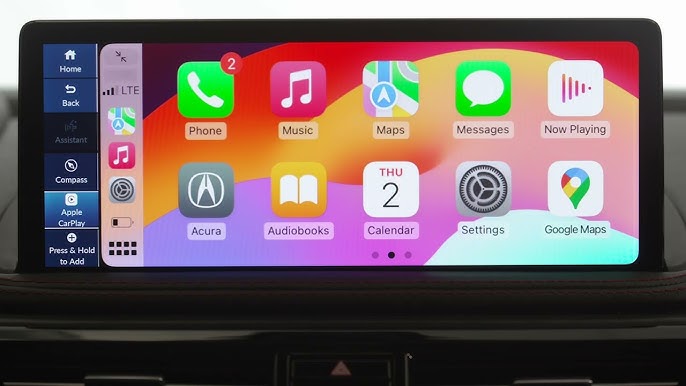
Setting Up Wireless Apple Carplay
Setting up Wireless Apple CarPlay is simple. This feature lets you connect your iPhone to your car without cables. Enjoy hands-free control of apps, music, and navigation. Follow these steps to get started quickly and safely.
Checking Car Compatibility
Not all cars support Wireless Apple CarPlay. Check your car’s manual or visit the manufacturer’s website. Look for models that offer wireless CarPlay or Bluetooth support. Newer cars often include this feature by default.
Preparing Your Iphone
Make sure your iPhone runs iOS 9 or later. Turn on Wi-Fi and Bluetooth in your phone’s settings. Disable any active airplane mode. Keep your phone unlocked during the setup process for smooth connection.
49% off Today's Exclusive Deals
Limited-time Exclusive Deals. Check current discount on Amazon.
Check Price on Amazon As an Amazon Associate I earn from qualifying purchases.Connecting For The First Time
Start your car and activate its infotainment system. On your iPhone, go to Settings and tap “General.” Select “CarPlay,” then “Available Cars.” Choose your car from the list. Follow on-screen prompts to complete the connection.
Navigating The Interface
Navigating the Wireless Apple CarPlay interface is simple and user-friendly. It helps you stay focused on the road while using your iPhone features. The screen shows your apps clearly and allows easy control.
Understanding how to access apps, use voice commands, and customize your home screen makes your drive smoother. Here is how to get started.
Accessing Apps
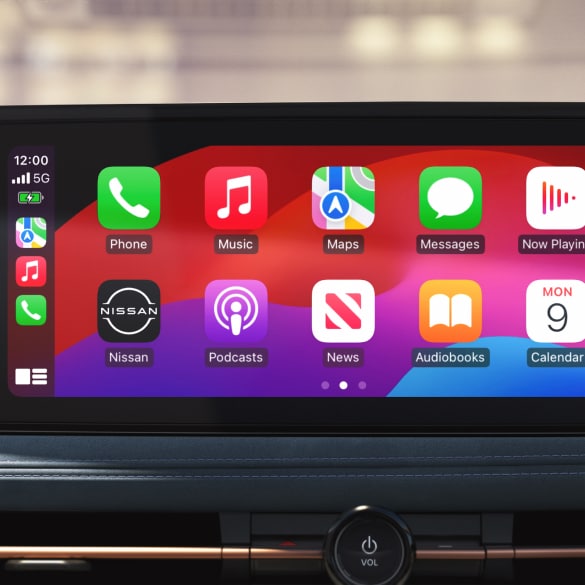
Tap the icons on the CarPlay screen to open your apps quickly. Common apps like Maps, Music, and Messages appear on the main screen. Swipe left or right to see more apps. The layout looks similar to your iPhone home screen.
49% off Today's Exclusive Deals
Limited-time Exclusive Deals. Check current discount on Amazon.
Check Price on Amazon As an Amazon Associate I earn from qualifying purchases.Apps designed for CarPlay are easy to use. They show only essential information for safe driving. You can launch apps with a single tap. This helps you avoid distractions.
Using Voice Commands
Press and hold the voice control button on your steering wheel or CarPlay screen. Speak your command clearly. Say things like “Call Mom,” “Play jazz music,” or “Get directions home.” Siri will respond and perform the task.
Voice commands keep your hands on the wheel and eyes on the road. They work well for making calls, sending texts, and controlling apps. Practice simple commands to use this feature confidently.
Customizing Your Home Screen
Go to your iPhone and open the Settings app. Tap “General” then “CarPlay.” Select your car from the list. Here, you can rearrange app icons by dragging them. Remove apps you do not use often.
Customizing your home screen helps you find apps faster. Choose only the apps you need while driving. This keeps the interface clean and easy to navigate.
Optimizing Performance
Wireless Apple CarPlay offers great convenience while driving. To enjoy its full benefits, optimize its performance. A smooth experience depends on a strong connection and updated software. Regular care keeps everything working well and avoids frustration.
Maintaining Strong Connection
Keep your iPhone close to your car’s infotainment system. Avoid objects that block the wireless signal. Turn off other Bluetooth devices that may interfere. Use your car’s original or certified wireless adapter. A steady connection reduces lag and drops.
Troubleshooting Common Issues
Restart your iPhone and car system if CarPlay stops working. Turn off Bluetooth and Wi-Fi, then turn them back on. Forget the car from your iPhone’s Bluetooth list and reconnect. Check for physical damage on ports and cables. Simple fixes often solve connection problems fast.
Updating Software Regularly
Keep your iPhone’s iOS updated to the latest version. Check your car’s infotainment system for software updates too. Updates fix bugs and improve CarPlay performance. Regular updates ensure compatibility and add new features. A current system runs smoother and more reliably.

Maximizing Safety And Convenience
Using Wireless Apple CarPlay enhances both safety and convenience while driving. It helps keep your focus on the road and your hands on the wheel. The system connects your iPhone to your car’s display without cables. This allows easy access to apps, calls, messages, and navigation.
Here are some ways to maximize safety and convenience with Wireless Apple CarPlay.
Hands-free Controls
Hands-free controls let you use voice commands to operate your phone. You can ask Siri to make calls, send texts, or play music. This keeps your eyes on the road and your hands free. Touch controls on the car’s screen are larger and simpler to use. This reduces distractions while driving.
Managing Notifications
Wireless Apple CarPlay shows important notifications without interrupting your drive. Calls and messages appear on the screen with quick reply options. You can customize which alerts you want to see. This helps avoid unnecessary distractions and keeps you focused on driving.
Using Apple Carplay With Other Devices
Apple CarPlay works smoothly with other Apple devices. You can sync your iPhone, Apple Watch, and AirPods for better control. For example, use your Apple Watch to answer calls or control music. This creates a seamless experience that adds convenience without extra effort.
Exploring Advanced Features
Wireless Apple CarPlay offers more than just basic phone mirroring. It brings powerful features that improve your driving experience. Exploring these advanced options helps you get the most from your system.
These features let you connect apps, charge your device, and enjoy better sound. Simple steps make these functions easy to use during your drive.
Integrating Third-party Apps
Apple CarPlay supports many third-party apps beyond the default ones. Apps for music, navigation, and messaging work smoothly. You can use Spotify, WhatsApp, or Waze without touching your phone. Just ask Siri or tap the screen. This keeps your focus on the road and improves safety.
Using Wireless Charging
Some cars with wireless CarPlay also offer wireless charging pads. Place your iPhone on the pad, and it charges automatically. No cables needed. This feature keeps your phone powered and ready. It also reduces clutter inside your car. Check if your car supports this handy option.
Enhancing Audio Experience
Wireless CarPlay streams audio directly to your car’s system. It offers clear and stable sound for calls, music, and podcasts. You can adjust audio settings through your car’s interface. Equalizer and balance controls help customize sound. Enjoy richer music and clearer conversations without wires.
Frequently Asked Questions
How Do I Connect My Iphone To Wireless Apple Carplay?
To connect, enable Bluetooth and Wi-Fi on your iPhone. Then, pair your phone via the car’s infotainment system settings. Follow on-screen prompts to complete the wireless CarPlay setup.
Which Cars Support Wireless Apple Carplay?
Most 2017 and newer car models from major brands support wireless Apple CarPlay. Check your vehicle’s manual or manufacturer website to confirm compatibility.
Can I Use Wireless Apple Carplay Without Internet?
Yes, wireless Apple CarPlay works through Bluetooth and Wi-Fi, not requiring cellular data. However, some apps may need internet for full functionality.
How To Troubleshoot Wireless Apple Carplay Connection Issues?
Restart your iPhone and car system. Ensure Bluetooth and Wi-Fi are on. Forget and re-pair the device if problems persist.
Conclusion
Wireless Apple CarPlay makes driving safer and more fun. Connect your iPhone without cables and use apps easily. Voice commands help keep your focus on the road. Setup takes just a few simple steps. Enjoy music, maps, and calls without distractions.
Stay connected while keeping your hands on the wheel. Try wireless Apple CarPlay for a smooth driving experience. You will find it simple and useful every day.





