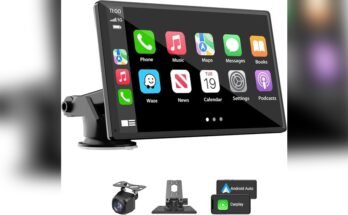
Are you having trouble with Apple CarPlay not working the way it should? Maybe your apps aren’t showing up, or the connection feels slow and glitchy.
Resetting your Apple CarPlay settings can often fix these issues and get everything running smoothly again. In this guide, you’ll learn exactly how to reset your CarPlay settings step-by-step. By the end, you’ll have a fresh start and a better driving experience.

49% off Today's Exclusive Deals
Limited-time Exclusive Deals. Check current discount on Amazon.
Check Price on Amazon As an Amazon Associate I earn from qualifying purchases.Keep reading to find out how easy it is to take control of your CarPlay and enjoy seamless connectivity every time you hit the road.
Reset Carplay On Iphone
Resetting CarPlay on your iPhone can solve connection issues and refresh settings. It helps clear temporary glitches and improves performance. Follow these simple steps to reset CarPlay and restore smooth operation.
Disconnect Carplay Connection
Start by disconnecting your iPhone from the CarPlay system. Unplug the USB cable or turn off Bluetooth if you use a wireless connection. This step stops the current CarPlay session and lets you reset the connection.
49% off Today's Exclusive Deals
Limited-time Exclusive Deals. Check current discount on Amazon.
Check Price on Amazon As an Amazon Associate I earn from qualifying purchases.Forget Carplay On Iphone Settings
Open the Settings app on your iPhone. Tap General, then select CarPlay. Find your car’s name and tap it. Choose Forget This Car to remove saved CarPlay data. This clears old settings and allows a fresh setup.
Restart Your Iphone
Press and hold the power button to turn off your iPhone. Wait a few seconds, then turn it back on. Restarting helps clear memory and fixes minor software bugs. After the restart, reconnect to CarPlay as usual.
Reset Carplay In Your Car
Resetting CarPlay settings in your car helps fix connection issues and improve performance. It clears old data and lets you start fresh. Follow these easy steps to reset CarPlay directly from your car’s system.
Access Car Settings Menu
Start your car and turn on the infotainment screen. Find the settings or setup icon on the display. Tap on it to open the menu. Look for the section labeled “Connectivity,” “Bluetooth,” or “Phone.” This section controls your CarPlay settings.
49% off Today's Exclusive Deals
Limited-time Exclusive Deals. Check current discount on Amazon.
Check Price on Amazon As an Amazon Associate I earn from qualifying purchases.Delete Paired Devices
Inside the connectivity menu, find the list of paired devices. Select the iPhone or device connected via CarPlay. Choose the option to delete or forget the device. This removes old connections and clears stored data.
Restore Factory Settings
Find the option to reset or restore factory settings in the settings menu. Select this to erase all custom settings related to CarPlay. Confirm your choice. This step resets CarPlay to its original state, ready for a new setup.
Check Usb And Wireless Connections
Checking the USB and wireless connections is key to fixing Apple CarPlay issues. Problems with cables or wireless settings often cause CarPlay to stop working. A quick inspection can save time and avoid more complex fixes.
Start by looking closely at the physical connections and then move to wireless settings on your phone and car. This step ensures everything links properly for CarPlay to run smoothly.
Inspect Usb Cable And Ports
Use a good quality USB cable made for data transfer. Charging cables alone might not work with CarPlay. Check for any damage, like frayed wires or bent connectors. Try a different cable if possible.
Look inside the USB ports on both your car and phone. Dust or dirt can block connections. Clean the ports gently with a soft brush or compressed air. Make sure the cable fits snugly without wiggle room.
Verify Bluetooth And Wi-fi Settings
Apple CarPlay uses Bluetooth and Wi-Fi to connect wirelessly. Check that both are turned on in your iPhone settings. Also, your car’s system must have Bluetooth and Wi-Fi enabled.
Forget the car from your phone’s Bluetooth list and reconnect. This clears old data that might cause problems. Restart your phone and car system to refresh connections.

Update Software For Car And Iphone
Updating the software on both your iPhone and car is important for smooth Apple CarPlay use. New updates fix bugs and improve connection. Keeping both devices up to date helps avoid problems and resets settings effectively.
Update Ios On Iphone
Open the Settings app on your iPhone. Tap “General,” then choose “Software Update.” The phone will check for available updates. If an update appears, tap “Download and Install.” Stay connected to Wi-Fi and keep your phone charged during this process. After updating, restart your iPhone to apply changes fully.
Update Car Firmware
Car firmware updates improve compatibility with Apple CarPlay. Check your car’s manual or visit the manufacturer’s website for update instructions. Some cars allow updates through the infotainment system menu. Others may require a USB drive or visit to a dealer. Follow the steps carefully and do not turn off the car during the update.
Troubleshooting Common Issues
Troubleshooting common issues with Apple CarPlay helps keep your drive smooth. Many problems can be fixed with simple steps. Knowing these fixes saves time and stress.
Try these tips to solve the most frequent CarPlay problems and restore full use.
Carplay Not Connecting
Check that your iPhone is unlocked and the cable is firmly plugged in. Use an original or certified Lightning cable. Restart your iPhone and car’s infotainment system. Turn off Bluetooth and Wi-Fi, then turn them back on. Make sure CarPlay is allowed on your iPhone by going to Settings > General > CarPlay.
Apps Not Showing Up
Some apps do not support CarPlay. Check if the app is compatible. On your iPhone, go to Settings > General > CarPlay, select your car, and customize the apps shown. Restart your iPhone to refresh the app list. Update apps from the App Store to the latest version for better support.
Audio Problems
Check the volume on both your car and iPhone. Make sure Do Not Disturb mode is off. Restart your iPhone and the car system. Disconnect and reconnect CarPlay. If audio issues persist, reset network settings on your iPhone by going to Settings > General > Reset > Reset Network Settings.

Tips To Customize Carplay Settings
Customizing Apple CarPlay settings makes your driving experience smoother. It helps you find your favorite apps faster. Personalizing notifications and Siri settings keeps distractions low. These tips make CarPlay more useful and safer.
Arrange App Icons
Open your iPhone and go to Settings. Tap on General, then CarPlay. Choose your car from the list. Drag app icons to change their order. Put your most-used apps on the first screen. This saves time while driving.
Enable Or Disable Siri
Go to Settings on your iPhone. Tap on Siri & Search. Turn on or off Listen for “Hey Siri” and Press Side Button for Siri. You can also allow Siri when locked. This controls your voice assistant on CarPlay.
Adjust Notifications
Open Settings and tap Notifications. Select the apps used in CarPlay. Choose how notifications appear on your screen. Turn off alerts from apps that distract you. Keep only important notifications active for safety.

Frequently Asked Questions
How Do I Reset Apple Carplay Settings On My Iphone?
To reset Apple CarPlay settings, go to Settings > General > CarPlay. Select your car, then tap Forget This Car. This removes saved settings and allows a fresh connection setup.
Can I Reset Apple Carplay Without Erasing Iphone Data?
Yes, resetting CarPlay only removes its connection settings. Your iPhone data remains intact. You just need to forget the car in CarPlay settings.
Why Should I Reset Apple Carplay Settings?
Resetting fixes connectivity issues, unresponsive apps, or display glitches. It refreshes the CarPlay connection and improves performance without affecting your phone’s data.
How To Reset Apple Carplay If It’s Not Working Properly?
Forget your car in CarPlay settings, then reconnect via Bluetooth or USB. Restart your iPhone and car system to ensure a fresh CarPlay connection.
Conclusion
Resetting Apple CarPlay settings can fix many common issues. It helps your system run smoothly again. Follow the steps carefully to avoid mistakes. Take your time and check each step twice. After reset, you may need to reconnect your devices.
This process keeps your driving experience safe and easy. Keep your software updated for best results. Enjoy a fresh start with your Apple CarPlay settings.