Have you noticed your Apple CarPlay slowing down just when you need it most? It’s frustrating when your favorite apps lag or take forever to respond while you’re driving.
You rely on CarPlay to keep you connected and safe, so why is it acting up now? Understanding the reasons behind this lag can help you fix it and get back to smooth, seamless use. Keep reading to discover what might be causing the delay and how you can make your CarPlay run like new again.

49% off Today's Exclusive Deals
Limited-time Exclusive Deals. Check current discount on Amazon.
Check Price on Amazon As an Amazon Associate I earn from qualifying purchases.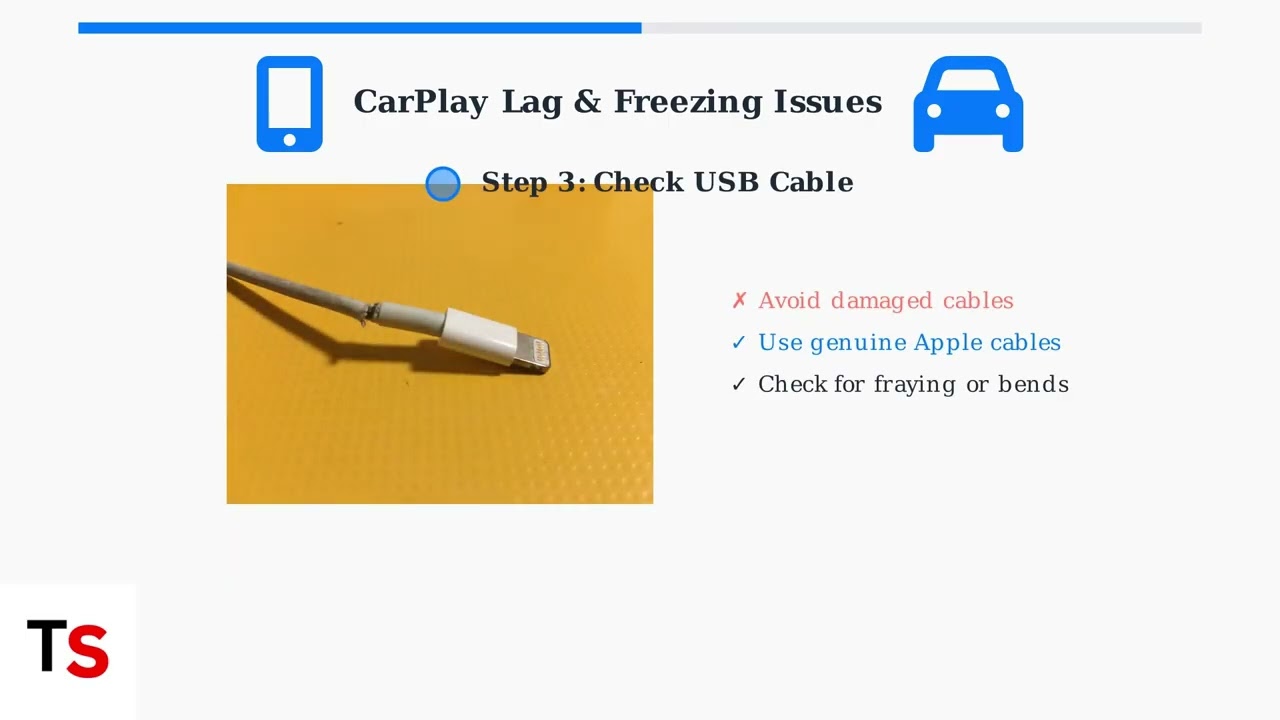
Common Causes Of Apple Carplay Lag
Apple CarPlay lag can be frustrating during drives. It slows down app loading and response times. Knowing common causes helps fix the issue faster. Several factors affect CarPlay’s performance. Some relate to your phone, others to your car system.
Outdated Software
Old software on your iPhone or car system causes lag. Updates fix bugs and improve speed. Running the latest iOS and car firmware ensures smooth CarPlay use. Without updates, compatibility issues can slow down the connection.
Weak Usb Connection
A poor USB cable or port reduces data transfer speed. It causes delays in CarPlay response. Use an original or certified cable for better results. Check the USB port for dirt or damage that blocks the connection.
49% off Today's Exclusive Deals
Limited-time Exclusive Deals. Check current discount on Amazon.
Check Price on Amazon As an Amazon Associate I earn from qualifying purchases.Bluetooth Interference
Bluetooth can interfere with CarPlay, especially in wireless setups. Other devices or signals nearby may cause connection drops or lag. Turning off unused Bluetooth devices can reduce interference. Keeping a clear wireless environment improves CarPlay speed.
High Device Resource Usage
Running many apps on your iPhone uses more memory and processor power. This slows CarPlay’s performance. Closing background apps frees up resources. Restarting your phone also helps clear temporary data and speed up CarPlay.
Faulty Car Infotainment System
Sometimes, the car’s infotainment system itself causes lag. Hardware faults or outdated firmware affect CarPlay performance. A system reset or software update might fix the problem. If issues persist, professional inspection is necessary.
Diagnosing The Lag Issue
Apple CarPlay lag can frustrate any driver. The cause may not be clear at first. Diagnosing the lag issue helps find the real problem. This process involves checking several key areas. Each step can reveal clues to fix the delay. Let’s explore how to diagnose Apple CarPlay lag effectively.
49% off Today's Exclusive Deals
Limited-time Exclusive Deals. Check current discount on Amazon.
Check Price on Amazon As an Amazon Associate I earn from qualifying purchases.Checking Device Compatibility
Not all devices support Apple CarPlay fully. Older iPhones might struggle with newer CarPlay systems. Check if your iPhone model is compatible with your car’s system. Visit Apple’s official list for supported devices. Using an incompatible device can cause lag and slow responses.
Testing Different Cables
Cable quality affects CarPlay performance. A damaged or low-quality cable can cause connection issues. Use an original or certified Lightning cable for the best results. Try swapping cables to see if lag improves. A stable connection reduces delay and freezes.
Monitoring Network Connectivity
CarPlay often uses your phone’s data or Wi-Fi for apps. Poor network signals can slow down app loading times. Check your cellular or Wi-Fi strength before using CarPlay. A weak connection can cause apps to lag or fail to open.
Reviewing App Performance
Some apps may run slower on CarPlay than others. Outdated apps can cause delays or crashes. Make sure all apps are updated to the latest version. Close apps running in the background to free up resources. Smooth app performance helps reduce CarPlay lag.
Quick Fixes To Improve Performance
Apple CarPlay lagging can disrupt your driving experience. Quick fixes can help restore smooth performance fast. These simple steps take only minutes and often solve common issues. Try these tips to make CarPlay work better right away.
Updating Ios And Apps
Keep your iPhone’s iOS up to date. Updates fix bugs that slow CarPlay. Also, update apps that you use with CarPlay. This keeps everything compatible and running smoothly.
Restarting Devices
Turn off your iPhone and your car’s system. Wait a few seconds before turning them back on. Restarting clears temporary glitches that cause lag. It refreshes the connection between devices.
Resetting Carplay Settings
Go to your iPhone’s settings and find CarPlay options. Remove your car from the list and reconnect it. This resets CarPlay settings and can fix connection delays.
Using Certified Cables
Always use Apple-certified Lightning cables. Cheap or damaged cables cause slow data transfer. Certified cables ensure stable and fast connections for CarPlay.
Clearing Background Apps
Close apps running in the background on your iPhone. Background apps use memory and slow CarPlay. Clearing them frees up resources for better performance.

Preventive Tips For Smooth Carplay
Keeping Apple CarPlay running smoothly improves your driving experience. Small actions can stop lag and delays. Preventive care helps CarPlay respond fast and clearly. Follow simple tips to keep your system healthy and quick.
Regular Software Updates
Update iPhone and car system software often. Updates fix bugs that cause lag. New versions improve speed and stability. Check updates in settings regularly. Install updates as soon as possible.
Maintaining Clean Ports
Keep charging ports free from dirt and dust. Dirty ports cause bad connections and lag. Use a soft brush or cloth for cleaning. Avoid sharp objects that can damage ports. Clean ports ensure smooth data transfer.
Avoiding Excessive Background Tasks
Close apps not in use on your iPhone. Many apps running slow down CarPlay. Background tasks use memory and processing power. Limit apps running while driving for better speed. This helps CarPlay stay focused and fast.
Optimizing Bluetooth Settings
Turn off Bluetooth devices not needed during use. Multiple connections can cause interference and lag. Pair only essential devices with your car. Reset Bluetooth settings if connection issues persist. Clear Bluetooth clutter to improve CarPlay response.
When To Seek Professional Help
Knowing when to seek professional help for Apple CarPlay lagging is important. Some issues need expert attention to avoid damage or further problems. This section explains when to contact a technician.
Persistent Lag Despite Fixes
If you try basic fixes but the lag stays, it might be time to get help. Restarting your phone, updating software, or checking cables usually solves lag. Continued delays suggest deeper problems. Professionals can diagnose and fix hidden issues quickly.
Hardware Malfunctions
Hardware problems can cause Apple CarPlay to lag. Faulty cables, damaged USB ports, or phone issues might be the cause. These are hard to spot without tools. A technician can test and replace faulty parts safely and correctly.
Car Infotainment System Issues
Your car’s infotainment system might also cause lag. Outdated software or system errors often affect performance. Car systems need special updates and settings. Experts know how to update and repair these systems to improve CarPlay speed and stability.
Frequently Asked Questions
Why Is Apple Carplay Lagging In My Car?
Apple CarPlay may lag due to poor USB connection, outdated iOS, or slow infotainment system. Check cables, update software, and restart devices to fix the issue. Also, close background apps on your phone to improve performance and reduce lag.
How To Fix Apple Carplay Lagging Issues?
To fix lagging, use a high-quality USB cable, update your iPhone and car system software. Restart both devices and ensure no other apps drain resources. Clearing cache or resetting CarPlay settings may also help improve responsiveness.
Does Iphone Model Affect Apple Carplay Speed?
Yes, older iPhone models with slower processors may cause CarPlay lag. Newer iPhones handle CarPlay tasks more smoothly. Updating your iPhone and using compatible cables can reduce delays and improve overall CarPlay speed.
Can Wireless Apple Carplay Cause Lagging?
Wireless CarPlay can lag due to Wi-Fi or Bluetooth interference. Distance from the car’s receiver also affects performance. Use a wired connection for a more stable and faster CarPlay experience when possible.
Conclusion
Apple CarPlay lagging can frustrate any driver. Simple causes like slow connections or outdated software often trigger delays. Regular updates and good cable quality help reduce lag. Restarting your device can also improve performance. Keeping your phone and car system in sync matters.
Small fixes make a big difference in smooth use. Stay patient and try these tips for better CarPlay experience.





