Have you ever turned up your Apple CarPlay volume, only to find it still too low? It’s frustrating when your favorite music or important navigation directions sound barely audible.
You might wonder if the problem is your car, your phone, or the system itself. The good news is, you’re not alone—and there are simple reasons behind this issue. Keep reading to discover why your Apple CarPlay volume might be too low and how you can fix it fast.

49% off Today's Exclusive Deals
Limited-time Exclusive Deals. Check current discount on Amazon.
Check Price on Amazon As an Amazon Associate I earn from qualifying purchases.Your next drive deserves clear, loud sound.
Common Causes Of Low Volume
Low volume on Apple CarPlay can be frustrating. Many users face this issue without knowing the cause. Understanding the common reasons helps fix the problem faster. Below are some usual causes that affect sound levels.
49% off Today's Exclusive Deals
Limited-time Exclusive Deals. Check current discount on Amazon.
Check Price on Amazon As an Amazon Associate I earn from qualifying purchases.Connection Issues
Poor or loose connections can lower the sound. Faulty cables or weak Bluetooth signals reduce audio quality. Check if the USB cable is damaged or not fully plugged in. Wireless connections may drop, causing volume problems.
Audio Settings Mismatch
Volume settings on your phone and car stereo must match. Sometimes, the phone’s volume is low even if the car stereo is high. Check the volume on both devices. Also, look at the app’s volume controls for adjustments.
Car Stereo Compatibility
Not all car stereos work well with Apple CarPlay. Older or less advanced systems might have lower sound output. Some stereos limit volume to protect speakers. Verify if your car stereo supports full Apple CarPlay features.
Software Glitches
Software bugs in your phone or car system can affect volume. Updates might fix these bugs, so keep your devices updated. Restarting your phone or car system can clear temporary glitches causing low volume.
49% off Today's Exclusive Deals
Limited-time Exclusive Deals. Check current discount on Amazon.
Check Price on Amazon As an Amazon Associate I earn from qualifying purchases.
Check Your Iphone Settings
Apple CarPlay volume may sound low due to your iPhone settings. Checking these settings can fix the issue quickly. Small adjustments on your iPhone often solve volume problems.
Adjust Volume Levels
Use the volume buttons on your iPhone to increase sound. You can also raise the volume through Control Center. Make sure the volume is high before connecting to CarPlay. Sometimes, the phone’s volume is set too low.
Disable Volume Limit
Your iPhone may have a volume limit to protect hearing. This limit can lower CarPlay sound. Go to Settings, then Sounds & Haptics. Find the Volume Limit option and turn it off. This allows the volume to reach its full level.
Turn Off Silent Mode
Silent mode can reduce sound output on CarPlay. Check the switch on the side of your iPhone. If it is on, switch it off to enable sound. This simple step can improve CarPlay volume immediately.
Optimize Car Audio Settings
Optimizing your car audio settings can greatly improve Apple CarPlay volume. Sometimes, the problem is not with the device but with how your car’s audio system is set up. Adjusting these settings helps make the sound clearer and louder. Follow simple steps to get better sound quality and enjoy your music or calls more.
Increase Car Stereo Volume
Start by raising the main volume on your car stereo. The volume on Apple CarPlay and your car stereo must both be high. Check if the stereo volume is low and increase it slowly. Avoid setting the volume too high to prevent distortion or damage to speakers.
Adjust Equalizer Settings
Equalizer settings control different sound frequencies. Adjusting bass, midrange, and treble can make audio louder and clearer. Try boosting midrange and treble for better voice and music clarity. Lower bass if the sound feels muffled or too soft. Experiment with settings until you find a good balance.
Reset Audio System
Resetting the audio system can fix volume issues caused by glitches. Turn off your car and Apple CarPlay. Restart both devices to refresh the connection. You can also reset your car stereo settings to default. This step often clears hidden problems and restores normal volume levels.
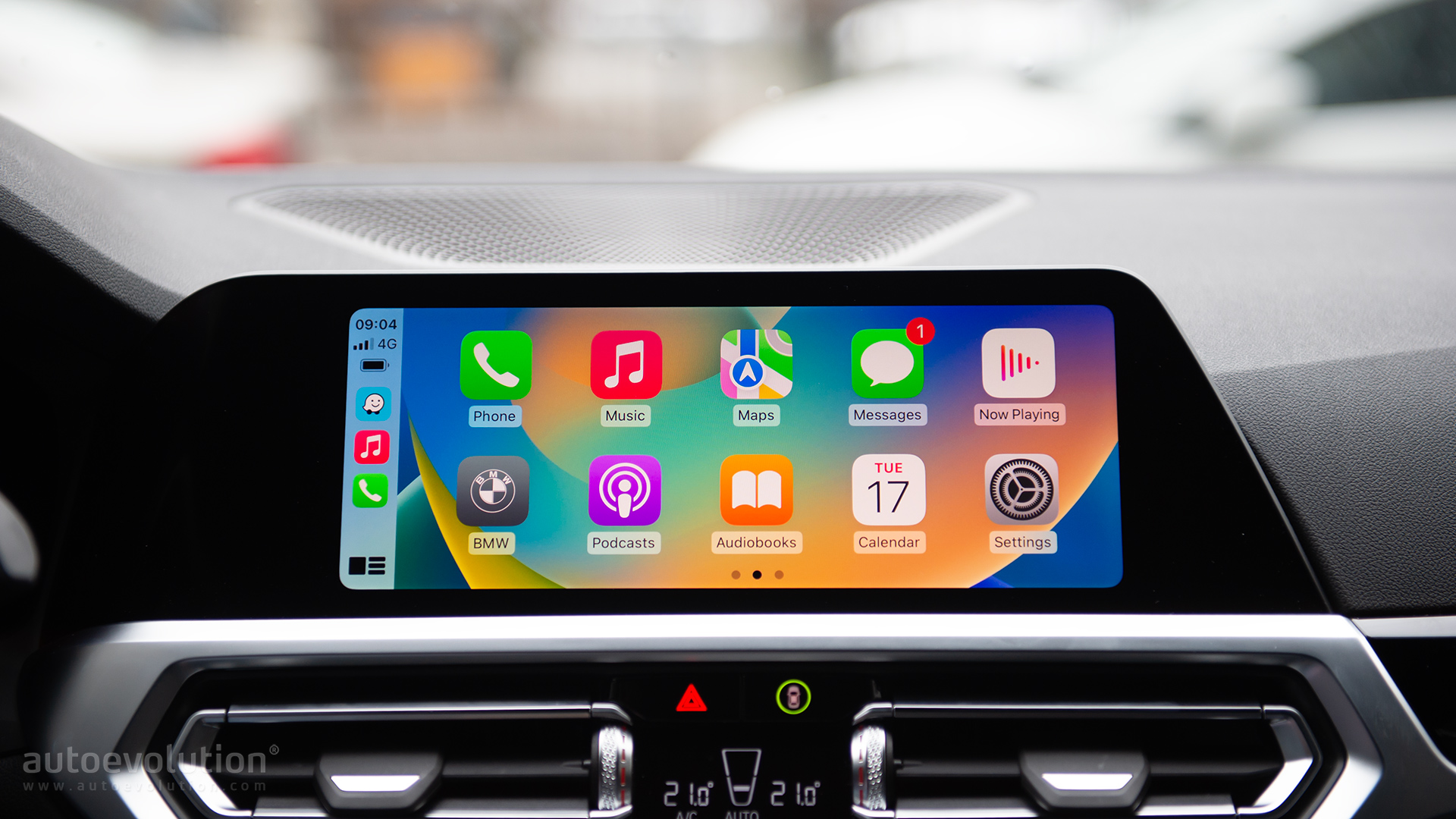
Troubleshoot Apple Carplay
Apple CarPlay volume can sometimes be too low. This issue often causes frustration during drives. Troubleshooting CarPlay helps find the cause and fix the problem. Simple steps can improve the sound quickly.
Try these easy solutions. They work well for many users. Follow each step carefully for the best results.
Restart Devices
Turn off your iPhone and car system. Wait for a few seconds. Turn both devices back on. Restarting clears temporary glitches. It often restores normal volume levels.
Update Software
Check for software updates on your iPhone and car system. Updated software fixes bugs and improves features. Use the latest version for better sound. Updating is quick and helps avoid many issues.
Reconnect Apple Carplay
Disconnect CarPlay from your iPhone and car. Wait a moment, then reconnect. This resets the connection and refreshes settings. Reconnecting often solves volume problems. Use a certified cable for wired connections.
Use External Volume Boosters
Sometimes, Apple CarPlay volume feels too low even at max settings. External volume boosters can help raise sound levels beyond the car’s default limits. These tools improve audio clarity and loudness without distortion. Using external boosters is a practical way to enjoy better sound during drives.
Bluetooth Audio Enhancers
Bluetooth audio enhancers connect between your phone and car stereo. They improve sound quality and increase volume output. These devices use advanced technology to clean and boost audio signals. The result is louder and clearer music through your car speakers. Many models are small and easy to install. They work with Apple CarPlay without complex setup.
Third-party Apps
Some apps increase audio volume from your iPhone before sending it to CarPlay. These apps adjust sound frequencies and boost output levels. They offer simple controls to raise volume beyond normal limits. Users can customize sound settings to fit their preferences. Third-party apps provide an easy way to enhance CarPlay audio without extra hardware.
Prevent Future Volume Issues
Preventing volume issues with Apple CarPlay keeps your driving safe and enjoyable. Simple habits and checks help avoid low sound problems. Staying ahead means less frustration and better audio experience every time.
Regular Software Updates
Update your iPhone and car system regularly. Software updates fix bugs that cause sound issues. They improve compatibility between devices. Check for updates monthly or when you notice problems. Keeping software current helps maintain clear audio levels.
Proper Connection Practices
Use quality cables and connectors for CarPlay. Loose or damaged cables can lower volume. Connect your phone firmly to avoid interruptions. Avoid wireless connections if they cause sound drops. Clean ports and plugs to ensure good contact. Proper connection prevents many common audio problems.
Frequently Asked Questions
Why Is Apple Carplay Volume Too Low Sometimes?
Apple CarPlay volume may be low due to phone volume settings, car audio system levels, or Bluetooth connection issues. Adjust both your iPhone and car stereo volume. Also, check if any audio balance or EQ settings affect sound output.
How To Fix Low Volume On Apple Carplay?
To fix low volume, increase your iPhone’s media volume and car stereo volume. Restart both devices and check cable connections. Updating iOS and car firmware can also resolve software-related sound problems.
Can Bluetooth Affect Apple Carplay Sound Volume?
Yes, Bluetooth interference or weak connections can lower CarPlay audio volume. Ensure a stable connection by using a certified cable or resetting Bluetooth settings on both devices.
Does Iphone Volume Limit Affect Carplay Sound?
Yes, if iPhone volume limit or sound check is enabled, it can reduce CarPlay’s audio output. Disable volume limit in Settings > Music to improve sound levels.
Conclusion
Apple CarPlay volume issues can be frustrating. Checking your phone and car settings helps. Sometimes, software updates fix sound problems. Try adjusting volume on both devices. Using different cables may also improve sound. Clear any dirt from headphone jacks or ports.
Remember, small fixes often solve big issues. Keep your system updated for best results. Stay patient and test changes step-by-step. Enjoy better audio with simple care and attention.