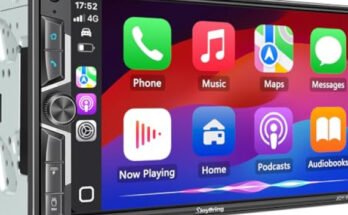
Sony XAV-AX8000 troubleshooting usually comes down to power, wiring, firmware, or car compatibility.
If you have ever stared at a blank screen or a stubborn no-sound issue on a Sony XAV-AX8000, you are not alone. I have worked through plenty of Sony XAV-AX8000 troubleshooting cases over the years, and the pattern is usually the same: the unit is fine, but one small setup detail is off. This guide breaks down the real causes, fixes, and smart checks so you can get your unit working again without guesswork.

49% off Today's Exclusive Deals
Limited-time Exclusive Deals. Check current discount on Amazon.
Check Price on Amazon As an Amazon Associate I earn from qualifying purchases.
Common Sony XAV-AX8000 Troubleshooting Basics
Before you dive into advanced checks, start with the simple stuff. Most Sony XAV-AX8000 troubleshooting cases are caused by loose wiring, a weak ground, a blown fuse, or a setting that changed after installation. I have seen people replace parts when the real fix was just tightening one connector.
The Sony XAV-AX8000 is a floating 8.95-inch receiver, so installation quality matters a lot. A small wiring mistake can cause symptoms like no power, no audio, no camera display, or random resets. That is why a calm, step-by-step check usually saves time and money.
49% off Today's Exclusive Deals
Limited-time Exclusive Deals. Check current discount on Amazon.
Check Price on Amazon As an Amazon Associate I earn from qualifying purchases.Here is the fastest first-pass checklist:
- Check the car battery and ignition status
- Inspect the main power and ground wires
- Confirm the fuse is not blown
- Make sure the parking brake wire is connected correctly
- Verify speaker and amp connections
- Restart the unit after changes
Sony XAV-AX8000 Not Turning On
If your Sony XAV-AX8000 does not power on, the issue is usually electrical. In most cases, the receiver is not getting constant power, accessory power, or a good ground. I once spent nearly an hour chasing a “dead unit” only to find the ground bolt was painted over and never made solid contact.
Start with the basics:
49% off Today's Exclusive Deals
Limited-time Exclusive Deals. Check current discount on Amazon.
Check Price on Amazon As an Amazon Associate I earn from qualifying purchases.- Check the vehicle fuse box and the radio fuse
- Make sure the yellow wire has constant 12V
- Make sure the red wire gets 12V with ignition on
- Confirm the black ground wire is on clean metal
- Test the harness with a multimeter if possible
If the fuse keeps blowing, do not just replace it and move on. That often means a short in the wiring, a pinched wire, or a bad connection behind the dash. Sony XAV-AX8000 troubleshooting works best when you isolate one circuit at a time.
Sony XAV-AX8000 Screen Is Blank or Freezing
A blank screen can feel worse than no power, because the unit seems alive but gives you nothing. This problem can come from software glitches, loose display connections, or low voltage during startup. In my experience, low battery voltage after long storage is one of the most overlooked causes.
Try these steps:
- Turn the vehicle off and back on
- Reset the unit using the physical reset method
- Disconnect and reconnect the harness
- Check if brightness is set too low
- Update the firmware if the unit boots sometimes
If the screen freezes often, test whether it happens only when you start the car. That can point to a voltage drop during crank. Sony XAV-AX8000 troubleshooting here is often about power stability, not the screen itself.
Sony XAV-AX8000 Has No Sound
No sound is one of the most common complaints. The unit may power on normally, but audio stays silent because of speaker wiring issues, mute settings, external amp problems, or incorrect source settings. I have seen this happen after a clean install simply because one speaker lead was swapped.
Check the following:
- Volume is up and mute is off
- Fader and balance are centered
- Speaker wires are connected correctly
- External amplifier remote turn-on wire is working
- RCA outputs are connected properly if you use an amp
- The car’s factory amp interface is compatible
If you are using a factory amplifier, that adds another layer. Some systems need an interface module or a proper remote signal to wake the amp. Good Sony XAV-AX8000 troubleshooting means checking the full audio chain, not just the head unit.
Sony XAV-AX8000 Bluetooth Problems
Bluetooth issues can be frustrating because they often seem random. The unit may not pair, may disconnect, or may have weak call audio. In many cases, the problem is not the Sony XAV-AX8000 itself, but old paired devices, signal interference, or phone-side settings.
Try this:
- Delete the pairing from both the phone and the head unit
- Restart the phone and the Sony unit
- Pair again in a quiet area with no other nearby devices
- Turn off battery optimization for the media app
- Update your phone OS and the receiver firmware
If audio drops during calls, check the microphone placement too. A mic tucked near vents or loose trim can pick up road noise or echo. In Sony XAV-AX8000 troubleshooting, Bluetooth often improves after a clean re-pair and a small mic adjustment.
Sony XAV-AX8000 Apple CarPlay or Android Auto Not Working
When CarPlay or Android Auto fails, the issue is usually cable-related, phone settings, or a data connection problem. This is especially true if the phone charges but the projection system never starts. I have had cases where a “bad head unit” was actually caused by a low-grade cable that only carried power well.
Try these fixes:
- Use an original or certified USB cable
- Connect the phone directly, not through a hub
- Unlock the phone before connecting
- Allow CarPlay or Android Auto permissions on the phone
- Clean the USB port and check for bent pins
- Reboot both the phone and receiver
For wired systems, data quality matters more than most people think. A cable that works for charging may still fail for data transfer. That is one of the biggest lessons in Sony XAV-AX8000 troubleshooting: the simplest cable can make or break the whole setup.
Sony XAV-AX8000 Backup Camera Not Showing
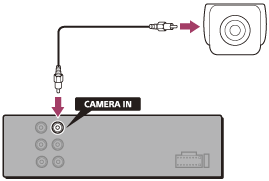
If the backup camera does not appear when you shift into reverse, the issue is usually the reverse trigger wire, camera power, or video input. This can be a wiring problem from the camera or a setting inside the unit. Many installers assume the camera is bad, but the trigger wire is often the real culprit.
Check these points:
- The reverse wire is connected to the correct reverse signal
- The camera gets power in reverse
- The RCA video cable is fully seated
- Camera video format matches the receiver setup
- The camera image setting is not disabled
If the screen stays black only in reverse, test the camera on another display if you can. That helps separate a camera issue from a receiver issue. Sony XAV-AX8000 troubleshooting is easier when you confirm power, signal, and settings one by one.
Sony XAV-AX8000 Keeps Restarting or Rebooting
Random restarts usually point to unstable power. A weak battery, poor ground, loose harness, or a bad accessory circuit can cause the unit to reboot when the car starts or when volume rises. I have seen this happen in older vehicles where the battery looked fine but dipped too low under load.
Look for these causes:
- Battery voltage drops during startup
- Ground wire is loose or painted over
- Power wire is shared with a noisy accessory
- Amplifier load is too heavy for the system
- A damaged harness is causing intermittent contact
A multimeter is your friend here. If voltage dips too much while cranking, the receiver may reboot before it stabilizes. This type of Sony XAV-AX8000 troubleshooting is very common in installs that look neat but were not tested under real driving conditions.
Sony XAV-AX8000 Touchscreen Is Unresponsive
When the touchscreen stops responding, the issue may be dirt, moisture, static, or a software freeze. Sometimes the panel is not broken at all. A gentle reset or a full power cycle often brings it back.
Try this:
- Wipe the screen with a dry microfiber cloth
- Remove any thick screen protector
- Reset the receiver
- Disconnect battery power briefly if safe to do so
- Check if the problem happens only in cold or hot weather
If the screen works again after a restart, it points more to software than hardware. If it keeps failing, you may be dealing with a panel fault or internal connector problem. In Sony XAV-AX8000 troubleshooting, repeatability is a big clue.
Firmware Updates and Software Fixes
Firmware updates can solve odd bugs, especially with phone connection, Bluetooth, or display behavior. Sony often uses updates to improve compatibility and performance. If your unit has newer symptoms after phone updates or app changes, firmware should be on your checklist.
Before updating:
- Use the correct file for your exact model
- Follow the update steps carefully
- Keep the vehicle powered in a stable way
- Do not interrupt the update once it starts
I always tell people to treat firmware updates like surgery, not a quick app refresh. If the file is wrong or the power drops mid-update, the problem can get worse. Good Sony XAV-AX8000 troubleshooting includes software care, not just wiring work.
How to Troubleshoot Step by Step Without Guessing
A clean process saves time. When I troubleshoot a Sony XAV-AX8000, I move from power to signal to settings. That order prevents the classic mistake of replacing parts before proving what is actually wrong.
Use this order:
- Confirm the unit gets power
- Confirm the ground is solid
- Check the fuse
- Test sound output
- Test phone connection
- Test camera input
- Reset or update firmware if needed
This process works because it follows the signal path. If power is unstable, nothing else matters. If power is good, Sony XAV-AX8000 troubleshooting becomes much more focused.
Mistakes to Avoid During Sony XAV-AX8000 Troubleshooting
A lot of headaches come from small mistakes. I have made some of these myself early on, and they are easy to repeat if you are in a hurry. The biggest lesson is this: slow down and verify each step.
Avoid these common errors:
- Using a weak ground point
- Mixing up constant power and accessory power
- Skipping fuse checks
- Using cheap USB cables for CarPlay or Android Auto
- Ignoring factory amplifier requirements
- Resetting the unit before checking wiring
It is tempting to blame the receiver right away. But in many installs, the unit is the least likely problem. Careful Sony XAV-AX8000 troubleshooting often reveals a small install issue hiding behind a big symptom.
Frequently Asked Questions of Sony XAV-AX8000 Troubleshooting
Why is my Sony XAV-AX8000 not turning on?
The most common reason is a power or ground issue. Check the yellow constant wire, red accessory wire, fuse, and black ground wire first.
Why does my Sony XAV-AX8000 have sound but no display?
This usually points to a screen, brightness, or connection issue. Try a reset and inspect the display connections if the unit otherwise powers up.
How do I reset my Sony XAV-AX8000?
Use the physical reset method on the unit, then restart the vehicle. If the problem continues, disconnect power briefly and test again after restoring the connections.
Why is CarPlay not connecting on my Sony XAV-AX8000?
A bad USB cable, blocked permissions, or a phone software issue is often the cause. Try a certified data cable and reconnect after rebooting both devices.
Why does my Sony XAV-AX8000 keep restarting?
This usually happens when voltage drops too low or the ground is weak. Check battery health, wiring, and any amplifier load on the system.
Why is my backup camera not showing on the Sony XAV-AX8000?
The reverse trigger wire, camera power, or RCA video cable may be the issue. Test the camera feed and confirm the reverse signal is reaching the unit.
Conclusion
Sony XAV-AX8000 troubleshooting becomes much easier when you stay methodical. Most problems trace back to power, grounding, wiring, firmware, or connection settings, and the fix is often simpler than it first appears. With the right checks, you can save time, avoid unnecessary parts, and get the unit working the way it should.
If your Sony XAV-AX8000 is acting up, start with the basics, test one thing at a time, and trust the process. The more carefully you verify each step, the faster you will find the real issue. If this guide helped, keep learning, share your own fix, or leave a comment so others can benefit too.