Most JVC KD-X370BTS issues come from wiring, Bluetooth pairing, power, or speaker connection problems.
If you have spent time behind the dash with a JVC KD-X370BTS, you already know how a small setup mistake can turn into a big headache. I have seen this model behave like a champ when installed right, and like a stubborn puzzle when one wire, setting, or Bluetooth step is off. This guide on JVC KD-X370BTS Troubleshooting walks through the most common problems, the real causes behind them, and the fixes that actually help.

49% off Today's Exclusive Deals
Limited-time Exclusive Deals. Check current discount on Amazon.
Check Price on Amazon As an Amazon Associate I earn from qualifying purchases.
JVC KD-X370BTS Troubleshooting Basics
Before you chase a “bad radio,” it helps to start with the simple stuff. In many cases, JVC KD-X370BTS Troubleshooting begins with power, ground, fuse, or speaker wiring, not the unit itself.
The KD-X370BTS is a digital media receiver, so it depends on clean power and correct connections. If the display is blank, sound cuts out, or Bluetooth acts strange, the problem is often basic installation, not a failed head unit. I always tell people to treat troubleshooting like checking the foundation of a house before blaming the walls.
49% off Today's Exclusive Deals
Limited-time Exclusive Deals. Check current discount on Amazon.
Check Price on Amazon As an Amazon Associate I earn from qualifying purchases.Here is the fastest way to narrow things down:
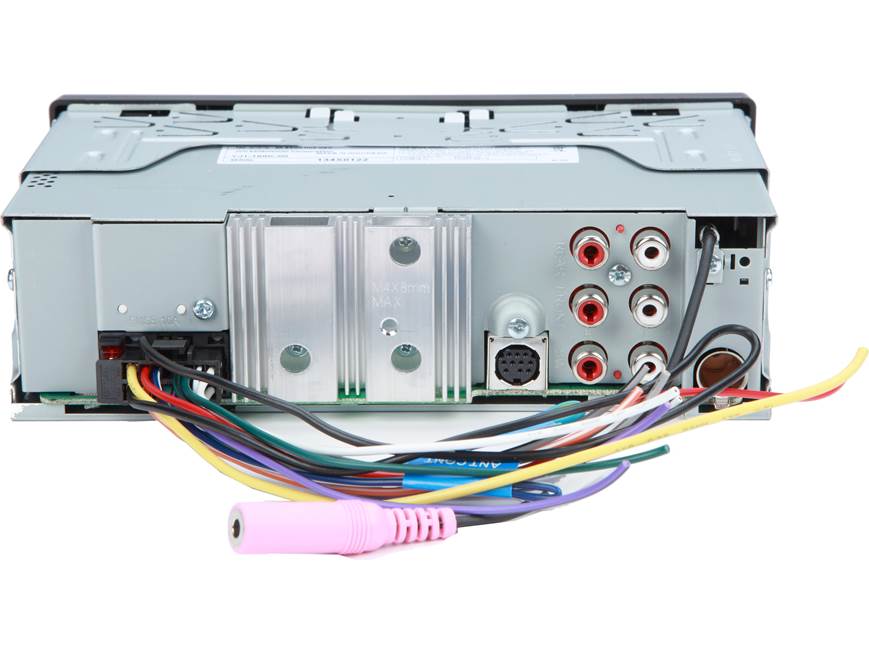
- Check the red accessory wire and yellow constant power wire
- Confirm the black ground wire has solid metal contact
- Inspect the inline fuse and vehicle fuse box
- Look for loose speaker wires or pinched wires behind the dash
- Reset the unit if settings seem stuck or Bluetooth will not behave
A lot of JVC KD-X370BTS Troubleshooting gets easier when you stay calm and test one thing at a time. That method saves time and keeps you from swapping parts that are not broken.
JVC KD-X370BTS Not Turning On
One of the most common complaints is simple: the stereo will not power up. In my experience, this is usually a wiring or fuse issue, and it is rarely the first sign of a dead unit.
49% off Today's Exclusive Deals
Limited-time Exclusive Deals. Check current discount on Amazon.
Check Price on Amazon As an Amazon Associate I earn from qualifying purchases.Start with the yellow wire and red wire. The yellow wire should have constant 12V power, while the red wire should get power only when the key is in accessory or ON. If either one is loose, reversed, or not connected well, the JVC KD-X370BTS may stay dead.
Try these checks:
- Make sure the fuse on the wiring harness is intact
- Test the vehicle’s accessory fuse and radio fuse
- Confirm the ground wire is attached to bare metal
- Check if the faceplate is seated properly
- Verify the wiring harness matches your vehicle adapter
A mistake I have seen more than once is a weak ground. The unit may flicker, restart, or act dead because the ground is painted metal or a loose bolt. That tiny detail can create a big mess.
If the unit still does not turn on after checking power and ground, the internal protection circuit may have tripped. Disconnect the battery for a few minutes, reconnect it, and test again. This is one of those simple fixes that feels too easy, but it works more often than people expect.
JVC KD-X370BTS No Sound or Low Volume
If the unit powers up but there is no sound, the problem usually sits in the speaker wiring, audio settings, or connected devices. JVC KD-X370BTS Troubleshooting for audio issues should start with the basics first.
First, raise the volume and confirm mute is off. Then check balance, fader, and source selection. I have seen people spend an hour on “speaker problems” only to find the unit was in Bluetooth mode with the phone volume turned down.
Look at these common causes:
- Speaker wires are shorted or touching metal
- The car amplifier is not turning on
- The audio source is paused or muted
- The fader and balance settings are set too far left or right
- A factory amp adapter is missing or wired wrong
If you have a factory amplifier, the blue remote wire may need to trigger it. Without that signal, the speakers can seem dead even when the head unit is working fine. That is a classic JVC KD-X370BTS Troubleshooting trap.
Also, try a different source. Test FM, USB, and Bluetooth one at a time. If only one source has no sound, the receiver is probably fine and the issue is with the source device or cable.
JVC KD-X370BTS Bluetooth Pairing Problems
Bluetooth problems are a huge part of JVC KD-X370BTS Troubleshooting. Pairing issues often come from old saved devices, phone permissions, or a pairing list that needs to be cleared.
If the radio will not find your phone, turn Bluetooth off and back on, then try pairing again. Delete the JVC unit from your phone’s Bluetooth list, and delete your phone from the radio’s paired device list if it is already stored there. That fresh start solves a lot of connection problems.
Try this process:
- Turn off Bluetooth on nearby unused phones
- Clear old pairings from the radio
- Remove the JVC device from your phone
- Restart your phone
- Pair again from scratch
In my own hands-on troubleshooting, this step has saved more time than any “advanced” fix. Bluetooth likes clean starts. It gets confused when too many old devices, cached settings, or failed pair attempts pile up.
If pairing works but audio keeps dropping, check for signal interference. Other Bluetooth devices, a weak phone battery, or a crowded car cabin with multiple paired devices can cause unstable playback. Keep the phone close to the receiver during testing.
JVC KD-X370BTS USB Not Reading or Charging
USB problems can be frustrating because they look like a bad stereo when the real cause is often the cable or file format. For JVC KD-X370BTS Troubleshooting, USB issues are usually the easiest to isolate.
First, test with a different USB cable. Some cheap cables carry power but not stable data. If the unit charges the phone but does not read music, the cable or file system may be the problem.
Check these items:
- Use a known good USB cable
- Test a different flash drive
- Format drives to a supported file system
- Make sure files are in compatible audio formats
- Avoid oversized or badly organized folders
I have also seen USB ports fail because of dust, bent pins, or loose front-panel connections. If the port feels loose or only works when the cable is held at an angle, the hardware connection may need attention.
Keep in mind that charging and data are not the same thing. A device may charge normally while the radio still fails to read files. That is why JVC KD-X370BTS Troubleshooting should test both functions separately.
JVC KD-X370BTS Display Problems
A dim screen, blank display, or strange characters can make you think the unit is broken. In reality, display issues in JVC KD-X370BTS Troubleshooting often point to dimmer settings, voltage problems, or a reset issue.
Start by checking the brightness setting. Some units are dimmed by design at night or when the illumination wire is connected. If the display seems faint, confirm whether the dimmer setting is active.
Try these steps:
- Adjust brightness and illumination settings
- Check if the vehicle lighting circuit is affecting the screen
- Confirm stable voltage to the receiver
- Reset the unit to clear display glitches
- Inspect for loose faceplate contact
A poor power supply can also cause the screen to flicker or reboot. If voltage drops when the engine starts, the unit may temporarily lose display function. That often looks like a screen issue when it is really a power issue.
If the display shows odd symbols after a battery disconnect, a reset usually clears it. This is one reason I keep reset instructions close when doing JVC KD-X370BTS Troubleshooting. A clean restart often brings the system back to normal.
JVC KD-X370BTS Reset and Factory Reset
A reset is one of the most useful tools in JVC KD-X370BTS Troubleshooting. It clears temporary glitches, odd Bluetooth behavior, and some setting errors that can make the receiver act unpredictable.
Use a soft reset first if the unit is frozen or behaving strangely. This usually means pressing the reset button on the front panel with a small pointed tool. It is a simple move, but it can fix weird menus, audio lag, or pairing bugs.
Use a reset when you notice:
- The unit freezes
- Bluetooth stops connecting
- Sound settings act strange
- The screen shows errors
- The radio responds slowly
A factory reset is more serious because it returns settings to default. I recommend it after you have checked wiring, power, and source devices. Otherwise, you may erase useful settings before solving the real issue.
One lesson I learned early: do not reset too fast. People sometimes hit reset before checking the basics, then spend more time redoing settings than fixing the problem. In JVC KD-X370BTS Troubleshooting, patience usually wins.
JVC KD-X370BTS Radio Reception Issues
Weak FM or AM reception can be annoying, especially if the unit otherwise works well. In JVC KD-X370BTS Troubleshooting, reception problems often come from the antenna, antenna adapter, or vehicle signal path.
Check the antenna connection behind the dash first. Many aftermarket installs rely on an adapter, and if that adapter is loose or wrong for the car, reception gets weak fast. This is one of those hidden issues that looks like a bad radio but is really an install mismatch.
Look at these causes:
- Loose antenna plug
- Wrong antenna adapter
- Damaged antenna cable
- Poor signal area
- Amplified antenna not getting power
If your car uses a powered antenna or antenna amp, make sure the blue remote wire is connected properly. Without power, the antenna system may not boost signal the way it should. That can make stations sound noisy or disappear entirely.
Try listening in a known strong signal area before deciding the tuner is bad. Signal strength matters a lot, and not every reception issue is caused by the head unit.
JVC KD-X370BTS Steering Wheel Control or External Device Issues
If steering wheel controls, amplifiers, or other add-ons do not work, the issue is often in the interface module or wiring, not the JVC unit itself. This is a common part of JVC KD-X370BTS Troubleshooting after a custom install.
Check that the correct adapter module is installed and programmed for your vehicle. Many factory functions depend on an interface box that translates vehicle signals to the receiver. If it is not matched right, the controls may be dead or partially working.
Common causes include:
- Wrong interface module
- Loose data connection
- Missing remote turn-on signal
- Incorrect programming
- Incompatible vehicle harness
I have also seen people blame the radio when the accessory module was never paired or calibrated. The receiver can only do so much if the external interface is wrong. That is why a clean wiring diagram matters so much.
Best Troubleshooting Workflow for JVC KD-X370BTS
When you are deep in JVC KD-X370BTS Troubleshooting, a step-by-step process keeps you from guessing. Think of it like following breadcrumbs instead of wandering in the woods.
Use this order:
- Confirm the symptom
- Check power and ground
- Inspect fuses
- Test sound and source input
- Re-pair Bluetooth devices
- Swap cables and accessories
- Reset the unit
- Recheck vehicle adapters and antenna connections
I like this order because it keeps the diagnosis clean. If you change too many things at once, you will not know what fixed it. That makes the next problem harder to solve.
If you have a multimeter, use it. Checking voltage at the harness is far more reliable than guessing. A meter takes the emotion out of the process and gives you facts.
Common Mistakes to Avoid
A lot of JVC KD-X370BTS Troubleshooting problems get worse because of small mistakes. These are simple, but they matter.
Avoid these pitfalls:
- Skipping the fuse check
- Using a weak or dirty ground
- Pairing Bluetooth before clearing old devices
- Testing with a bad USB cable
- Ignoring factory amp or antenna power needs
- Resetting too early
The biggest mistake is assuming the most expensive part is broken first. In car audio, the small things fail more often than the big things. Wire, adapter, plug, and setting errors cause a surprising number of “bad radio” reports.
Frequently Asked Questions of JVC KD-X370BTS Troubleshooting
Why does my JVC KD-X370BTS keep turning off?
This usually points to a power or ground problem, especially a loose accessory wire or weak connection. It can also happen if the vehicle voltage drops when the engine starts.
Why is my JVC KD-X370BTS not connecting to Bluetooth?
Old saved pairings, phone settings, or a crowded Bluetooth environment often cause this. Clear the device list on both the radio and your phone, then pair again from scratch.
Why is there no sound even though the unit is on?
The most common causes are muted audio, wrong source settings, speaker wire issues, or a missing amp turn-on signal. Test each source to see whether the issue is system-wide or limited to one input.
How do I reset my JVC KD-X370BTS?
Use the reset button on the front panel with a small pointed tool. A reset can clear frozen screens, Bluetooth bugs, and other temporary glitches.
Why is my USB not reading files?
A bad cable, unsupported file format, or faulty flash drive is often the cause. Try another cable and another drive before assuming the USB port is damaged.
Why does the screen look dim?
Brightness or illumination settings may be lowering the display, or vehicle lighting control may be affecting it. A weak power connection can also make the screen appear dim or unstable.
Conclusion
JVC KD-X370BTS Troubleshooting becomes much easier when you focus on the basics first: power, ground, fuses, wiring, Bluetooth, and source settings. Most problems are not mysterious once you test them one at a time and stay organized.
If you are working through a stubborn issue, take it slow and use the checks in this guide as a roadmap. A careful method will save time, reduce stress, and help you get the best performance from your receiver. If this helped you, keep learning, test your setup with confidence, and share your own fix or experience in the comments.