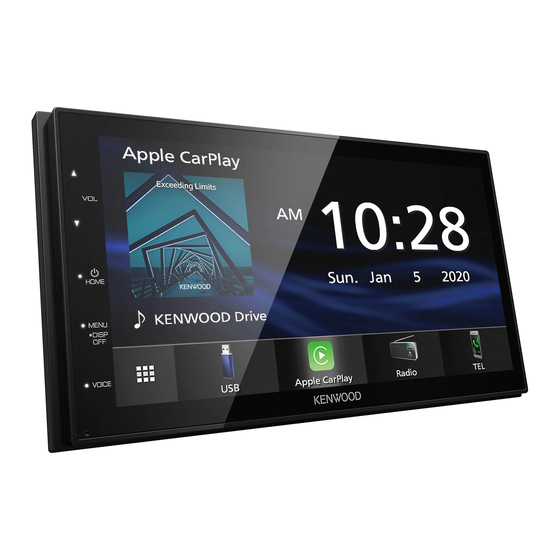
Kenwood DMX4707S troubleshooting usually comes down to power, wiring, settings, or a bad connection.
If your Kenwood DMX4707S is acting up, you are not alone. I have seen this unit perform well, but I have also seen small setup mistakes cause big headaches. In this guide, I’ll walk you through Kenwood DMX4707S troubleshooting in a clear, practical way so you can find the problem fast and get your screen, sound, Bluetooth, and camera working again.

49% off Today's Exclusive Deals
Limited-time Exclusive Deals. Check current discount on Amazon.
Check Price on Amazon As an Amazon Associate I earn from qualifying purchases.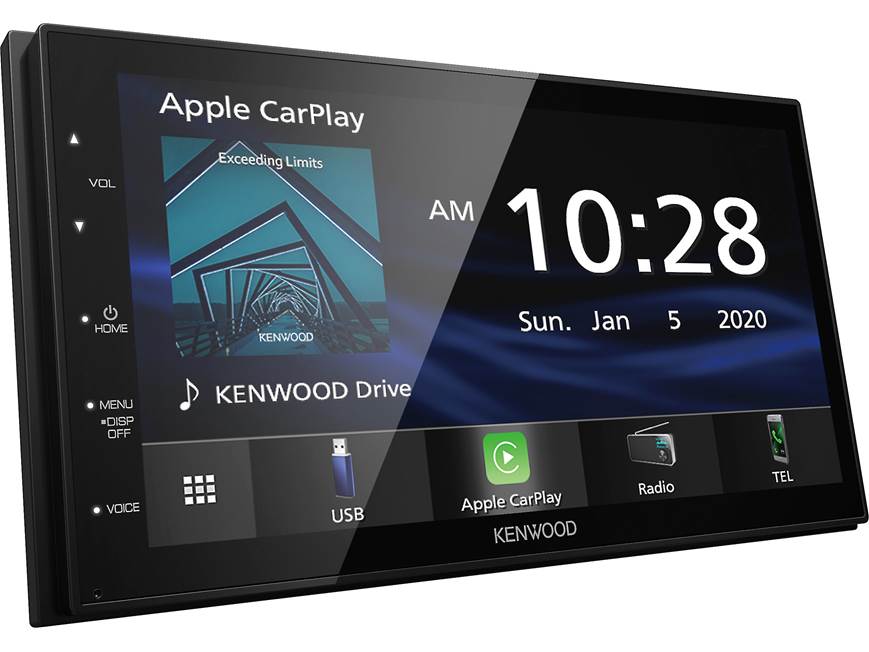
Common Kenwood DMX4707S problems and what they usually mean
Most Kenwood DMX4707S troubleshooting starts with a few repeat issues. The unit may not turn on, may freeze, may lose sound, or may fail to connect to Bluetooth. In many cases, the stereo is fine and the real problem is power, ground, fuse, or settings.
Here are the most common symptoms:
49% off Today's Exclusive Deals
Limited-time Exclusive Deals. Check current discount on Amazon.
Check Price on Amazon As an Amazon Associate I earn from qualifying purchases.- No power at all
- Screen turns on, but there is no sound
- Bluetooth will not pair or keeps dropping
- USB or Apple CarPlay and Android Auto do not work
- Backup camera does not display
- The unit reboots or freezes
- Static, weak sound, or one speaker not playing
When I troubleshoot a Kenwood DMX4707S, I start with the basics first. That is usually where the answer is hiding.

Start with the easiest checks first
Before opening panels or replacing parts, do the simple checks. This saves time and prevents damage. A lot of Kenwood DMX4707S troubleshooting problems come from loose plugs or bad setup choices.
Check the power and ignition wires
The DMX4707S needs a steady 12-volt power source and a proper ground. If the red accessory wire is not getting power when the key is on, the unit may stay off. If the yellow constant wire is weak or disconnected, memory functions can fail.
49% off Today's Exclusive Deals
Limited-time Exclusive Deals. Check current discount on Amazon.
Check Price on Amazon As an Amazon Associate I earn from qualifying purchases.Look for these issues:
- Loose crimp connectors
- Poor ground point
- Blown fuse in the stereo harness or vehicle fuse box
- Reversed power and accessory wires
A bad ground is one of the most common mistakes I’ve seen. It can make the radio act random, like a light switch with a loose wire.
Inspect the fuse
Check both the vehicle fuse and the Kenwood fuse if your setup includes one. A blown fuse can look harmless, but it can stop the whole unit. Replace it only with the correct rating.
Confirm the harness is seated properly
Make sure the wiring harness clicks in fully. If the plug is half-seated, the unit may power on and off or lose features.
Reset the unit
If the screen is frozen or the software is acting strange, try a reset. A reset can clear temporary glitches without affecting the whole installation.

Kenwood DMX4707S no power troubleshooting
If your Kenwood DMX4707S will not turn on, think in terms of power flow. Electricity has to get from the fuse box to the stereo, through the harness, and into a solid ground.
Here is a simple troubleshooting path:
- Check the car battery voltage
- Check the fuse
- Confirm the yellow constant wire has power
- Confirm the red accessory wire has power with the key on
- Check the ground wire for a clean metal connection
6. Inspect the harness and adapter connections - Try a reset if the unit is getting power but not booting
If the unit still does not power up, test with a multimeter. That is much more reliable than guessing. In my experience, voltage testing is the difference between a quick fix and a long afternoon of frustration.
Kenwood DMX4707S no sound troubleshooting
A powered-on screen with no sound usually means the audio path has a problem. This can happen even when Bluetooth or CarPlay seems to work fine. I have seen people assume the unit is dead when it was really a speaker wire or amp issue.
Check these areas:
- Speaker wires for shorts or loose connections
- Fade and balance settings
- Volume level and mute function
- External amplifier remote turn-on wire
- RCA connections if you use an amplifier
- Audio source settings in the menu
If you use an external amp, make sure the blue/white remote wire is connected correctly. Without that signal, the amp may stay asleep. Also check if the unit is set to the correct output mode.
Quick audio test
Try a different source, such as radio, Bluetooth, and USB. If one source works and another does not, the issue may be source-specific rather than hardware-related.
Kenwood DMX4707S Bluetooth troubleshooting
Bluetooth issues are very common with modern touchscreen receivers. The good news is that most Kenwood DMX4707S troubleshooting for Bluetooth is simple. Often, the problem is an old phone profile, a bad pairing list, or a software hiccup.
Try this:
- Delete the car stereo from your phone’s Bluetooth list
- Delete the phone from the Kenwood unit’s paired device list
- Turn Bluetooth off and back on
- Reboot the phone
- Reboot the head unit
- Pair again from scratch
If calls connect but music does not play, check the media audio setting on your phone. If music works but call audio does not, review the phone call profile. That small detail causes a lot of confusion.
I once spent too long chasing a “bad Bluetooth module” only to find the phone had a stale pairing entry from months earlier. A fresh pairing fixed it in minutes.
Kenwood DMX4707S Apple CarPlay and Android Auto troubleshooting
When CarPlay or Android Auto fails, the problem may be the cable, the phone, the USB port, or the phone settings. The DMX4707S depends on a stable data connection, so cheap cables often cause trouble.
Try these steps:
- Use an original or high-quality data cable
- Plug into the correct USB port
- Clean the phone port and USB plug
- Unlock the phone before connection
- Check CarPlay or Android Auto permissions
- Restart the phone and head unit
If CarPlay keeps disconnecting, the cable is often the real issue. It may charge the phone but still fail to pass data. That is a common trap.
When the screen says device not supported
That message usually means the connection path is wrong, the phone software is outdated, or the cable does not support data. Start with the cable before anything else.

Kenwood DMX4707S backup camera troubleshooting
A backup camera problem can feel serious, but it often has a simple cause. The camera may work, but the reverse trigger or video input may be wrong. Kenwood DMX4707S troubleshooting for cameras usually means checking signal, power, and settings together.
Check the following:
- Camera power connection
- Reverse trigger wire connection
- RCA video plug seating
- Camera input setting in the menu
- Camera itself for damage or water intrusion
- Vehicle reverse light signal
If the screen stays black only in reverse, the reverse trigger wire may not be getting voltage. If the camera image is blue or static, the video feed may be weak or disconnected.
Kenwood DMX4707S freezing, lag, or rebooting
Touchscreen lag or random rebooting usually points to power instability or software issues. In some cases, it is the vehicle’s electrical system. In others, it is an outdated firmware version or a poor ground.
Try these fixes:
- Check for low battery voltage
- Tighten the ground connection
- Remove any shorted speaker wire
- Disconnect and reconnect the harness
- Reset the unit
- Update firmware if available
A weak ground can make the unit behave like it has a mind of its own. That kind of intermittent issue is annoying because it comes and goes.
Kenwood DMX4707S display and touch screen problems
If the display is dim, blank, or not responding to touch, start with brightness settings and then move to connection checks. A bad screen response can come from dirt, moisture, or a software issue.
Useful steps include:
- Increase screen brightness
- Clean the screen with a soft cloth
- Remove gloves or screen protectors that block touch
- Reset the unit
- Check for loose internal connections if the unit was recently installed
If the screen lights up but nothing responds, the system may be frozen. A soft reset is the safest first move.
Advanced Kenwood DMX4707S troubleshooting for installers
If the simple checks do not solve the issue, go deeper. This is where a multimeter, wiring diagram, and patience help a lot. I always recommend a methodical process instead of changing several things at once.
Use a multimeter
Test for:
- Constant 12V power
- Switched accessory power
- Ground continuity
- Reverse trigger voltage
- Speaker wire continuity
Check for shorted speaker wires
A short in one speaker line can cause the unit to mute, reboot, or protect itself. Disconnect the speaker leads and test the unit again if needed.
Inspect adapter modules
If your installation uses a vehicle-specific interface module, that module may be the issue. A bad adapter can make the stereo look faulty when it is not.
Review firmware and system settings
Sometimes a software update resolves display bugs, CarPlay issues, or Bluetooth bugs. Check the unit’s update options and install updates only from a trusted path.

Mistakes to avoid during Kenwood DMX4707S troubleshooting
A few simple mistakes can turn a small fix into a bigger repair. I have seen these more than once, especially in rushed installs.
Avoid these common errors:
- Guessing instead of testing voltage
- Using a weak ground point
- Mixing up constant and accessory power
- Forcing connectors into place
- Using charging-only USB cables for data features
- Ignoring the vehicle fuse box
- Skipping a full reset after changes
The biggest lesson I have learned is this: do not assume the head unit is bad until you test the system around it. Most of the time, the Kenwood DMX4707S is only reporting a problem somewhere else.
Preventing future Kenwood DMX4707S problems
Good installation habits make a big difference. Once the unit is working, a few smart steps can keep it stable for a long time.
Helpful prevention tips:
- Use quality harnesses and connectors
- Secure all wiring so it does not shake loose
- Keep the firmware current when possible
- Use high-quality USB and charging cables
- Do not overload the system with bad speaker wiring
- Check battery health if the vehicle is older
Think of the stereo like part of the car’s nervous system. If the wiring is clean and stable, everything tends to work better.
Frequently Asked Questions of Kenwood DMX4707S Troubleshooting
Why does my Kenwood DMX4707S turn on but have no sound?
This usually points to speaker wiring, mute settings, or an amplifier issue. Check the volume, balance, fade, and remote turn-on wire before assuming the unit is defective.
Why won’t my Kenwood DMX4707S connect to Bluetooth?
Most Bluetooth issues come from old pairing data or a phone setting conflict. Delete the saved pairing on both devices, restart them, and pair again from scratch.
Why does my Kenwood DMX4707S keep rebooting?
Rebooting is often caused by weak power, poor grounding, or a short in the speaker wires. A voltage check is the best way to confirm whether the unit is getting stable power.
Why is my backup camera not showing on the Kenwood DMX4707S?
The camera may not be getting power, or the reverse trigger wire may not be connected properly. Also check that the camera input setting is correct in the menu.
Can I fix Kenwood DMX4707S problems with a reset?
Yes, a reset can fix small software glitches, frozen screens, and minor connection issues. It will not repair wiring faults, but it is a smart first step for many problems.
Conclusion
Kenwood DMX4707S troubleshooting becomes much easier when you follow a simple order: check power, check ground, check wiring, then check settings and devices. That approach solves most issues without wasting time or money. In my experience, the best repairs are the ones that start with patience and a meter, not guesswork.
If your Kenwood DMX4707S is still giving you trouble, go back through the steps one by one and test each part carefully. A calm, methodical check often reveals the problem fast. If this guide helped, keep it handy, explore more car audio tips, and leave a comment with the issue you are dealing with.