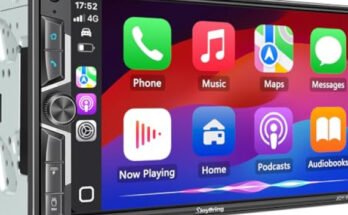
Most Sony XAV-AX8100 issues come from wiring, settings, firmware, or source-device conflicts.
Sony XAV-AX8100 troubleshooting gets much easier when you know where to look first. I’ve spent enough time with Sony head units to see the same problems show up again and again: no power, no sound, frozen screens, CarPlay drops, Bluetooth hiccups, or backup camera issues. The good news is that most of these are fixable with a calm, step-by-step check, and that is exactly what this guide will walk you through.

49% off Today's Exclusive Deals
Limited-time Exclusive Deals. Check current discount on Amazon.
Check Price on Amazon As an Amazon Associate I earn from qualifying purchases.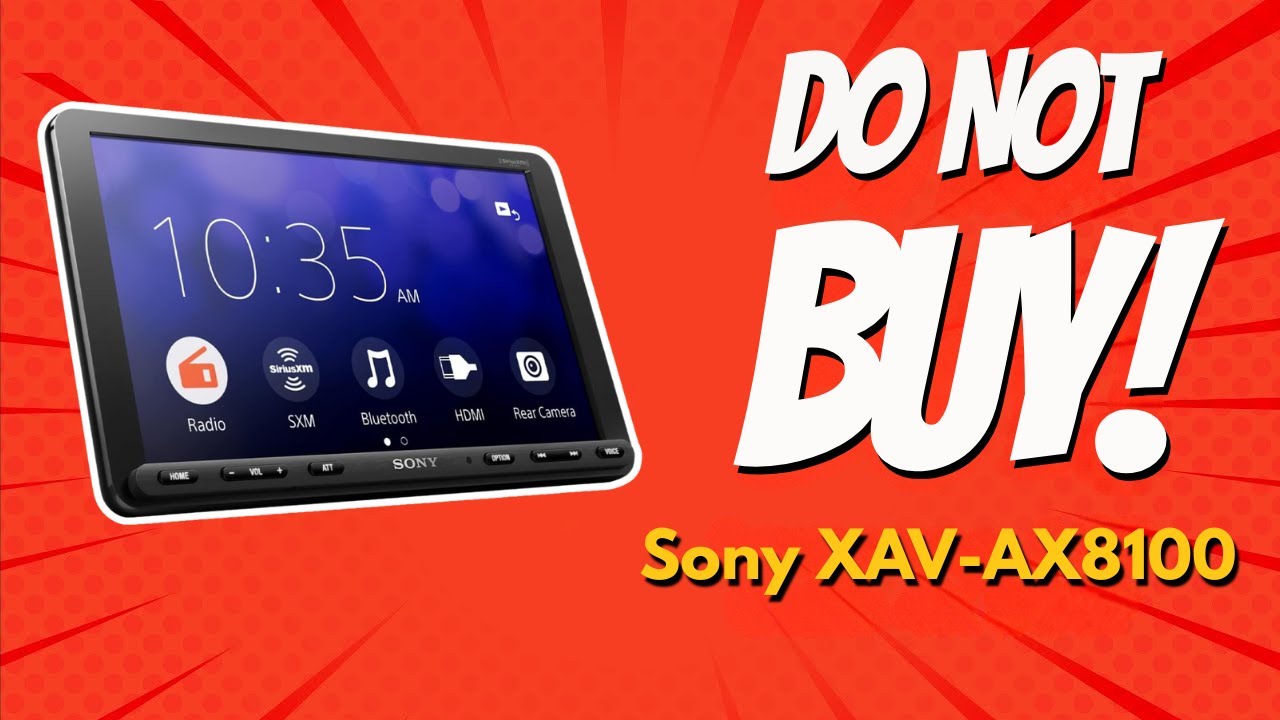
Common Sony XAV-AX8100 Problems and What They Usually Mean
The Sony XAV-AX8100 is a strong double-DIN receiver, but like any in-dash system, it depends on clean power, correct wiring, software health, and good device pairing. When something goes wrong, the symptom usually gives you a clue.
Here are the most common Sony XAV-AX8100 troubleshooting problems:
49% off Today's Exclusive Deals
Limited-time Exclusive Deals. Check current discount on Amazon.
Check Price on Amazon As an Amazon Associate I earn from qualifying purchases.- No power at all: Often tied to fuse issues, loose harness connections, or a bad ground.
- Power on, but no sound: Usually caused by speaker wiring, muted output, amp settings, or external amplifier problems.
- Touchscreen not responding: Can be a temporary software glitch, a frozen unit, or a calibration issue.
- Apple CarPlay or Android Auto not connecting: Commonly caused by bad USB cables, phone settings, firmware problems, or port issues.
- Bluetooth pairing fails: Often linked to old pairings, signal interference, or phone compatibility settings.
- Backup camera not showing: Usually related to camera wiring, reverse signal, or camera format settings.
- Random restarts or freezing: Often a sign of unstable power, overheating, or outdated firmware.
From experience, the biggest mistake people make is assuming the head unit is defective right away. In many installs, the problem is much simpler than that. I’ve seen a loose ground wire create what looked like a “dead unit,” and I’ve seen a cheap USB cable break CarPlay for days.
Before You Start Troubleshooting the Sony XAV-AX8100
Before you open panels or replace parts, take a slow, basic approach. Good troubleshooting is like checking the front door before calling a locksmith.
Start with these first steps:
- Turn the ignition off and back on.
- Check the vehicle fuse and the radio fuse.
- Confirm the harness is fully seated.
- Inspect the ground wire for a tight metal connection.
- Test with a known-good USB cable.
- Reboot your phone and the head unit.
- Remove old Bluetooth pairings and reconnect from scratch.
If the Sony XAV-AX8100 only acts up sometimes, that usually points to an intermittent connection. Those are the sneaky ones. They can feel random, but they often come from movement, heat, or a wire that is just barely making contact.
49% off Today's Exclusive Deals
Limited-time Exclusive Deals. Check current discount on Amazon.
Check Price on Amazon As an Amazon Associate I earn from qualifying purchases.
Sony XAV-AX8100 Troubleshooting for No Power or No Display
If the Sony XAV-AX8100 does not power on, the issue is usually upstream of the screen itself. The unit needs stable constant power, accessory power, and a solid ground. If even one of those is weak, the display may stay dark.
Check these items in order:
- Inspect the fuse in the vehicle’s fuse box.
- Check any inline fuse on the radio harness.
- Make sure the yellow constant power wire has voltage.
- Make sure the red accessory wire gets power with ignition on.
- Confirm the black ground wire is attached to bare metal.
- Reseat the main harness connector at the rear of the unit.
A meter helps here. In professional installs, I always say the multimeter is your best friend. Guessing wastes time, and electrical guessing is how people replace good parts by mistake.
Possible causes include:
- Blown fuse
- Loose wiring harness
- Poor ground connection
- Reversed or missing accessory power
- Damaged adapter harness
- Faulty vehicle power source
If the unit powers on for a second and then shuts off, look for a short circuit or a weak power connection. That kind of behavior often means the system is trying to start, then losing power under load.
Sony XAV-AX8100 Troubleshooting for No Sound
A powered-on stereo with no sound can be frustrating. The screen looks fine, but the cabin stays silent. This is one of the most common Sony XAV-AX8100 troubleshooting complaints.
Start by checking the basics:
- Make sure the volume is up.
- Confirm mute is off.
- Check fader and balance settings.
- Verify speaker wires are connected correctly.
- Check if an external amplifier is installed.
- Make sure the amp remote wire is connected if needed.
If the Sony XAV-AX8100 is connected to a factory or aftermarket amplifier, the amp may not turn on without the blue remote lead. I’ve seen people chase speaker problems for an hour when the real issue was simply that the amp never woke up.
Also check these settings:
- Speaker output mode
- Rear speaker setting
- Subwoofer setting
- High-pass and low-pass filters
- Any loudness or EQ settings that may be muting certain ranges
If only one side or one speaker is silent, then the issue is more likely in the speaker wire path or the speaker itself. If all speakers are dead, the problem is usually at the head unit setup, amp trigger, or harness level.
Sony XAV-AX8100 Troubleshooting for CarPlay and Android Auto
Phone connection issues are a huge part of Sony XAV-AX8100 troubleshooting because the receiver depends on both hardware and software. CarPlay and Android Auto may look simple on the surface, but they are picky about cables, port quality, and phone settings.
Try these steps:
- Use an original or certified high-quality USB cable.
- Plug directly into the correct USB port.
- Delete the phone from the unit and delete the unit from the phone.
- Restart both the phone and the receiver.
- Update the phone operating system.
- Update the Sony firmware if available.
- Check whether the phone has restricted USB access.
In my experience, bad cables cause more CarPlay problems than almost anything else. A cable can still charge a phone and still fail at data transfer. That’s why a “charging cable” is not always a real data cable.
If the Sony XAV-AX8100 connects sometimes and drops later, look for:
- A loose USB connection
- Phone case interference with the cable
- Dirty USB port
- Firmware mismatch
- Background phone restrictions
- Heat buildup in the dash
Keep in mind that Android Auto and CarPlay are both sensitive to signal stability. They are like a conversation in a noisy room. If the line gets fuzzy, the whole link falls apart.
Sony XAV-AX8100 Troubleshooting for Bluetooth Pairing Problems
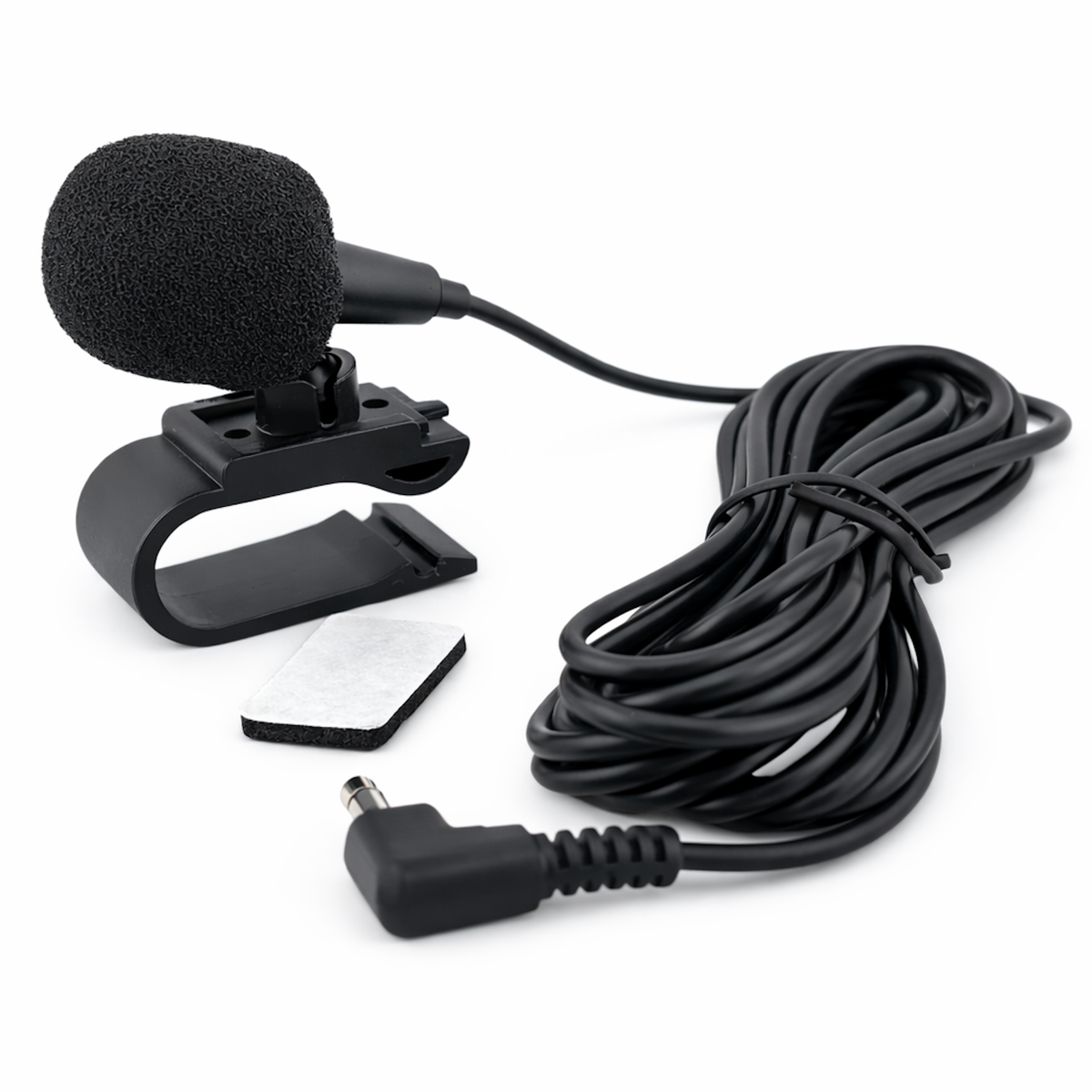
Bluetooth problems usually feel smaller than CarPlay issues, but they can be just as annoying. The Sony XAV-AX8100 uses Bluetooth for calls and audio, so a pairing error can quickly become an everyday headache.
Try this checklist:
- Delete old pairings from both the phone and the receiver.
- Make sure the unit is in pairing mode.
- Keep the phone close to the head unit.
- Turn Bluetooth off and back on.
- Restart the phone.
- Confirm the phone is not connected to another device nearby.
If pairing works but audio cuts out, think about interference. Other wireless devices, weak phone batteries, or poor signal quality can create stutter or dropouts.
A useful habit is to remove unused paired devices from the Sony XAV-AX8100. Too many old connections can clutter the list and cause confusion when the unit tries to reconnect.
Sony XAV-AX8100 Troubleshooting for Frozen Screen or Unresponsive Touch
A frozen touchscreen can feel worse than a dead unit because it gives you false hope. The display is on, but the system will not listen. This is often a software hiccup, not a fatal hardware failure.
Try these fixes:
- Perform a system reset if the unit is responsive enough.
- Turn the vehicle off, wait a minute, and restart it.
- Disconnect the battery briefly if needed and if you know how to do it safely.
- Check for firmware updates.
- Make sure no buttons or trim pieces are pressing on the screen.
I’ve seen cold mornings, hot dashboards, and low battery voltage all trigger odd screen behavior. Electronics do not always fail in a clean way. Sometimes they just act tired.
If the touch input is offset or inaccurate, that may point to calibration or a deeper display issue. If the screen freezes only after using a specific app, the cause may be the phone, cable, or app itself rather than the receiver.
Sony XAV-AX8100 Troubleshooting for Backup Camera Problems
Backup camera issues are common after installation, especially if the reverse trigger or video input is not wired correctly. The Sony XAV-AX8100 usually needs the correct camera feed and reverse signal to switch automatically.
Check these points:
- Confirm the camera has power.
- Verify the reverse trigger wire is connected.
- Inspect the video RCA connection.
- Confirm camera polarity and format settings.
- Test the camera on another display if possible.
- Check whether the camera only fails in low light.
If the image is black, think power or signal. If the image is upside down or distorted, look at camera compatibility and settings. If the camera appears only sometimes, the issue may be a weak wire run or a bad ground at the rear of the vehicle.
In real installs, I always advise testing the camera before fully buttoning up the dash. It saves time and avoids the dreaded “tear it apart again” moment.
Sony XAV-AX8100 Troubleshooting for Random Restarts or Freezing
Random resets usually point to unstable power. The Sony XAV-AX8100 needs a steady electrical supply, and even a brief drop can cause a reboot. This is one of the clearest signs that troubleshooting should focus on wiring first.
Look for these causes:
- Weak ground connection
- Loose battery or accessory wire
- Voltage drop during cranking
- Faulty adapter harness
- Overheating behind the dash
- Internal firmware bug
If the unit restarts when you hit bumps, the wiring is probably moving. That is a strong clue. If it restarts when starting the car, the vehicle’s voltage dip may be the trigger.
A simple fix is sometimes to reroute or secure the harness better. I’ve seen a cable tie solve a problem that looked like a head unit defect. Small details matter in car audio.
Sony XAV-AX8100 Firmware, Reset, and Update Tips
Software matters more than many drivers expect. Sony XAV-AX8100 troubleshooting often improves after a reset or firmware update because bugs can live in old software versions.
Use these best practices:
- Check for the latest firmware before assuming hardware failure.
- Back up any settings if possible.
- Perform a proper reset when the system acts strangely.
- Re-pair phones after a major update.
- Recheck audio and camera settings after updating.
A reset can clear temporary errors, but it will not fix bad wiring. That is an important limitation. Think of it like restarting your phone when an app crashes. Helpful, yes. Magic, no.
If the problem returns after every reset, the root cause is likely physical, not software.
Practical Sony XAV-AX8100 Troubleshooting Workflow
When I troubleshoot a Sony XAV-AX8100, I use the same order almost every time. It keeps things simple and avoids wasted effort.
Follow this workflow:
- Confirm the symptom.
- Check power and ground.
- Check fuses.
- Test the harness.
- Test phone connections.
- Check sound settings.
- Inspect camera and accessory wiring.
- Update firmware if needed.
- Reset and retest.
This method works because it starts with the most likely and easiest causes first. That is usually faster than tearing the dashboard apart too soon.
A good rule is to change one thing at a time. If you adjust five things at once, you will not know what actually fixed the issue.
Mistakes to Avoid During Sony XAV-AX8100 Troubleshooting
I’ve seen a lot of avoidable mistakes over the years. Most of them come from rushing.
Avoid these:
- Replacing the unit before checking wiring
- Using cheap USB cables for CarPlay
- Ignoring ground quality
- Forgetting the amp remote wire
- Skipping fuse checks
- Leaving old Bluetooth pairings in place
- Pulling on wires while testing
Another common mistake is assuming a factory harness adapter is always wired correctly. Sometimes the adapter itself is fine, but the install behind it is not. One loose pin can create hours of confusion.
Patience is a bigger repair tool than many people realize.
When to Seek Professional Help
Some Sony XAV-AX8100 problems are simple DIY fixes. Others need a pro, especially if you are dealing with advanced integration, amplifier systems, steering wheel controls, or custom camera wiring.
Consider professional help if:
- The unit has no power after fuse and wiring checks
- The vehicle uses complex factory integration
- You suspect a short circuit
- The amplifier or DSP setup is custom
- The backup camera wiring is hard to trace
- The unit still fails after resets and updates
A good installer can test voltage, signal, and harness integrity faster than most people can guess their way through it. That does not mean you failed. It just means the problem may be deeper than a simple connection issue.
Frequently Asked Questions of Sony XAV-AX8100 Troubleshooting
Why does my Sony XAV-AX8100 turn on but have no sound?
This is usually caused by speaker wiring, mute settings, or an amplifier that is not turning on. Check balance, fader, and the amp remote wire first.
Why does my Sony XAV-AX8100 keep disconnecting from CarPlay?
A weak USB cable, dirty port, or phone software issue is often the cause. Try a certified data cable and reconnect both devices after deleting old pairings.
How do I reset my Sony XAV-AX8100?
Use the unit’s reset function if the system is responsive, or follow the safe power cycle steps in your vehicle. A reset can clear software glitches, but it will not repair wiring problems.
Why is my Sony XAV-AX8100 backup camera not showing?
The camera may not be getting power, or the reverse trigger wire may be loose. Also check the video connection and camera settings in the unit menu.
Can a bad ground cause Sony XAV-AX8100 problems?
Yes, a poor ground can cause no power, random restarts, noise, or unstable performance. A clean metal ground point is one of the most important parts of the install.
Why does Bluetooth work for calls but not music?
This can happen when the phone pairing is incomplete or media audio is disabled. Remove the device from both sides and pair it again from scratch.
Conclusion
Sony XAV-AX8100 troubleshooting is usually straightforward when you follow the symptoms in a smart order. Power issues, bad grounds, weak cables, old pairings, and setup mistakes are the most common culprits, and most of them can be fixed without replacing the unit. If you stay patient, test one thing at a time, and focus on the basics first, you will solve far more problems than you expect.
Take the time to check your wiring, update your firmware, and use quality cables. Those small steps often make the biggest difference. If this guide helped, try the troubleshooting steps on your own system, keep notes on what changes, and share your experience or questions in the comments so others can learn from it too.