A Tesla Model Y camera problem usually shows up as a startling error message on your touchscreen, often right when you need Autopilot or Park Assist the most. It's frustrating, but the cause usually falls into a few predictable buckets: software, moisture, or hardware.
This is a common issue with camera-based driver assist systems. Under U.S. federal standard FMVSS 111, backup cameras are required safety equipment. According to NHTSA, these systems exist to reduce backing crashes.

49% off Today's Exclusive Deals
Limited-time Exclusive Deals. Check current discount on Amazon.
Check Price on Amazon As an Amazon Associate I earn from qualifying purchases.So when a camera stops working, it's more than an annoyance. It's a compliance issue. Let's walk through the exact steps to diagnose and fix it.
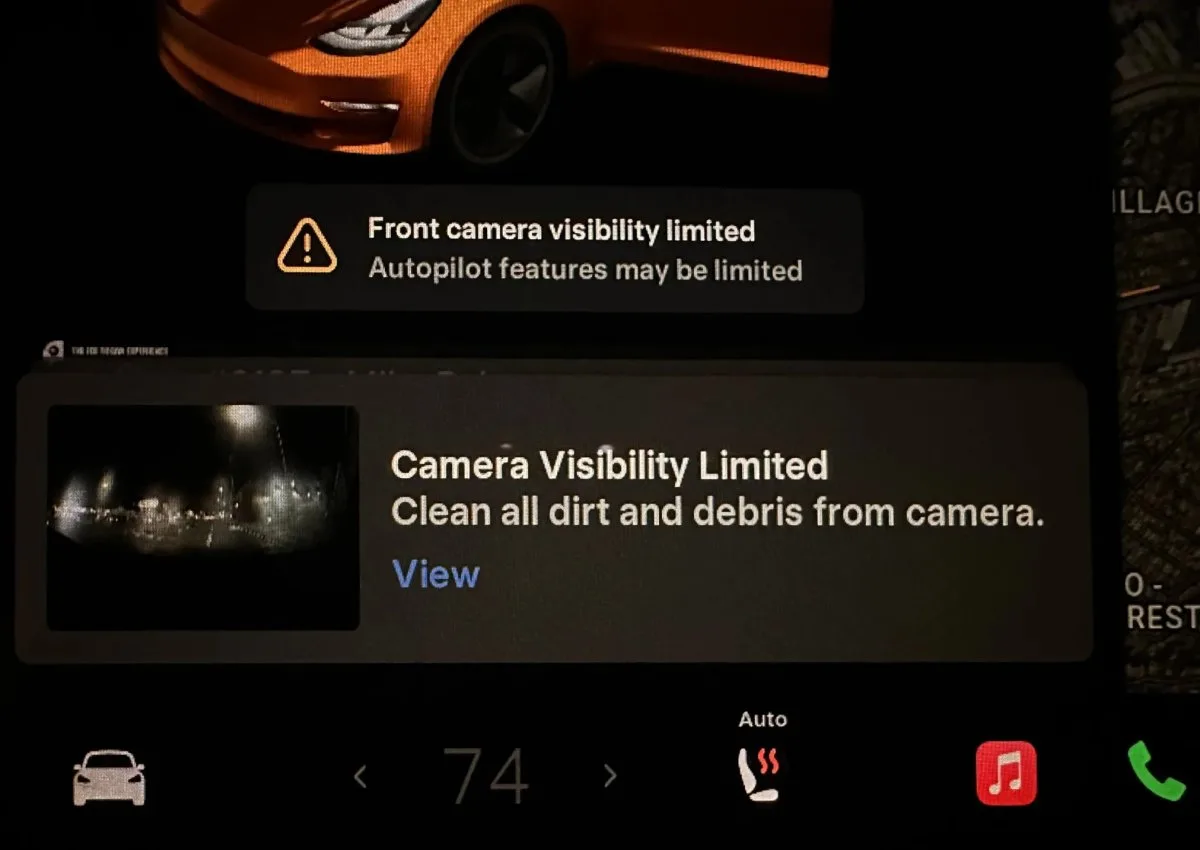
Image source: Bing (Web (fair-use with source credit))
49% off Today's Exclusive Deals
Limited-time Exclusive Deals. Check current discount on Amazon.
Check Price on Amazon As an Amazon Associate I earn from qualifying purchases.Is Your Tesla Model Y Camera Problem a Glitch, Moisture, or Hardware?
Your problem falls into one of three buckets: a software glitch, moisture on or inside a lens, or failed hardware. The exact error message and the visual condition of the lens tell you which one you're dealing with.
- Single error, clean lens, likely software. Try a reboot.
- Fog or water inside housing, condensation. Warm dry air and time fix it.
- Blurry, dirty, or blocked lens, environmental. Clean it first.
- Error persists after all above, hardware. Schedule service.
The wrong move is treating every camera error the same. Replacing hardware for a software glitch costs time and money. Waiting days to reboot wastes nothing.
The Reset That Fixes Most Camera Errors
A reboot clears the majority of camera problems that appear without any physical obstruction. Tesla's vision system can get stuck in a temporary error state. Restarting it forces the cameras to reinitialize.
Step 1: The soft reboot
49% off Today's Exclusive Deals
Limited-time Exclusive Deals. Check current discount on Amazon.
Check Price on Amazon As an Amazon Associate I earn from qualifying purchases.- Bring the car to a complete stop and put it in Park.
- Press and hold both scroll buttons on the steering wheel simultaneously.
- Keep holding for 10, 15 seconds until the touchscreen goes black.
- Release when the Tesla "T" logo appears.
- Wait 30, 60 seconds for the system to finish restarting.
This fixes around 70% of glitch-related camera errors. If the error persists, move to the full power cycle.
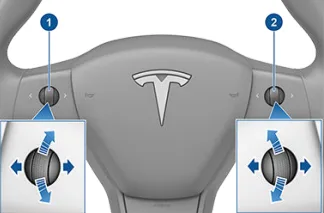
Image source: Bing (Web (fair-use with source credit))
Step 2: The full power-off
- Go to Controls > Safety > Power Off.
- Confirm the shutdown.
- Wait at least three full minutes. This matters.
- Press the brake pedal to wake the car.
If this works, the camera feed returns and the error message disappears. If not, it's time to inspect the lenses.
Condensation and Blocked Lenses: Simple Fixes People Miss
Environmental causes are far more common than hardware failure. Dirt, ice, and water block the camera's field of view. Condensation inside the housing looks like fogged-up glass and won't wipe off from the outside.
Inspect and clean every lens
The Model Y has cameras on the front, rear, both B-pillars, and both side repeaters, plus a cabin camera. Clean every lens you can reach.
- Use a clean, soft microfiber cloth. Dry cloth first.
- If needed, dampen it with water or a little isopropyl alcohol.
- Never use paper towels or abrasive cleaners.
- Gently wipe until the glass is clear.
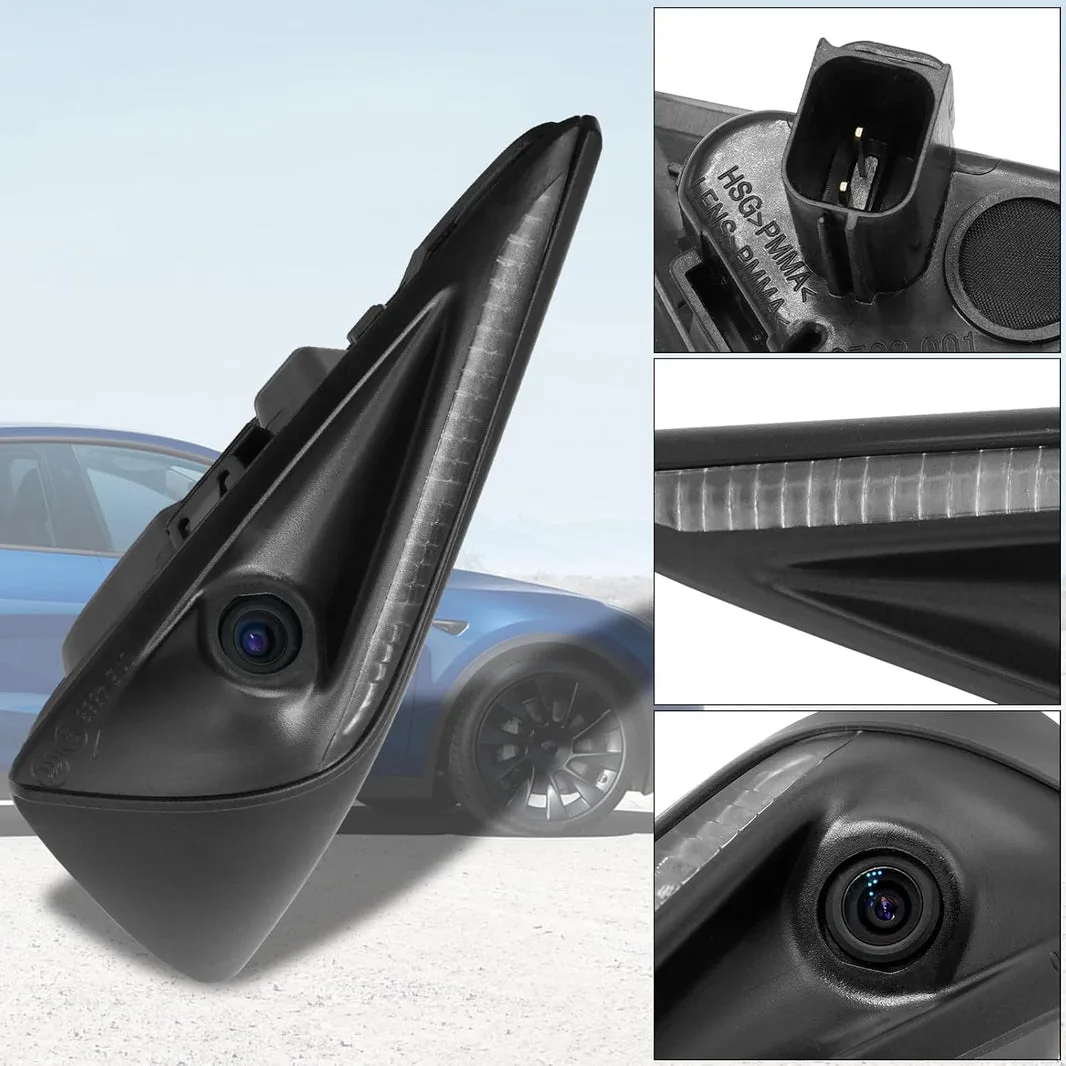
Image source: Bing (Web (fair-use with source credit))
Handle condensation properly
Park in a dry, warm space like a garage. Run the climate control with warm air pointed toward the front windows. Give it 24 to 48 hours.
Most condensation evaporates on its own. If it stays longer, the lens seal may be broken.
Clear ice and snow carefully
Use warm water to melt ice. Never scrape a lens. Scratches on the camera lens are permanent and can cause degraded image quality even after the obstruction is gone.
Autopilot, Dashcam, Sentry, and Parking: Matching the Error to the Fix
The specific feature that fails points to the specific camera or system involved. Use this table to narrow it down.
| Error or symptom | Most likely cause | First fix |
|---|---|---|
| Autopilot temporarily degraded | Dirty lens or condensation | Clean lenses, then reboot |
| Park Assist unavailable | Blocked side or front camera | Clean all lower cameras, reboot |
| Dashcam unavailable | Corrupted USB drive | Reformat USB drive in the car |
| Sentry mode not recording | USB full or failed, camera issue | Check dashcam feed first |
| Black or blank camera feed | Hardware failure, loose wiring | Schedule Tesla service |
| Blind spot camera not showing | Failed B-pillar or repeater cam | Reboot, then inspect lens |
The logic is simple. One faulty camera can disable an entire feature set. Autopilot needs a clear view from multiple cameras.
If any one stops feeding data, it disengages.
When It's Real Hardware Trouble: Service, Warranty, and Replacement
If you've rebooted and cleaned every lens, but the error persists for more than 24 to 48 hours, it's likely hardware. The most common hardware failure on the Model Y is a side repeater camera. Owners report one-sided errors that never clear.
Check your warranty first
As of 2026, Tesla's basic vehicle warranty covers 4 years or 50,000 miles. Camera failures due to manufacturing defects are covered under this. You can confirm coverage in the Tesla app before booking.
Book service through the app
Schedule via the Tesla app. Include a photo of the error message so the tech knows what to expect. Many camera replacements can be done by Tesla Mobile Service at your home.
It's faster than visiting a service center.
Out-of-warranty costs
Side repeater camera replacement can run several hundred dollars, parts and labor depending on your region. The final quote comes through the app, so you'll see it before agreeing to work.
One serious warning
Don't pry at the camera housing or attempt to disassemble it. Camera housings are sealed. Breaking that seal causes water damage and voids the warranty.
If the unit is bad, leave the replacement to a professional.
The 5-Minute Decision Tree for Any Model Y Camera Problem
This decision tree condenses everything above into a practical workflow.
- Notice the error. Write down the exact wording.
- Inspect all lenses. Dirty, wet, foggy, covered in ice? , Yes: Clean or wait. Test again.
, No: Continue.
- Do a soft reboot. Hold both scroll buttons. , Error gone? Done.
, Still there? Continue.
- Do a full power-off. Wait three minutes. , Error gone? Done.
, Still there? Continue.
- Check the specific feature. , Dashcam: reformat USB.
, Autopilot: check side cameras.
, Park Assist: clean front and side cameras.
- Wait 48 hours for condensation to clear.
- Still having the issue? Book Tesla service.
This order fixes the simplest causes first. It prevents wasted trips to the service center. It also keeps you from breaking a good camera while chasing a software bug.
Mistakes That Waste Time, Money, and Warranty Coverage
A few common mistakes turn small camera problems into larger, costlier ones.
- Prying at camera housings. Breaks the water seal and voids the warranty. Stop at cleaning the outside.
- Using paper towels on lenses. Scratches the coating, causing permanent image degradation. Use microfiber only.
- Booking service for condensation. If it clears within 48 hours, it's not a defect. Wait it out.
- Skipping the full power-off. The soft reboot isn't enough for some errors. Give the full cycle a real three minutes.
- Ignoring pending software updates. Tesla fixes known camera bugs in updates. Running old software means living with known errors.
- Forgetting the 12-volt battery. A weak battery can cause spurious camera and system errors. If other features act strange, have the battery tested.
Frequently Asked Questions
How many cameras does a Tesla Model Y have?
The Model Y's vision system uses eight external cameras as of 2026: three front, two side repeaters, two B-pillars, and one rear. There's also a cabin camera for driver monitoring.
Why does my camera say "temporarily degraded"?
It means the vision system can't get a clear image from one or more cameras. Dirt, ice, rain, or condensation is usually the culprit. Clean the lenses and wait.
If the message stays for over 48 hours, the camera seal may be compromised.
Can a low 12-volt battery cause camera errors?
Yes. A weak 12-volt battery can create voltage dips that trigger random false errors across the car's systems. If you see camera warnings along with strange behavior from the touchscreen or wipers, test the auxiliary battery before replacing anything.
Should I reboot before contacting Tesla service?
Always. A soft reboot and a full power-off are free. They clear most temporary camera errors.
Tesla service technicians will ask if you've done both before scheduling a repair, so doing it upfront saves you time.
Does a camera error mean I can't drive the car?
No. The car remains drivable. Camera-based features like Autopilot, Parking Assist, and blind spot monitoring may be limited or disabled.
Basic driving controls stay fully operational, so you can safely drive to get help.