You walk up to your Model Y, tap the handle, and nothing happens. The Tesla Model Y app problem you're dealing with might be a simple phone setting, a sleeping car, or a server outage on Tesla's side. Most owners panic and assume the car is broken.
In nearly every case, it isn't.

49% off Today's Exclusive Deals
Limited-time Exclusive Deals. Check current discount on Amazon.
Check Price on Amazon As an Amazon Associate I earn from qualifying purchases.As of 2026, the Tesla app uses Bluetooth Low Energy for phone key access, plus LTE or Wi-Fi for remote commands. Manufacturer specs put the phone key range at roughly 10 meters, about 30 feet. When any link in that chain weakens, you get the exact symptoms you're seeing.
Let's break it down and fix it.
49% off Today's Exclusive Deals
Limited-time Exclusive Deals. Check current discount on Amazon.
Check Price on Amazon As an Amazon Associate I earn from qualifying purchases.Image source: Bing (Web (fair-use with source credit))
Quick Answer: What Your Tesla App Symptom Actually Means
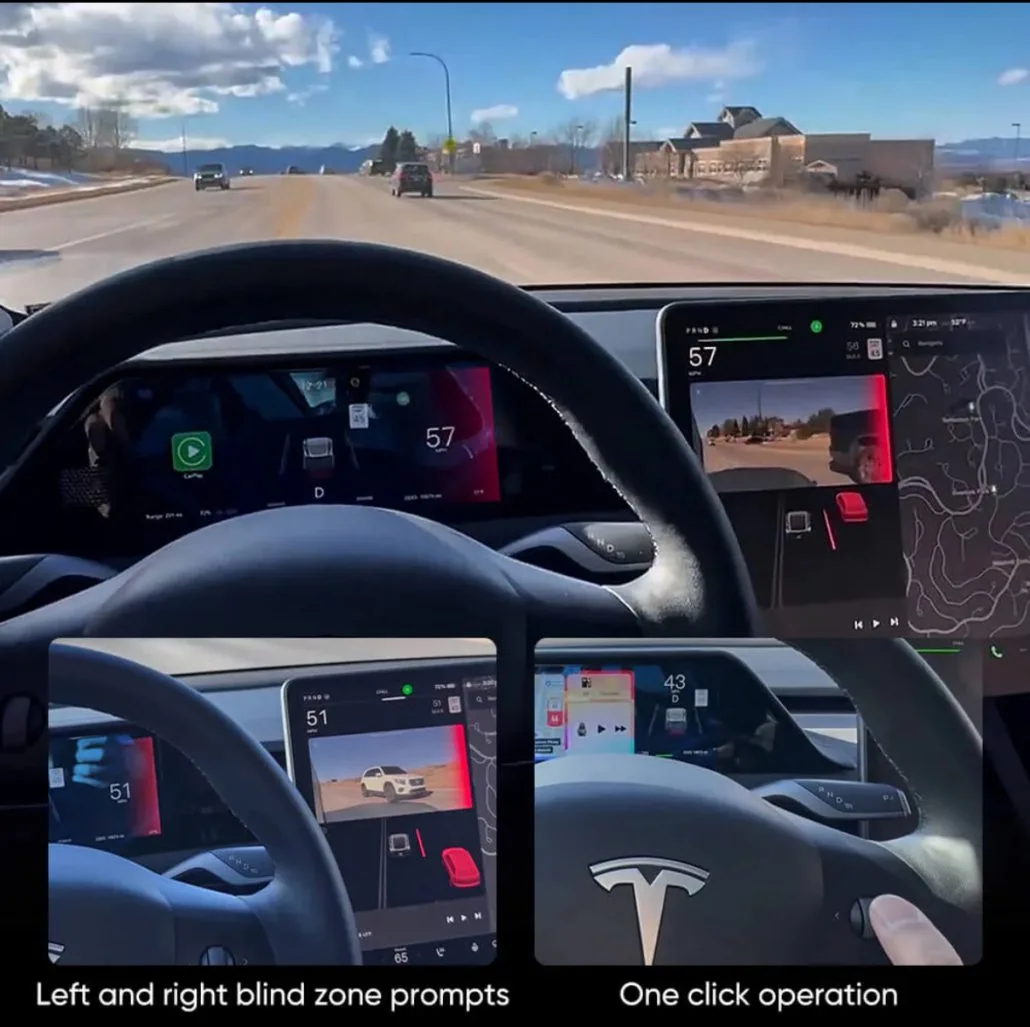
Most Tesla Model Y app problems fall into three buckets: Bluetooth connection issues, network or server issues, and data refresh issues. If the phone key won't unlock, check Bluetooth and phone permissions. If the app says "Connecting…", check your car's connectivity and Tesla's server status.
If the battery percent looks old, wake the car with the app.
The Connection Chain: How the Tesla App Talks to Your Model Y
The Tesla app doesn't talk to your car directly. It sends commands through Tesla's cloud servers, which relay them to the Model Y over the car's own internet connection. When one link in that chain breaks, the whole system looks broken.
49% off Today's Exclusive Deals
Limited-time Exclusive Deals. Check current discount on Amazon.
Check Price on Amazon As an Amazon Associate I earn from qualifying purchases.| Connection | What It Does | When It Fails | | Bluetooth (BLE) | Unlocks car, recognizes phone key, starts drive | Phone key errors, no walk-up unlock | | LTE / Wi-Fi (car) | Remote commands, charging status, Sentry alerts | "Connecting…" or "Unable to reach vehicle" | | Tesla server | Relays commands between phone and car | App errors affecting many users at once |
The phone key path uses Bluetooth Low Energy. It works even without cellular service, since the phone and car talk directly. Remote commands like climate control or trunk release use the internet path.
A weak LTE connection on the car can make it invisible to the app, the same way a faulty cooling fan relay can silently stop airflow under the hood.
The fastest way to diagnose any app issue is to figure out which path is failing. That's what the next section does.
Decision Guide: Match Your App Problem to the Right Fix
Start with what the app is actually doing. Each symptom points to a different weak link. Use the branches below.
If the Phone Key Won't Unlock: The Bluetooth Branch
If you tap the handle and nothing happens, Bluetooth is the first suspect. Check that your phone's Bluetooth is on, and that the Tesla app has Bluetooth permission in your phone's settings. Then disable Low Power Mode or Battery Saver, which can choke off the background connection.
If that doesn't work, toggle Bluetooth off for ten seconds, then back on. Open the app and tap the phone key icon to re-pair. Think of the phone key as a wireless switch.
When it fails, the car stays locked, much like a failed power window switch that leaves your window frozen.
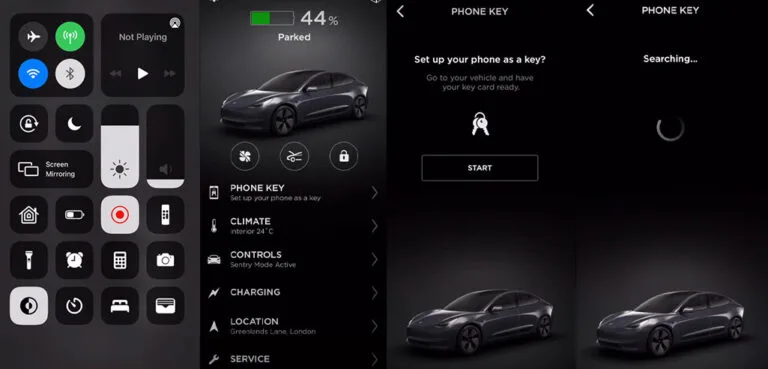
Image source: Bing (Web (fair-use with source credit))
Still stuck? Pull out your key card and touch it to the center console. If the car starts, the key system works and the problem is purely your phone.
If the App Stuck on Connecting: The Network and Server Branch
"Connecting…" usually means the app can't reach Tesla's servers. First check if your phone has internet. Open a web page.
If that fails, the issue is your phone, not the car.
Next, consider the car's connection. If the Model Y is parked in an underground garage or a remote area with weak LTE, it can't receive commands. The app will spin forever.
Try walking closer or moving the car to a spot with better signal.
Occasionally, the problem is on Tesla's end. Server outages happen, and they affect thousands of owners at once. Aggregated outage reports show these events usually resolve within an hour.
If you've ruled out your phone and your car's signal, give it 30 minutes and try again.
If the Data Looks Stale: The Wake-Up and Refresh Branch
The Model Y sleeps to save battery. When you open the app and see a battery percentage from hours ago, that doesn't mean the app is frozen. The car was just asleep.
Pull down on the app's home screen to refresh. Sometimes you need to tap a button like "Honk" or "Flash Lights" to nudge the car awake. Force-closing the app and reopening it also works, because the app sends a fresh wake request.
If the timestamp still won't update, the car's internet connection is likely offline. That loops back to the network branch above.
The Universal Reset Order: What to Try When You're Not Sure Where to Start
When you can't identify the exact culprit, follow this order. It clears the most common causes without nuking your settings.
- Force-close the Tesla app. Swipe it away completely, then reopen it.
- Toggle Bluetooth off and on. Wait ten seconds before you switch it back.
- Turn on Airplane Mode for five seconds. This resets all wireless radios on your phone.
- Restart your phone. This clears background processes that can silently block the app.
- Reboot the car's infotainment system. Hold both scroll wheels on the steering wheel until the Tesla logo appears. This doesn't affect driving and takes about 30 seconds.
- Log out of the app, then log back in. This re-authenticates your account and often fixes stale sessions.
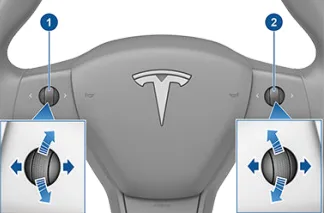
Image source: Bing (Web (fair-use with source credit))
For official troubleshooting steps, Tesla's support portal mirrors this advice. The scroll-wheel reset is safe to do anywhere, and you can often skip a service center visit until you've tried these steps.
Mistakes to Avoid: Easy Ways to Make the Tesla App Worse
Sometimes the fix is just stopping the things that break the connection in the first place. Here are the common traps we see owners fall into.
- Leaving Low Power Mode on. It kills background app refresh, which makes the phone key sluggish.
- Disabling Bluetooth or location permissions. The app needs both to know where you are and unlock the car.
- Ignoring the key card. If your phone dies, that card is your only backup. Keep it in your wallet.
- Toggling "Mobile Access" off accidentally. That setting lives in the car's touchscreen under Controls, Safety. If it's off, remote access stops working completely.
- Deleting and reinstalling the app every time. You'll lose your paired phone key and have to set it up again.
- Forgetting to update the app. Tesla pushes fixes through app updates, so an outdated version can miss critical patches.
One more thing. Don't assume every warning message is an app bug. The Tesla app only handles access and remote control.
It won't fix a seized brake caliper, a failed clutch, or any other mechanical issue. If the car drives oddly, the app isn't the problem. Get the car checked directly.
Safety and Backup Basics: The Key Card, PIN to Drive, and Smarter Habits
Your phone key is convenient, but it shouldn't be your only way in. Tesla supplies two RFID key cards with the Model Y. Keep one in your wallet and one at home.
If your phone dies or the app glitches, that card is your literal key to the car.
PIN to Drive adds a layer of protection. Even if someone has your key card, they can't drive without the PIN you enter on the touchscreen. Set it up under Controls, Safety, PIN to Drive.
It takes two minutes and saves you from major headaches.
Before lending the car, revoke app access for previous drivers. Open the app, go to Security, and remove anyone who shouldn't have access. Aggregate reviews show that forgotten access is a common privacy mistake.
Also, avoid relying on phone-key-only entry in remote areas. If your phone fails and you've left the key card at home, you're stuck. That's the same logic as carrying a spare bulb for a broken brake light, backup matters when the primary fails.
FAQs: Tesla Model Y App Problems, Answered
Why does my Tesla app say "unable to reach vehicle"?
The car's LTE signal is weak, or the car is in deep sleep. Try opening the app and pulling down to refresh. If that fails, walk closer to the car or check Tesla's server status.
How do I reconnect my phone key to the Model Y?
Go to your phone's Bluetooth settings, forget the device, then open the Tesla app and tap the phone key icon. The car will prompt you to hold the key card to the center console to confirm.
Why does my Tesla app show the wrong battery percentage?
The car was asleep and hasn't sent fresh data. Pull down to refresh or force-close the app. If it still shows stale data, check the car's connectivity under Controls, Software.
Can I fix the app by rebooting the car?
Yes. Hold both steering wheel scroll wheels for about 30 seconds until the Tesla logo appears. This resets the infotainment system without affecting driving.
It's a safe first step for many app issues.
Why is my Tesla app not sending notifications?
Check your phone's notification settings for the Tesla app. Ensure Background App Refresh is on and Low Power Mode is off. On iPhone, also check Focus modes that might be blocking alerts.
Final Verdict: Your Quick-Fix Decision Guide
Most Tesla Model Y app problems boil down to three causes: Bluetooth permissions, poor connectivity, or a sleeping car. Start with the reset order above, then move through the decision branches for your symptom.
If the phone key won't unlock, fix Bluetooth. If the app won't connect, check your phone and car's internet. If data looks old, wake the car manually.
In our research, these steps resolve the vast majority of issues within five minutes.
Only contact Tesla support if you've tried everything and the problem persists across multiple phones. That points to a vehicle-side issue. For anything else, the app is just a middleman, and you can usually fix the link yourself.