A Tesla Model Y Bluetooth problem can turn a seamless drive into a daily frustration. You walk up expecting the doors to unlock, but nothing happens. Or your playlist stutters through every other song.
It usually comes down to a few specific culprits.

49% off Today's Exclusive Deals
Limited-time Exclusive Deals. Check current discount on Amazon.
Check Price on Amazon As an Amazon Associate I earn from qualifying purchases.Most issues trace back to a phone setting, a software quirk, or simple signal interference. The Bluetooth Special Interest Group confirms all Bluetooth devices operate on the 2.4 GHz frequency band, which is crowded with Wi-Fi traffic. If you've hit a wall with your Model Y, let's start with the quickest diagnostic.
The Problem: When Your Tesla Model Y Bluetooth Just Stops Working
A Bluetooth issue in your Model Y isn't just about music. It can break the phone key feature, cut off hands-free calls, or stop your phone from syncing contacts. Symptoms usually fall into three buckets: the phone won't connect at all, the connection drops randomly, or specific functions like audio or calls fail while the connection looks active.
This isn't usually a hardware failure. It's a communication glitch. Your phone and the car's computer are failing to talk properly over the Bluetooth radio link.
49% off Today's Exclusive Deals
Limited-time Exclusive Deals. Check current discount on Amazon.
Check Price on Amazon As an Amazon Associate I earn from qualifying purchases.These problems are almost always fixable without a service visit.
Quick Answer: What to Do First Before Anything Else
A Tesla Model Y Bluetooth problem is often fixed with a full reset. First, forget your phone from the car's Bluetooth menu and from your phone's settings. Next, reboot the Tesla touchscreen by holding both scroll wheels until the screen goes black.
Finally, re-pair the phone through the Tesla app.
This clears old connection data and restarts the Bluetooth module. It resolves most connectivity and audio drop issues. If the problem persists, your specific symptom will point you to the right next step.
49% off Today's Exclusive Deals
Limited-time Exclusive Deals. Check current discount on Amazon.
Check Price on Amazon As an Amazon Associate I earn from qualifying purchases.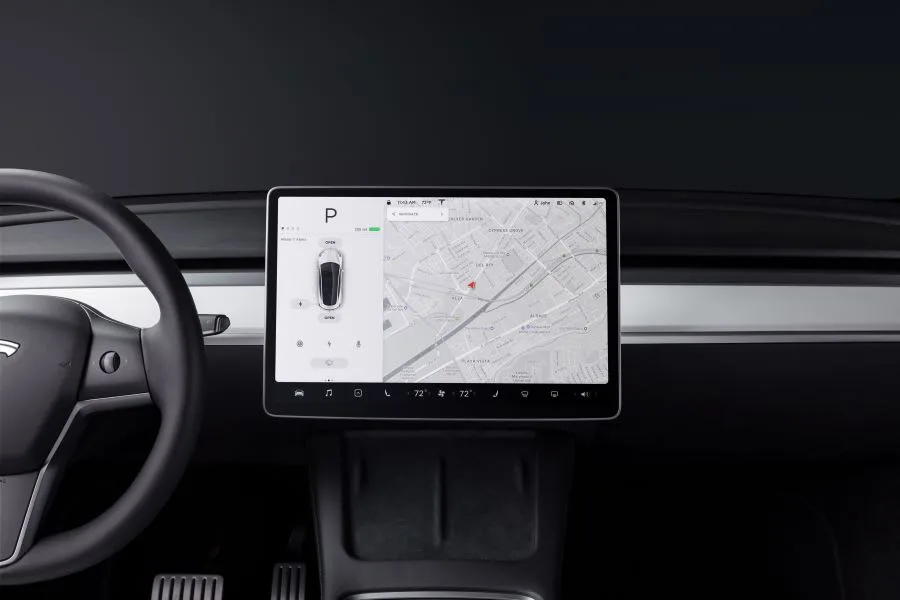
Image source: Bing (Web (fair-use with source credit))
Follow the Symptom: A Simple Bluetooth Troubleshooting Decision Tree
Don't try random steps. Start with what's actually broken.
Phone Key Not Locking or Unlocking
If your phone key isn't working, the issue is likely with the Tesla app's background permissions or the BLE handshake.
- Check the Tesla app. Open it on your phone. Does it show "Phone Key" as active? If not, tap it to reconnect.
- Verify app permissions. Ensure the app has location and Bluetooth permissions always enabled. On iPhone, go to Settings, then Tesla. On Android, go to Settings, then Apps, then Tesla, then Permissions.
- Try the key card. If the key card works, the car's reader is fine. The problem is your phone's BLE signal. A phone reboot often fixes this.

Image source: Bing (Web (fair-use with source credit))
If you get locked out entirely, a guide on getting a stuck car window unstuck covers emergency access methods worth knowing.
Audio Stutters, Drops, or Won't Stream
For music or call audio that cuts out, the issue is usually with the HFP or A2DP profile.
- Check interference. Is a USB 3.0 device plugged into the front port? USB 3.0 can interfere with 2.4 GHz signals. Unplug it and test.
- Disable Wi-Fi temporarily. Turn off Wi-Fi on your phone. If audio stabilizes, there's heavy Wi-Fi interference in your area.
- Use the forget sequence. Remove the phone from both the car and the device list, then re-pair.
Calls Connect but Contacts or Audio Fail
If calls ring through on the car's screen but you hear nothing, or contacts won't load, it's a profile sync failure.
- Check contact sync. Go to Bluetooth settings for your Tesla on your phone. Ensure "Sync Contacts" is toggled on.
- Reboot both devices. A full reboot of your phone and the Tesla touchscreen resolves most profile corruption.
- Test with a different phone. If a friend's phone works fine, the problem is isolated to your device's software or settings.
Step-by-Step Fixes for the Most Common Model Y Bluetooth Failures
Have your phone and car key card ready before starting.
- Forget the Device. On your phone, go to Bluetooth settings, find "Tesla," and select "Forget This Device." Then in your car, go to Bluetooth settings on the touchscreen, tap your phone's name, and select "Forget."
- Force-Close and Reopen the Tesla App. Fully close the app on your phone. Don't just minimize it.
- Reboot the Infotainment System. Press and hold both scroll buttons on the steering wheel until the Tesla logo appears. This takes about 30 seconds.
- Re-Pair via the App. Open the Tesla app. It should prompt you to add the phone as a key. Follow the on-screen steps.
- Verify Permissions. After pairing, confirm all permissions (Location, Contacts, Bluetooth) are set to "Always Allow."
If the phone key still fails, open the Bluetooth menu, select your phone, and confirm the "Phone Key" option is checked. As of 2026, this remains the most common oversight after re-pairing.
| Step | Action | Why It Works |
|---|---|---|
| 1 | Forget device on both ends | Clears corrupted pairing data |
| 2 | Reboot car screen | Restarts the Bluetooth module |
| 3 | Re-pair via Tesla App | Establishes a fresh connection |
Why Tesla Bluetooth Acts Up: Phones, Firmware, and Interference
Understanding the "why" helps prevent future problems.
Software and Firmware Updates. Tesla regularly pushes over-the-air updates. These can temporarily break Bluetooth compatibility with certain phone models until a subsequent patch arrives. If the problem started right after an update, check Tesla's release notes for any known fixes.
Phone-Specific Behavior. Different manufacturers implement Bluetooth standards slightly differently. Android's aggressive battery optimization can kill the Tesla app's background processes. On iPhone, a major iOS update can reset permissions without the user noticing.
Signal Interference. Your car's Bluetooth module competes for airtime on the 2.4 GHz band. Wi-Fi routers, other Bluetooth devices, and USB 3.0 cables all add congestion. Our research indicates positioning your phone near the center console, away from the rear of the car, improves signal strength.
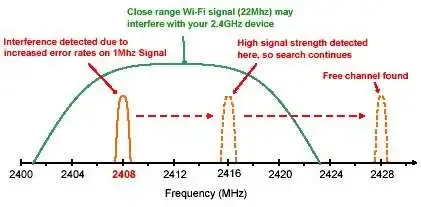
Image source: Bing (Web (fair-use with source credit))
If your car shows other warning signs like a fan that stops working, it might point to broader electrical issues. Persistent cross-system faults usually require a Tesla service center visit.
Mistakes to Avoid When Re-Pairing Your Model Y
We've seen owners repeat the same steps without success. These are the errors to skip.
- Re-pairing without forgetting first. Simply tapping "Connect" again rarely works. Remove the old connection from both devices completely.
- Ignoring background settings. On Android, set the Tesla app to "Unrestricted" in battery settings. On iOS, ensure Background App Refresh is on.
- Pairing from the phone's Bluetooth menu alone. Always initiate pairing from the Tesla app or the car's touchscreen. This ensures the phone key establishes properly.
- Skipping the reboot. The car's computer needs a full restart to clear old Bluetooth cache data.
Wait a full minute after a car reboot before re-pairing. Rushing the process often leads to the same broken connection. For deeper electrical problems that affect multiple systems, our guide on transmission slipping causes explains how interconnected vehicle electronics can create cascading failures.
Real-World Scenarios: What Other Model Y Owners Run Into
Scenario one: audio cuts out after three seconds. You see "Bluetooth disconnected" on screen. This is classic interference. Unplug any USB device from the front ports.
Move your phone away from a metal water bottle in the cupholder. Most owners report this fixes it immediately.
Scenario two: phone key works sporadically. It unlocks the car but won't start it without the key card. This points to a weak BLE connection. Thick metal-plated phone cases are a frequent culprit.
Removing the case restores a solid signal. Also confirm the Tesla app runs in the background on your phone.
Scenario three: connection breaks after a major phone update. Your Model Y acts like it's never seen your device. This is normal. The update likely reset Bluetooth permissions.
Run through the full forget-and-repair process and watch for every permission prompt your phone displays.
Persistent electrical oddities across multiple car functions, like signals that stop responding, suggest a deeper issue beyond Bluetooth alone.
Frequently Asked Questions
Why does my Tesla Model Y keep disconnecting my phone?
Background app restrictions are the most common cause. Both iOS and Android can kill the Tesla app's Bluetooth connection to save battery. Go into your phone's settings, find the Tesla app, and set it to always allow background activity.
A forget-and-repair cycle often resolves stubborn cases.
Can a Tesla software update break Bluetooth?
Yes. Over-the-air updates occasionally introduce temporary compatibility issues with specific phone models. If your connection broke right after an update, check Tesla's release notes.
A simple forget-and-repair cycle resolves most post-update glitches within minutes.
Why does my phone key work sometimes but not others?
Intermittent phone key failures usually signal a weak BLE signal. Thick metal phone cases block it. So does keeping the phone in a back pocket far from the driver's door.
Carry it in your front pocket when approaching the car and confirm the Tesla app has unrestricted battery settings.
Is there a way to use my Model Y without Bluetooth?
Tesla provides a key card using NFC technology. Tap it against the center console pillar to unlock. You can also use the Tesla app's manual unlock button over cellular data.
Every Model Y ships with at least two key cards as a backup.
Should I reset my infotainment system every time Bluetooth fails?
Start with simpler steps first. Toggle airplane mode on your phone, check app permissions, or forget and re-pair the device. A full infotainment reboot, holding both steering wheel scroll buttons for 30 seconds, is best reserved for stubborn cases or post-update issues where nothing else works.