Your Tesla Model 3 won't connect to app right now, and you're likely staring at "unable to connect" or "waking car." It's frustrating, but more often than not it's a small break in the communication chain, not a broken car. We'll help you find which link snapped and fix it in minutes.
Research shows connection failures almost always come from Bluetooth pairing, weak network signals, or a car that's sleeping too deeply. The Model 3 uses Bluetooth Low Energy (BLE) for the phone key and LTE or Wi-Fi for remote commands. As of 2026, that system is generally reliable, but it still trips over a few predictable issues.

49% off Today's Exclusive Deals
Limited-time Exclusive Deals. Check current discount on Amazon.
Check Price on Amazon As an Amazon Associate I earn from qualifying purchases.Quick Answer
Tesla app connection failures come from Bluetooth, weak LTE, or a car in deep sleep. Restart the app, then your phone, then the car's touchscreen. Carry your Key Card as backup.
Check your signal before calling Tesla.
49% off Today's Exclusive Deals
Limited-time Exclusive Deals. Check current discount on Amazon.
Check Price on Amazon As an Amazon Associate I earn from qualifying purchases.Image source: Bing (Web (fair-use with source credit))
Why Your Tesla Model 3 App Connection Seems Dead
The app doesn't talk to your car directly. It sends commands over the internet to Tesla's cloud servers, which forward them to the car through its LTE connection. The phone key works separately over local Bluetooth, so it still works when the cloud is down.
That distinction matters because the symptom tells you which channel is broken. If the phone key opens the door but remote commands fail, the cloud connection is the problem. If the phone key doesn't work at all, Bluetooth is the issue.
Another common culprit is the car's sleep cycle. When the Model 3 sits idle, it enters a deep sleep to save power. Waking it takes a few seconds and needs a stable network connection.
49% off Today's Exclusive Deals
Limited-time Exclusive Deals. Check current discount on Amazon.
Check Price on Amazon As an Amazon Associate I earn from qualifying purchases.Park in an underground garage with weak LTE, and the app times out with "unable to connect." That's not a hardware fault, just poor signal.
A weak 12V battery can also cause strange electrical faults. It powers the car's computers and network modules, so low voltage makes connectivity flaky. The symptoms look random, but the root cause is simple.
Expect similar issues to brake lights that stop working when voltage drops.
Software updates matter too. If the car updated overnight but the app didn't, the two versions can fall out of sync. The same happens when your phone's operating system updates and the app hasn't caught up.
Reinstall the app and see if that clears it.
Sometimes the problem is on Tesla's side. When their servers have an outage, every owner sees the same "unable to connect" error. Check Tesla's support page before you restart everything.
How the Tesla App Talks to Your Car: Bluetooth, Wi-Fi, LTE, and the Cloud
The Model 3 relies on three separate communication channels. Knowing which one does what saves time when something goes wrong.
| Channel | Role | Typical Range | | Bluetooth Low Energy (BLE) | Phone key, local unlock, start | About 10 meters | | Wi-Fi | Firmware updates, home network tasks | Your home router coverage | | LTE (cellular) | Remote commands, live status, Sentry Mode | Anywhere with cellular coverage | | Tesla Cloud | Routes commands between app and car | Internet-wide |
Bluetooth Low Energy is what drives the phone key experience. It's designed for short-range, low-power use, and it can be blocked by interference. Metal, other Bluetooth devices, even your own pocket can cause drops.
If the door doesn't unlock, start by checking whether the phone is actually in range.
Remote commands like heating the cabin or checking charging status take a different path. Your phone pings Tesla's servers over LTE or Wi-Fi. The server relays that request to the car over its built-in LTE modem.
Slow mobile data, a weak tower, or a sleeping car all produce the same error message.
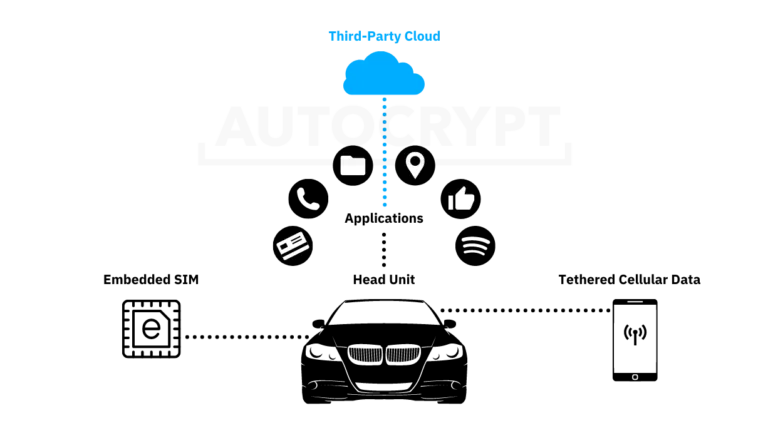
Image source: Bing (Web (fair-use with source credit))
Wi-Fi is the quiet third channel. The car needs it to download software updates. If your car never connects to home Wi-Fi, it can't install fixes for known connectivity bugs.
Setting up your home network in the car is one of the easiest ways to keep the software fresh. For official specs and troubleshooting steps, Tesla's support documentation is the place to go.
The Troubleshooting Decision Tree: Find the Exact Fix for Your Situation
Stop guessing. Follow this workflow and you'll isolate the broken link in minutes.
Step 1: Test the Key Card
Touch the Key Card to the driver-side door pillar. If the car opens and starts, your car is fine. The issue is your phone or the app.
If the Key Card doesn't work, the car's systems may be unresponsive or the 12V battery is dead. Move to the car-side fixes below.
Step 2: Fix the Phone First
- Force-close the Tesla app and reopen it.
- Turn Bluetooth off and on.
- Check app permissions for Bluetooth and location.
- Log out of the app, then log back in.
- Reinstall the app if nothing else works.
Then try the door again. If the phone key works but remote commands fail, move to the car.
Step 3: Wake the Car
Press the brake pedal to wake it. Then reboot the touchscreen by holding both steering wheel buttons for a few seconds. Wait for the Tesla logo to appear.
This clears most software hangs.
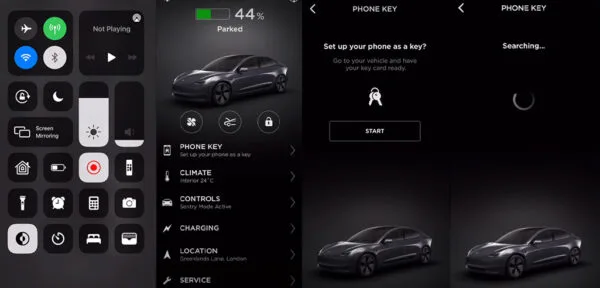
Image source: Bing (Web (fair-use with source credit))
Step 4: Check Signal
Look at the LTE and Wi-Fi icons on the car's touchscreen. If the signal is weak, the app will fail even though the car is fine. Park near a window or move to a spot with better coverage.
Step 5: Check Tesla's Servers
If both the car and phone are healthy, the problem might be on Tesla's side. Wait 10 minutes and try again. Global outages happen and they fix themselves.
If you've tried all this and the phone still won't pair, delete the car from the app and add it back as a new device. It's like resetting a window that's jammed after a motor reset. It takes five minutes but resolves stubborn pairing issues.
Common Mistakes That Make "Unable to Connect" Worse
Some well-meaning fixes make things worse. Avoid these.
Mistake 1: Relying solely on the phone without a Key Card. The Key Card is your backup for a reason. When you're troubleshooting, you need a way to get into the car without resetting your phone every time. Carry it.
Mistake 2: Using a VPN. If your phone has a VPN running, Tesla's servers may flag the connection as suspicious. Turn it off before troubleshooting.
Mistake 3: Ignoring app or phone updates. Just because the Tesla app worked yesterday doesn't mean it's compatible with the latest iOS or Android version. Update everything.
Mistake 4: Toggling random settings. People often disable Bluetooth or turn off location data to "reset" things. That actually breaks the phone key, since it needs both to work.
Mistake 5: Hammering the unlock button. Repeatedly pressing the app controls sends dozens of wake signals. Tesla's servers may throttle your connection for a few minutes. Put the phone down.
Mistake 6: Skipping the touchscreen reboot. Reinstalling the app won't fix a car-side software freeze. Reboot the car first.
Repeatedly tapping the app is like spamming the button on a stuck shifter. It adds stress, not results. Stay methodical.
The biggest mistake is assuming the car is broken when it's just sleeping. Patience fixes most of these.
Pro Tips for a More Reliable Phone Key and Remote Access
Once you've fixed the issue, set things up so it doesn't happen again.
Keep the 12V battery healthy. The car's network modules depend on it. If the voltage drops below 12V, you'll see random faults. Check it with a multimeter or ask your service center.
It's the same principle as catching wear early on any car. A small check prevents a big headache.
Set up home Wi-Fi in the car. Go to Controls > Software and connect to your home network. This ensures firmware updates download overnight, including bug fixes that improve connectivity.
Charge your phone. Low-power mode on a phone can throttle Bluetooth background activity. The app may appear to hang when the phone is at 5%. Plug in, then try again.
Update the Tesla app regularly. Release notes often include fixes for connectivity issues. Update your app whenever your phone prompts you.
Carry the Key Card anyway. No system is perfect. The Key Card is your guaranteed fallback when the app decides to act up.
Park with better signal when you need remote access. If you're at an airport with spotty LTE, you may not be able to precondition the car. That's an infrastructure limit, not a Tesla bug.
With these habits, most owners go months without a single "unable to connect" error. When a glitch does pop up, you'll know exactly which link in the chain is causing it.
When to Stop Fiddling and Get Tesla Involved
If you've worked through every step in the decision tree and the app still refuses to connect, stop there. Persistent failure after a full reset usually means a hardware fault. A dying 12V battery, a failing LTE modem, or a damaged Bluetooth antenna can't be fixed from your phone.
You'll know it's time when the car ignores the Key Card too. That points to a car-side problem, not the app. Book a service visit through the app and describe exactly what you did.
If your vehicle is still under warranty, this is covered at no cost. Mention the steps you've tried and the exact error message. Tesla's remote diagnostics can often spot the fault before you arrive.
A support chat first is smart; they might push a software patch or flag a known issue.
This is the same advice we'd give for a hard mechanical fault. You don't keep driving and hope it fixes itself. You get a professional involved before the problem gets worse.
Frequently Asked Questions
Why does my Tesla app say "unable to connect to vehicle"?
That message means the app reached Tesla's servers but the servers couldn't reach the car. The car may be sleeping, out of LTE range, or offline. Wake the car with the brake pedal, move to better signal, or wait a few minutes and retry.
How do I reboot the Tesla touchscreen?
Hold both steering wheel buttons until the screen goes dark. Keep holding until the Tesla logo appears. This takes about 10 seconds total.
The car stays driveable during the reboot, and it clears most software glitches.
Is my Tesla phone key supposed to work without internet?
Yes. The phone key works over local Bluetooth, so it doesn't need LTE or Wi-Fi. If your phone unlocks the door but remote commands fail, the app's cloud connection is broken.
The opposite means Bluetooth is the problem.
Can I still drive my Model 3 if the app doesn't connect?
Yes, as long as you have your Key Card or Key Fob. The phone key is a convenience, not a requirement. Inside the car, press the brake pedal and the car will start.
Drive normally and fix the app connection when you're parked.
Does Tesla's server outage affect phone key access?
No. The phone key uses direct Bluetooth and works even when Tesla's servers are down. Remote features like climate control and Sentry Mode live view will fail during an outage, but your car will still unlock and start.