Your Tesla Model 3 software update problem usually comes down to a few simple culprits: weak Wi-Fi, low battery charge, or a frozen touchscreen. The good news is you can fix nearly all of them yourself without a service visit. That's what this guide covers.
As of 2026, Tesla pushes updates on a roughly monthly schedule. Install sizes range from about 500 MB to over 2 GB. Most installs take 30 to 60 minutes and require at least 20% battery charge.

49% off Today's Exclusive Deals
Limited-time Exclusive Deals. Check current discount on Amazon.
Check Price on Amazon As an Amazon Associate I earn from qualifying purchases.Let's walk through the exact causes and your safest next step.
First, Find Out Why Your Tesla Update Is Stuck
Every Tesla Model 3 software update problem starts the same way. The car downloads a package, prepares it, then installs it. When something goes wrong, it's almost always in one of those three phases.
The fix depends on which phase you're stuck in.
49% off Today's Exclusive Deals
Limited-time Exclusive Deals. Check current discount on Amazon.
Check Price on Amazon As an Amazon Associate I earn from qualifying purchases.The most common culprit is network connectivity. Teslas only download updates over Wi-Fi, not over cellular data. If your car is parked on the street or in an apartment garage, it may be connecting to a weak Wi-Fi signal that keeps dropping the download.
Simple rule: the car needs a stable connection for the entire download, not just a spotty one.
The second most common cause is battery level. Tesla won't start an installation if the main battery is below 20%. Same goes for the 12V auxiliary battery.
If the 12V battery is weak or aging, it can fail during the install process. That's when you'll see warnings about "Update interrupted" or a dead touchscreen afterward.
49% off Today's Exclusive Deals
Limited-time Exclusive Deals. Check current discount on Amazon.
Check Price on Amazon As an Amazon Associate I earn from qualifying purchases.Less often, the problem is on Tesla's servers. Updates roll out in waves. If you've forced an update before Tesla's servers have flagged your car as ready, it may hang forever on "Checking for update." You can wait, reboot, or leave it overnight.
Finally, there's the hardware itself. Older Model 3s with the Intel Atom infotainment system handle updates much slower than newer AMD Ryzen units. If your car is older, a 60-minute install can stretch to 90 minutes or more.
That's not a failure, it's just old hardware grinding through the process. Patience helps.
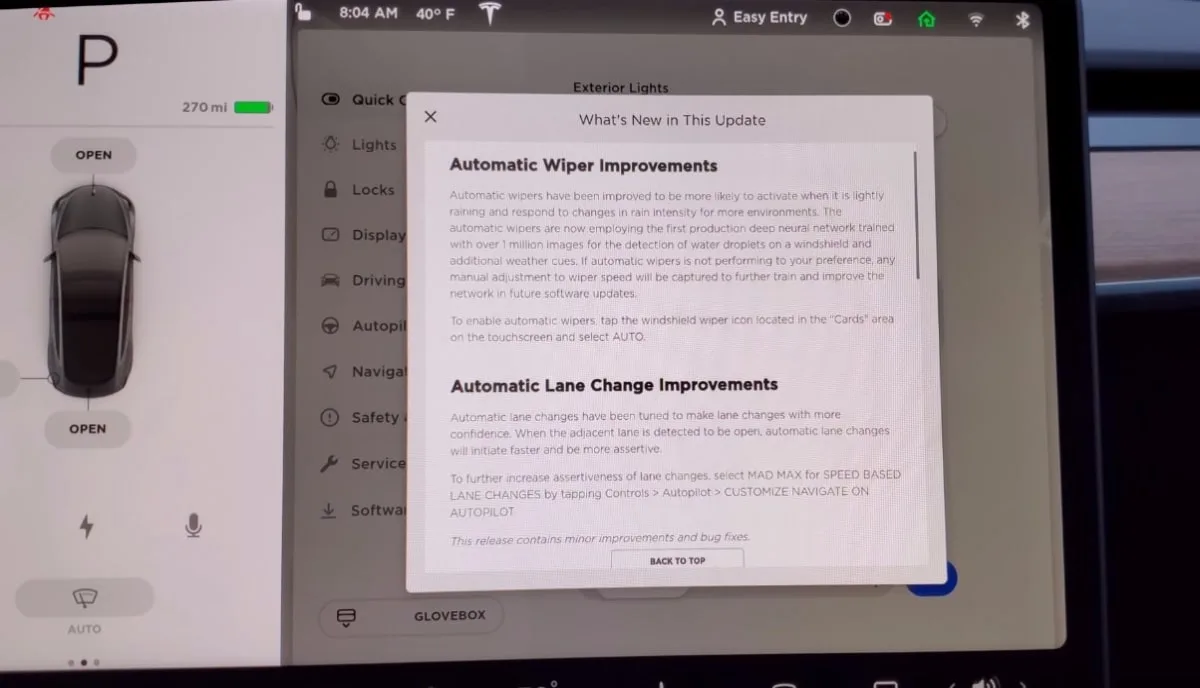
Image source: Bing (Web (fair-use with source credit))
Quick Symptom Check: Which Problem Are You Actually Dealing With?
Before you try any fix, match your symptom to the likely cause. Use this table as your starting point. It's based on patterns from aggregate owner reports and Tesla's own support documentation.
| Symptom | Likely Cause | Good First Step |
|---|---|---|
| Stuck on "Checking for update" | Server rollout delay or poor Wi-Fi | Force quit the app, wait 12 hours |
| Download stuck at 0% or a low number | Wi-Fi signal too weak or dropped | Reconnect to Wi-Fi or use a hotspot |
| "Update unavailable" error | Tesla hasn't flagged your VIN yet | Check later or switch to Advanced |
| "Preparing to install" for hours | 12V battery issue or corrupted download | Reboot the car with scroll wheels |
| Install stuck at a percentage | Update interrupted by Sentry Mode or sleep | Disable Sentry Mode, plug in the charger |
| Frozen screen after update | Software glitch or failed install | Two-scroll-wheel reboot |
The biggest clue is where in the process you're stuck. If the car hasn't even started downloading, it's a connectivity or server issue. If the download completed but installation won't start, that points to battery or Sentry Mode interference.
If the car rebooted but the screen is unresponsive, that's a software glitch that usually clears with a manual reboot.
One more pattern worth knowing. The Tesla app will often show an error before the car does. The app is the fastest way to see whether the update is still downloading, stuck in "preparing," or actually installed.
If the app says "Update failed," that's your signal to move to the specific fix below.
Stop Guessing: The Right Fix for Each Symptom
Now it's time to act. Here's the if/then workflow for the most common Tesla Model 3 software update problem scenarios.
If the update is stuck on "Checking for update": open the Tesla app and pull down to refresh. If it's been stuck for less than 24 hours, leave it. Tesla's rollout is intentional and slow.
If it's been days, go to Controls > Software and switch "Update Preference" to Advanced. That usually nudges your car earlier in the queue.
If the download never starts or stays at 0%: check your Wi-Fi. Go to Controls > Wi-Fi and confirm the car is connected to a network with a strong signal. If the signal is weak, move the Wi-Fi router or use a phone hotspot.
A 2.4 GHz network reaches farther than 5 GHz, so that's usually the more reliable choice.
If the download starts but fails halfway: your connection likely dropped. Reconnect to Wi-Fi, then tap "Check for Updates" again. The car resumes from where it stopped, not from scratch.
Also, turn off Sentry Mode, because it can wake the car and interfere with the download.
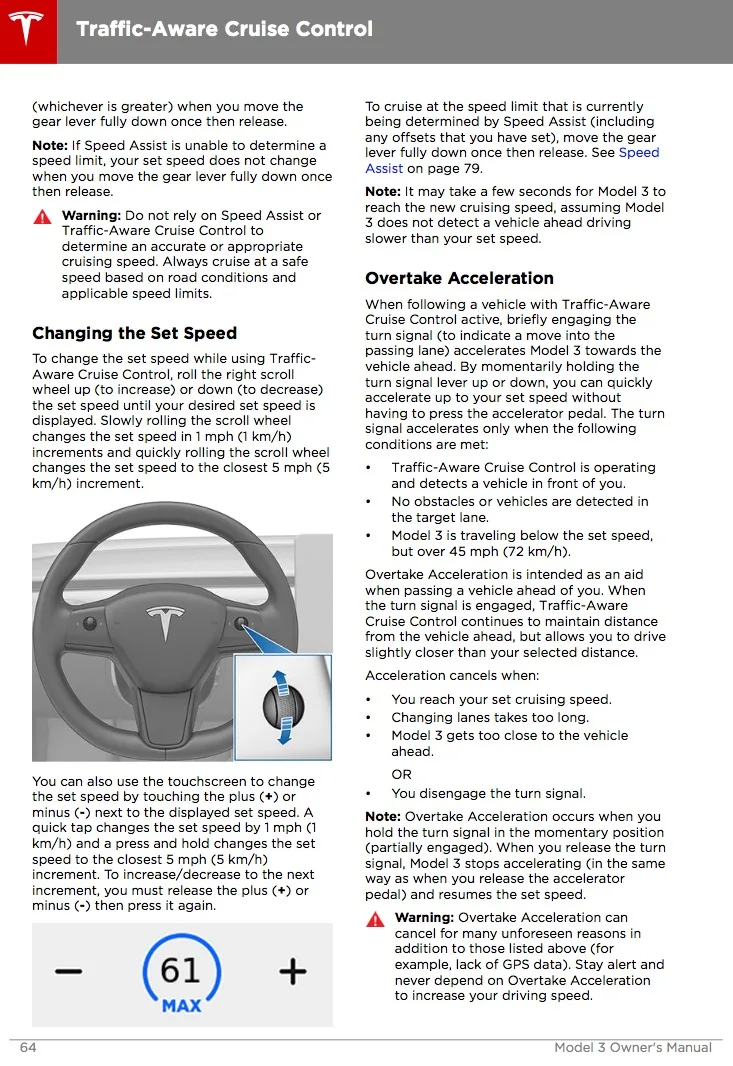
Image source: Bing (Web (fair-use with source credit))
If the install gets stuck at a percentage: use the two-scroll-wheel reboot. Press and hold both scroll wheels on the steering wheel for about 10 seconds until the touchscreen goes dark and the Tesla logo appears. This doesn't erase anything.
It just resets the infotainment system. After it reboots, check the app again. The car will usually resume the install on its own.
If the screen is frozen after the update: do the same two-scroll-wheel reboot. If that doesn't work, go to Controls > Safety > Power Off and wait two minutes before touching anything. Then press the brake pedal to wake the car.
This is the strongest reset you can do without a service tool.
In all cases, plug the car in before you run any of these fixes. A plugged-in car won't shut down mid-install because the 12V battery is low. Tesla's official guidance also recommends keeping the charge cable connected during updates.
Common Mistakes That Make Update Failures Worse
Some DIY fixes cause more damage than the original problem. Here are the biggest mistakes Model 3 owners make when an update goes wrong.
Unplugging the charger mid-update. The car needs stable high-voltage power. Pulling the charger out during installation can interrupt the process and, in rare cases, leave you with a car that won't boot.
Using a public or captive-portal Wi-Fi network. Airport and hotel networks often require you to click a login page. The Tesla can't do that. It'll show "connected" but never actually download.
Always use a private, password-protected network.
Repeatedly tapping "Install Now." Every tap forces the car to re-check with Tesla's servers. If the server isn't ready, you'll just keep seeing the same error. Let it wait.
Ignoring the 12V battery. The 12V auxiliary battery handles the update process. If it's old or weak, updates will fail or roll back. Tesla recommends replacing the 12V battery roughly every 3 to 5 years, depending on climate and usage.
If you know yours is old, consider replacing it before troubleshooting the update itself.
Forgetting to disable Sentry Mode. Sentry Mode keeps the car awake and can interrupt the update when the car tries to reboot. Disable it before you start the download, and keep it off until the installation finishes.
Installing over a phone hotspot that's unreliable. A hotspot can work, but only if the phone stays in range and doesn't lock with the screen off. If your hotspot disconnects after 30 minutes, the download will fail.
A final mistake: assuming a failed update means a bricked car. That's extremely rare. Tesla's vehicle OS is designed with fallback partitions.
If an install fails, the car typically switches back to the previous version and re-prompts you later. Just keep the charging cable connected and wait.
When to Stop Troubleshooting and Contact Tesla
If you've tried the fixes above and the update still won't install, it's time to bring in the pros. Tesla support is actually pretty good when you know the right channels.
Start with the Tesla mobile app. Tap Support, then choose "Request Service." You can describe the symptoms there without calling anyone. Tesla responds within a business day in most regions.
You should also contact Tesla if you see any of these warning signs:
| Warning Sign | Why It Matters |
|---|---|
| Repeated "Update failed" errors | Indicates a deeper hardware or power issue |
| 12V battery warning light | The auxiliary battery may be dying |
| Touchscreen won't respond to any reset | Could be an infotainment hardware failure |
| Car won't shift out of Park after an update | Serious fault, do not ignore |
| Unusual clicking or buzzing after an update | May be a component needing recalibration |
In most of these cases, Tesla will push out another update or have you run a diagnostic through the app. For hardware failures, you'll book either a service center visit or a mobile service appointment. Mobile service can handle many update-related issues right at your home, including checking the 12V battery or directly installing a software patch.
Don't try to force a rollback to a previous software version. There's no official way to do it, and unofficial methods can void your warranty or brick the car. If you need a stable version for work or travel, ask Tesla if they can push a prior release.
They can do that from their side in limited situations.
The key reminder: never work on the high-voltage system yourself. If the issue involves charging hardware, inverters, or any part beyond the touchscreen, treat it as a service job. That's not just best practice; it's a safety issue.
Tesla's documentation is clear that high-voltage components should only be handled by certified technicians.
How to Make Future Updates Go Smoothly
The best Tesla Model 3 software update problem is the one that never happens. A little preparation goes a long way. Here's what works, based on patterns from thousands of owner reports and Tesla's own documentation.
Park near strong Wi-Fi. If you've got a garage, put your router within 30 feet of where the car parks. A 2.4 GHz network works better through walls than 5 GHz. If you're in an apartment, consider a Wi-Fi extender aimed at your parking spot.
The car needs a stable connection for the full download, which can be over 2 GB.
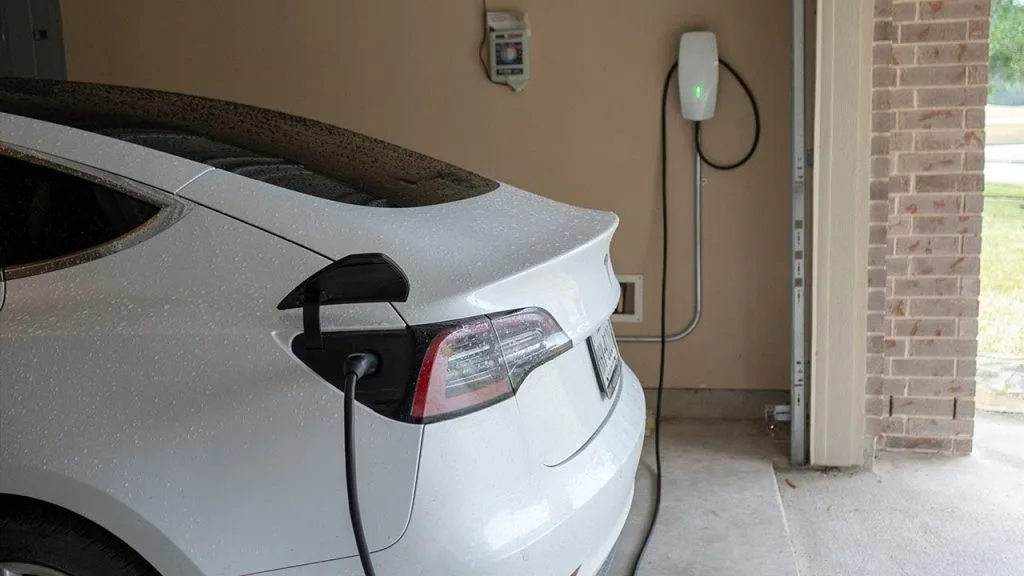
Image source: Bing (Web (fair-use with source credit))
Keep the car plugged in overnight. Tesla recommends this in the official owner's manual. Updates often install between 2 and 4 AM. If the car is charging, the 12V battery stays topped off and the installation won't fail partway through.
Set your update preference to Standard. Most owners see fewer issues on the Standard rollout. Advanced gets updates faster but also hits more early bugs and server-side hiccups. If stability matters more than being first, stick with Standard.
Disable Sentry Mode before bed. Sentry Mode keeps the car awake and drains the 12V battery. Turn it off before you go to sleep. Your dashcam footage will still save if you plug in a USB drive.
Replace the 12V battery on schedule. Tesla's auxiliary battery typically lasts 3 to 5 years. If your car is older and updates keep failing, this is the first thing to check. Tesla Mobile Service can replace it at your home, usually in under 30 minutes.
Check release notes after each update. Some updates change Autopilot behavior, camera calibration, or how your brakes respond under regen. Knowing what changed prevents surprises on your next drive.
If your car has recurring problems with updates despite good Wi-Fi and a healthy battery, a faulty 12V system or electrical issue might be worth investigating separately.
Frequently Asked Questions
Why won't Tesla push the update to my Model 3?
Tesla rolls out updates in waves by VIN. Your car may not be flagged yet. Switch Update Preference to Advanced in Controls > Software to move up in the queue.
If it's still stuck after 48 hours, reboot the car and try again.
Can I download a Tesla update over cellular data?
No. Tesla requires a Wi-Fi connection for software downloads. The cellular connection only handles basic telemetry and app communication.
You'll need a home network, a phone hotspot, or a trusted Wi-Fi spot.
Is it safe to drive while an update is installing?
No. Tesla's own documentation warns against driving during installation. The process can take 30 to 60 minutes.
Park the car, plug it in, and leave it alone until the update finishes.
How do I know if the update actually installed?
Open the Tesla app and go to Software under the car's controls. It'll show the current version number. You can also check in the car at Controls > Software.
The release notes will appear after a successful install.
Can a failed update brick my car?
It's extremely rare. Tesla's system uses fallback partitions. If the install fails, the car reverts to the previous version and re-prompts you later.
If your car won't shift out of Park after an update, contact Tesla service immediately rather than attempting more resets yourself.
Does cold weather affect Tesla updates?
Yes. Tesla recommends preconditioning the battery before starting an install in very cold climates. A cold battery may delay or block the installation.
Plugging in the charger helps the car warm itself. If your cabin heater isn't working during winter, that can also keep the cabin too cold for a smooth update.