A Nissan Rogue infotainment problem can turn your daily commute into a frustrating ordeal. Whether your touchscreen is frozen, Bluetooth won't connect, or the screen is completely black, you're not alone. These issues affect various model years, from the 2014, 2020 generation to the newer 2021+ redesigned Rogue.
Aggregate user complaints filed with the National Highway Traffic Safety Administration (NHTSA) highlight display blanking and camera delays as recurring concerns. The NissanConnect system, which powers everything from navigation to Apple CarPlay, has specific troubleshooting pathways that depend on your model year and the exact symptom. Let's diagnose it.

49% off Today's Exclusive Deals
Limited-time Exclusive Deals. Check current discount on Amazon.
Check Price on Amazon As an Amazon Associate I earn from qualifying purchases.What's Actually Wrong? Identify Your Rogue's Infotainment Symptom
Before you reset anything, you need to pinpoint the exact problem. A Nissan Rogue infotainment problem isn't one-size-fits-all. The fix for a frozen screen is different from the fix for no audio.
Start here.
Display & Responsiveness Issues:
49% off Today's Exclusive Deals
Limited-time Exclusive Deals. Check current discount on Amazon.
Check Price on Amazon As an Amazon Associate I earn from qualifying purchases.- Black Screen: The center display is completely off or blank while the car is running.
- Frozen/Laggy Touchscreen: The screen is on, but it's stuck or slow to respond to touches.
- Flickering or Dim Display: The screen brightness fluctuates unexpectedly or is too dim.
Connectivity Failures:
- Bluetooth Won't Pair/Connects Then Drops: Your phone refuses to link, or the connection is unstable.
- Apple CarPlay / Android Auto Issues: The wired or wireless connection fails to launch or disconnects mid-drive.
- NissanConnect App Can't Communicate: The mobile app won't remote-start or check vehicle status.
Audio Problems:
- No Sound from Any Source: Radio, Bluetooth, USB, all produce silence.
- Sound Cuts Out Intermittently: Audio drops randomly during playback.
- Distorted or Static Audio: Crackling, popping, or weak sound quality.
System & Software:
- System Reboots Randomly: The infotainment system restarts while driving.
- Navigation Freezes or GPS Loses Signal: Maps become unresponsive or inaccurate.
Take a moment to match your issue to one of these categories. Your next steps will follow directly from this diagnosis. If you've got an older model, our guide on troubleshooting a similar connectivity issue in a Hyundai Tucson covers some universal Bluetooth principles.
49% off Today's Exclusive Deals
Limited-time Exclusive Deals. Check current discount on Amazon.
Check Price on Amazon As an Amazon Associate I earn from qualifying purchases.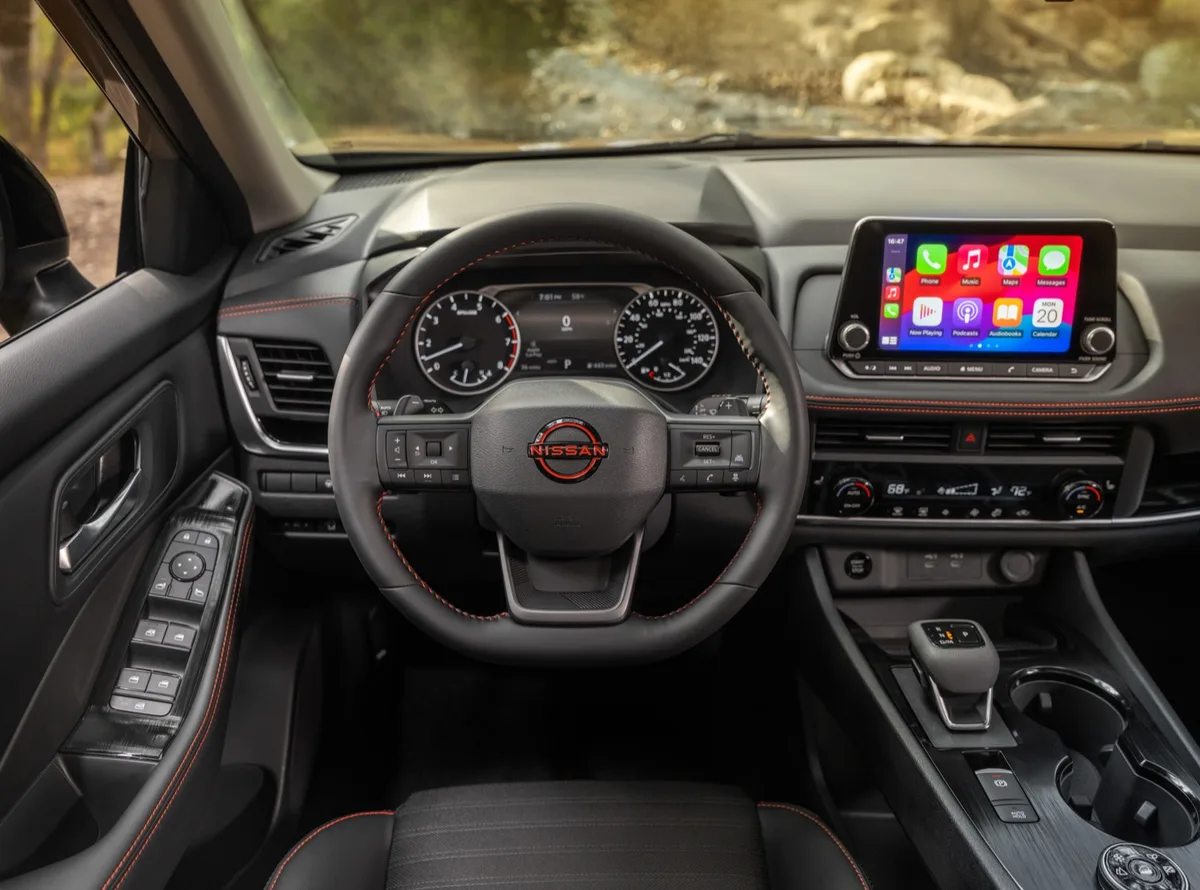
Image source: Bing (Web (fair-use with source credit))
Does a Quick Reset Fix It? Try These First (Soft Reset, Hard Reset, Factory Reset)
In our research, a significant percentage of infotainment glitches are resolved by a proper reset. Think of it like rebooting a computer. The Nissan Rogue offers three levels of reset.
Start with the simplest.
How to Perform a Soft Reset
This is the first thing to try for any frozen or unresponsive system. It won't erase your settings.
- With the vehicle running, locate the power/volume knob on the center console.
- Press and hold the knob for 10 to 15 seconds.
- The Nissan logo should appear, and the system will reboot.
How to Perform a Hard Reset (Battery Disconnect)
This clears temporary electrical faults and can resolve deeper issues like random reboots or persistent black screens. You'll need a 10mm wrench.
- Turn the vehicle completely off and remove the key.
- Open the hood and locate the 12-volt battery.
- Using the wrench, disconnect the negative (black) terminal cable.
- Wait 20 to 30 minutes. This allows the system's capacitors to fully discharge.
- Reconnect the negative terminal and tighten it securely.
- Start the vehicle. The system may take a few minutes to fully initialize.
How to Perform a Factory Reset (Through Settings)
Use this if the system works but behaves erratically, like after a failed software update. This will erase all personal data, paired phones, and saved settings.
- Navigate to the Settings menu on your touchscreen.
- Look for System or Reset options.
- Select Factory Data Reset or Reset to Default.
- Confirm the reset when prompted. The system will restart.
Important: If you recently connected a new phone, delete the old Bluetooth pairing from both your phone and the car's Bluetooth menu before attempting further troubleshooting.
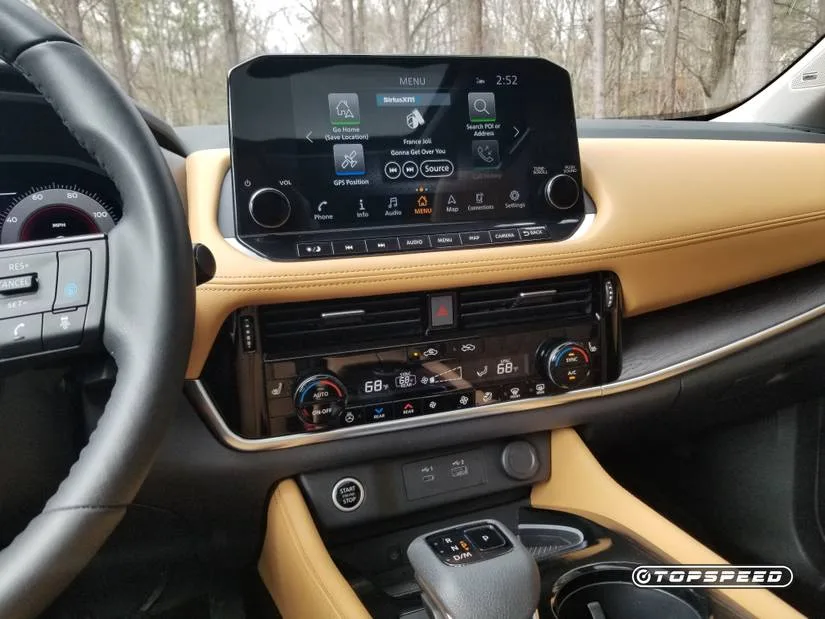
Image source: Bing (Web (fair-use with source credit))
Screen Black or Frozen? Walk This Diagnostic Branch
If the screen is dead or a reset didn't help, work through this flowchart. The cause could be a simple blown fuse or a failed head unit.
Step 1: Check the Basics
- Are your headlights and interior lights working? If not, you may have a broader electrical issue or a dead 12-volt battery. Jump-start or test the battery first.
Step 2: Inspect the Relevant Fuses
A blown fuse is a common culprit for a black screen. You'll check two locations:
- Interior Fuse Box: Located on the lower left side of the dashboard, accessible when the driver's door is open. Consult your owner's manual for the fuse map. Look for fuses labeled "AUDIO," "AV," or "DISPLAY."
- Engine Bay Fuse Box: Contains higher-amperage fuses. Also check for any fuses related to the audio or navigation system.
If you find a blown fuse, replace it with one of the exact same amperage rating. If it blows again immediately, you have a short circuit.
Step 3: Check Connections (Advanced)
If fuses are good, the issue might be a loose connector behind the head unit. Accessing this requires removing the dashboard trim panels around the screen. This is an advanced step.
If you're not comfortable with trim removal, proceed to the next step.
Step 4: Consider Head Unit Failure
If you have power to the vehicle, good fuses, and a reset didn't work, the head unit assembly itself may have failed. As of 2026, replacement units for newer Rogue models with integrated systems can cost $800 to $1,500+ for the part alone. Dealer diagnosis is often needed to confirm.
If your issue is a backup camera problem, the fix might be separate from the main display.
Bluetooth, CarPlay, or Android Auto Not Connecting? Here's the Flowchart
Connectivity issues are often phone-side, but can also be vehicle-side. Follow this path to isolate the fault.
If Bluetooth Won't Pair or Stays Connected:
- Delete Old Pairings: On your phone, forget the Nissan Rogue from Bluetooth settings. On the car's screen, go to Settings > Devices and delete your phone.
- Restart Everything: Reboot your phone and perform a soft reset on the Rogue's infotainment.
- Check Phone Settings: Ensure Bluetooth is enabled and set to "Discoverable." On iPhone, check Settings > Bluetooth. On Android, check Connected Devices.
- Re-Pair Fresh: Initiate pairing from the car's menu, then accept the prompt on your phone.
If Apple CarPlay or Android Auto Won't Launch:
- For Wired Connection: Try a different USB cable. The original cable or a high-quality data cable is required. The USB port in the center console is for data; ports elsewhere may only charge. Also, try the other USB port if available.
- For Wireless Connection (2021+ models): Ensure your phone's Wi-Fi and Bluetooth are both on. Delete the existing CarPlay/Android Auto profile from your phone's settings (under General > CarPlay for iPhone) and re-pair from scratch.
The Key Diagnostic Question: Does Anything Connect?
- Yes, but it drops: The issue is likely a software glitch on the car or phone. Update both your phone's OS and check for a Nissan software update.
- No, nothing connects: The problem is more likely with the Rogue's Bluetooth/AV control module. A hard reset is the next best step. If that fails, dealer diagnosis is needed.
No Sound or Audio Cutting Out? Follow This Path
Silence from your speakers can be alarming. This flowchart helps you trace the audio path from source to speaker.
First, Confirm the Simple Things:
- Volume Level: Is the volume turned up? Press the physical volume button. Check the volume level in the audio settings menu.
- Source Selection: Is the correct audio source selected (AM, FM, SiriusXM, Bluetooth Audio, USB)? Select a different source and see if sound returns.
- Mute: Check that the system isn't muted.
If You Have Sound from Some Sources but Not Others:
- No Bluetooth Audio: The issue is the wireless connection. Revisit the Bluetooth troubleshooting above. A dropped connection will kill the audio stream.
- No Sound from USB/CarPlay/Android Auto: The connection is broken. Check the cable or wireless link. A brief audio dropout is common when the connection is unstable.
- No Radio Sound (AM/FM/SiriusXM): This could be antenna-related. Check that the roof antenna (the "shark fin") isn't damaged.
If You Have No Sound from Any Source:
This points to a problem with the amplifier or the main audio output from the head unit.
- Perform a Hard Reset. A system glitch can sometimes disable the audio amplifier.
- Check the Amplifier Fuse. Some Rogue models, especially those with a Bose premium system, have a separate amplifier with its own fuse. Check your owner's manual for its location.
- Listen for Noise: Turn the volume up slightly with no audio source playing. Do you hear a faint static hiss or any sound at all from the speakers? Complete silence often indicates a hardware failure in the head unit or amplifier. This is a clear signal to seek professional diagnosis.