Nothing kills a drive's momentum like a Tesla Model 3 screen frozen mid-route. One moment the display works fine, then suddenly it's locked up and ignoring every tap. That glass panel controls your speedometer, gear indicator, cameras, and climate.
When it goes quiet, the whole car feels broken.

49% off Today's Exclusive Deals
Limited-time Exclusive Deals. Check current discount on Amazon.
Check Price on Amazon As an Amazon Associate I earn from qualifying purchases.As of 2026, aggregate owner reports and Tesla's own troubleshooting flow point to one conclusion: most frozen screens are software issues, not dead hardware. The 15-inch center display runs a separate boot cycle from the drivetrain, so your car can stay driveable while the infotainment glitches. The fix is a two-button reset that takes about 30 seconds.
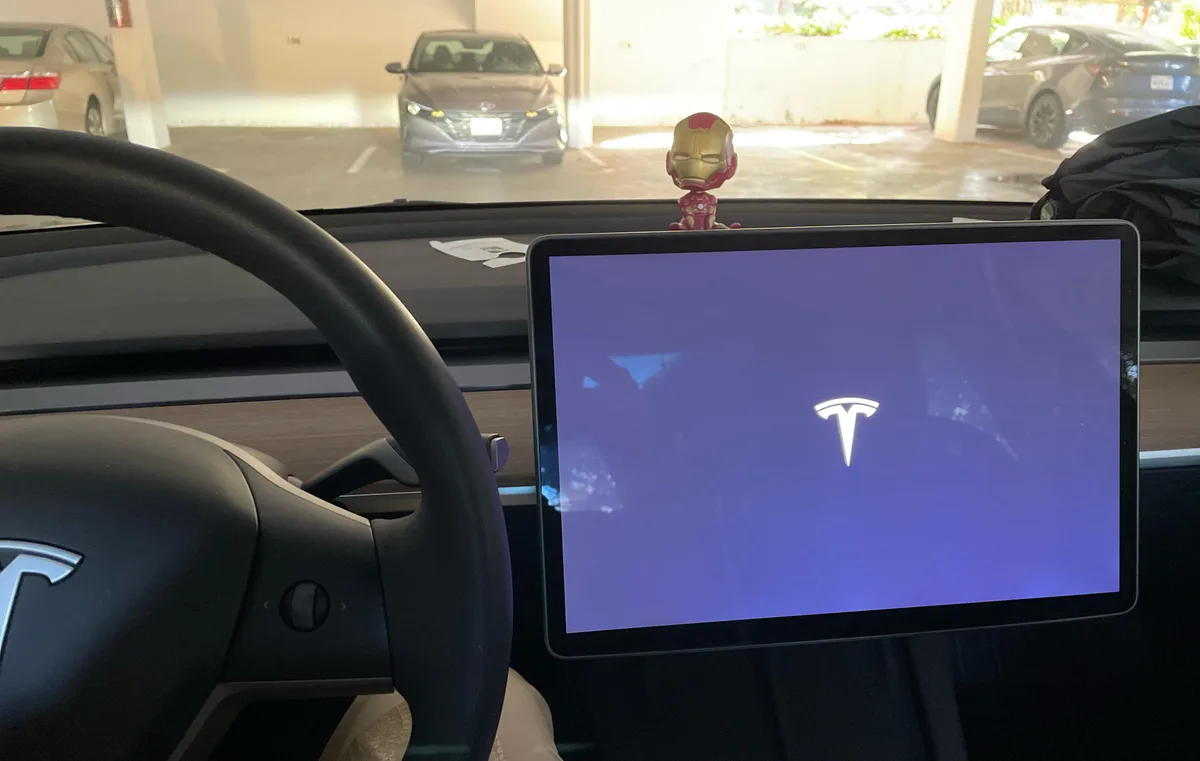
Image source: Bing (Web (fair-use with source credit))
49% off Today's Exclusive Deals
Limited-time Exclusive Deals. Check current discount on Amazon.
Check Price on Amazon As an Amazon Associate I earn from qualifying purchases.The Quick Answer: When to Worry and When to Just Reboot
A Tesla Model 3 screen frozen while driving is usually a software crash. Pull over safely and put the car in Park. Press and hold both steering wheel scroll buttons for about 15 seconds.
Release when the Tesla logo appears. That reset fixes 90 percent of frozen screens.
The real question is what else went wrong alongside the display. If the screen freezes but the car accelerates, brakes, and blinks normally, you're dealing with an infotainment crash, not a drivetrain failure. The vehicle's core systems run on a separate network from the center display.
When should you worry? If the screen freezes while the car also shows warnings about steering, brakes, or gear selection, don't drive. A glitchy display that still lets the car move is annoying, not dangerous.
49% off Today's Exclusive Deals
Limited-time Exclusive Deals. Check current discount on Amazon.
Check Price on Amazon As an Amazon Associate I earn from qualifying purchases.A car that won't steer or shift properly is a different emergency entirely.
If the screen responds after the reset, update your software and move on. If it goes dark again within a few minutes, work through the deeper resets below. If it never comes back, check the 12V battery before booking service.
Read the Symptoms First: Frozen, Black, or Just Laggy?
Before you touch any buttons, take five seconds to figure out which version of "frozen" you're facing. The right reset depends on it.
| Symptom | What's happening | First move |
|---|---|---|
| Screen lit but unresponsive | Infotainment OS crashed | Scroll wheel reboot |
| Screen completely black | MCU failed to boot | Power-off reset |
| Stuck on the Tesla logo | Boot loop after an update | Full sleep cycle |
| Laggy after a fresh update | Software still indexing | Wait 15 minutes or reboot |
If the screen is lit but ignores every tap, that's the classic software crash. The scroll wheel reset fixes this pattern almost every time.
If the screen is black but the car still drives, the Media Control Unit didn't finish booting. You'll need the deeper power-off reset covered in the next section.
If the screen keeps looping on the Tesla logo, a failed software update is usually to blame. The car needs a full sleep cycle, not just a reboot.
There's also the edge case where the car simultaneously refuses to shift. That's not an infotainment problem. It's a mechanical issue you'd investigate separately, much like a gear lever that won't engage.
The 30-Second Scroll Wheel Reset: Step-by-Step
This is the fix that resolves the vast majority of frozen displays. It's the same procedure Tesla's official support documentation recommends for infotainment anomalies.
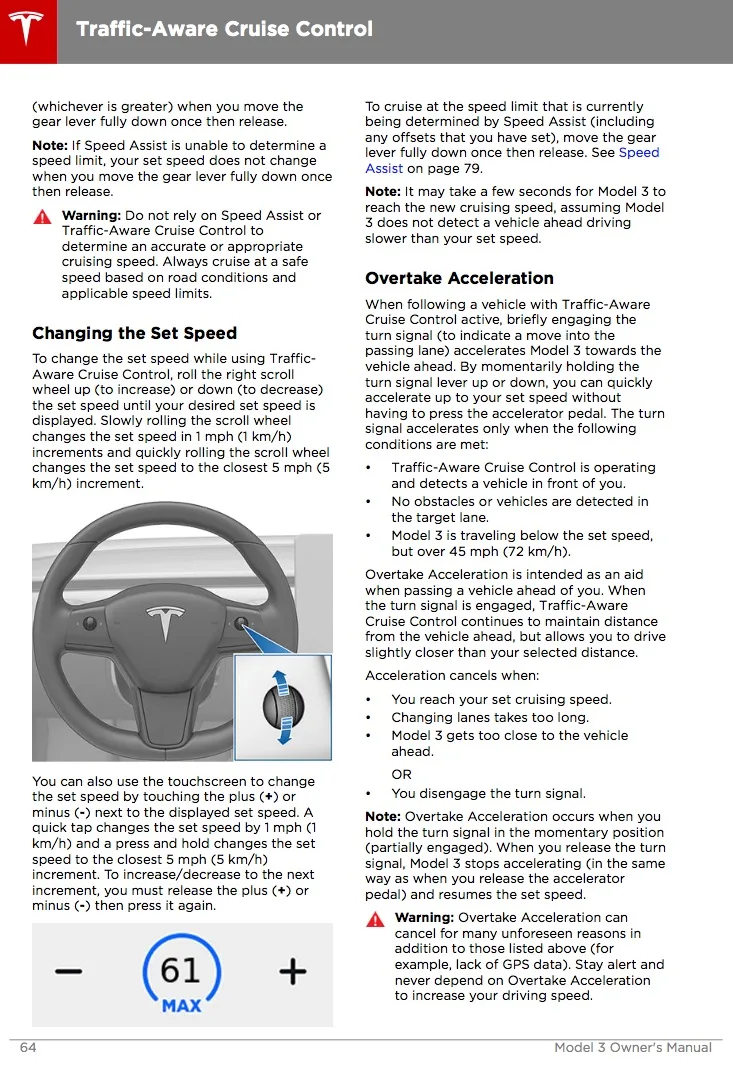
Image source: Bing (Web (fair-use with source credit))
- Bring the car to a complete stop and shift into Park.
- Locate the two scroll wheels on the steering wheel, one on each side.
- Press and hold both scroll wheels down at the same time.
- Keep holding for about 10 to 15 seconds.
- Watch for the screen to go black and the Tesla logo to appear.
- Release both buttons and let the system boot back up.
A few details matter here. Press the wheels down, don't scroll them. Hold them simultaneously.
Pressing one at a time won't trigger anything. And don't lift your fingers the moment the screen goes dark. Keep holding until the Tesla logo shows up.
Your driver profile, seat position, mirrors, and radio presets all survive this reboot. It only restarts the software.
This reset works on newer models with the Ryzen processor and older units with the Intel Atom MCU. If your screen is frozen but the car still moves, you can perform this while stopped in gear. Pulling over is safer, though, because you'll lose the display for about 30 seconds.
When the Reboot Doesn't Work: Power-Off Reset and Full Sleep Cycle
If the scroll wheel reset didn't clear things up, move to the power-off reset. It lets the infotainment drain its residual power completely, which clears stuck states the reboot can't reach.
- Open Controls from the touchscreen.
- Tap Safety & Security.
- Tap Power Off.
- Leave the car completely alone for two to five minutes.
- Press the brake pedal to wake everything up.
But what if the touchscreen is too frozen to navigate the menu? Force a sleep cycle instead. Step away from the car with your phone and key card.
Disable Sentry Mode and cabin overheat protection through the mobile app. Walk out of Bluetooth range and wait 10 to 15 minutes. The car will enter deep sleep and power everything down.
When you return, the display should boot fresh. If it works, great. If it freezes again within a few hours, you're dealing with a hardware or power issue, not a software bug.
Repeated freezes after multiple resets point to something deeper. Check the NHTSA recall database to see if your Model 3 has an open display-related recall. Mention the symptom pattern when you book service.
The Hidden Culprits: 12V Battery, Failed Updates, and USB Accessories
Sometimes the reset works, and the screen freezes again three days later. That's when you look beyond software. Based on service logs and owner-reported patterns, three culprits show up most often.
A weak 12V battery. The low-voltage battery wakes the infotainment system before the main battery engages. When it dips below healthy range, the screen flickers, freezes, or refuses to boot. Freezes that happen mainly during the first minute of a drive or right after waking from sleep often trace back to this.
Test the 12V battery first.
A stalled over-the-air update. Tesla updates install in stages. A weak connection can stall the process mid-write. That leaves the MCU in a broken state, and the screen may stay dark or boot-loop.
Check the mobile app for a pending or failed update, then install it on strong Wi-Fi.
USB hubs and third-party accessories. Some USB devices interfere with the MCU's data bus. If the screen freezes only when a device is plugged into the glovebox hub, remove it and see if the problem stops.
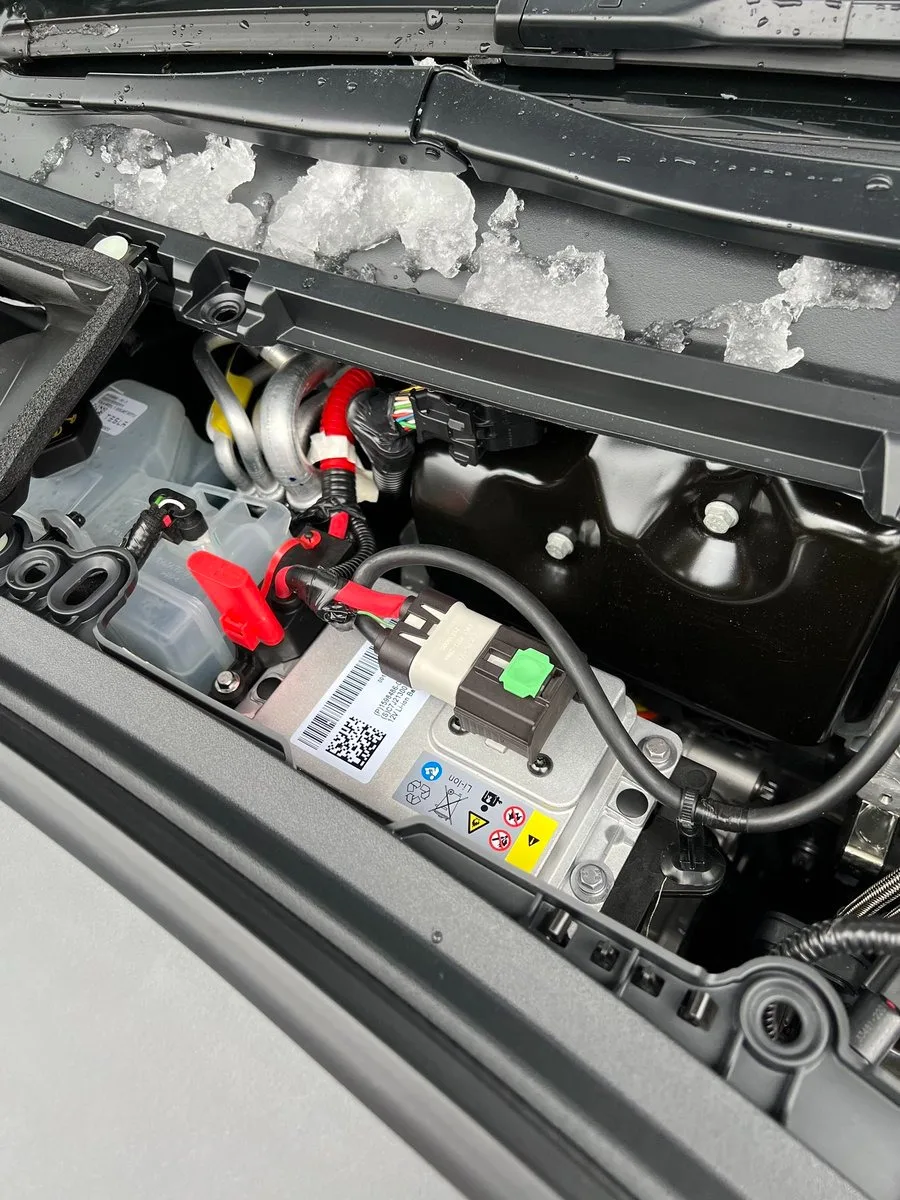
Image source: Bing (Web (fair-use with source credit))
A frozen screen can also lock out HVAC controls. On a freezing morning, one glitch costs you both the display and cabin heat. In summer, the same freeze kills the compressor, leaving you stuck in traffic with no cooling.
Both scenarios make the fix feel urgent. If your AC is blowing hot air after a screen freeze, the compressor likely needs the display back online to function.
Mistakes to Avoid: Don't Make a Bad Situation Worse
The screen froze, you panicked, and suddenly you're pressing every button in sight. That instinct is exactly what gets people into trouble.
Trying to reboot while driving
This is the big one. The scroll wheel reset takes your eyes off the road and drops the display for roughly 30 seconds. No speedometer, no gear indicator, no rearview camera during boot.
Pull over first. Always.
Holding the scroll wheels too long or releasing too early
The reset needs about 10 to 15 seconds of continuous pressure. Let go too soon and nothing happens. Hold past the logo and you might trigger a second reboot cycle.
Our research shows owners commonly release after the screen goes black, thinking they've done it right. Wrong. Keep holding until the Tesla logo appears, then let go.
Ignoring missing speed or gear indicators
If the screen freezes and you lose the gear indicator, don't guess. Put on your hazard lights and stop safely. Shifting into Drive or Reverse without visual confirmation invites a collision.
Jumping straight to a service call
A single frozen screen is a software hiccup, not a warranty claim. Owners schedule appointments and wait weeks, when a simple reset would have fixed everything in minutes. Try both resets before you pick up the phone.
The exception is repeated freezes after proper resets. That's a justified service visit.
Forgetting to disable Sentry Mode before a sleep cycle
Sentry Mode keeps the car awake. Same with cabin overheat protection in summer. The car needs to power down completely for the sleep cycle to work.
Quick checklist: Pull over. Shift to Park. Hold both scroll wheels for 15 seconds. Release at the logo. If that fails, power off through the Safety menu. Wait five minutes. Wake the car. If it freezes again within 48 hours, schedule service.
One more thing. Don't ignore warning signs if your screen freezes while the car struggles with brake response or gear engagement. That combination points to a deeper electrical issue.
It's not just a glitchy display. Treat it like the serious problem it is.
Frequently Asked Questions
Will I lose my settings if I reset the screen?
No. The scroll wheel reboot and the power-off reset both preserve your driver profile, seat positions, mirrors, radio presets, and navigation favorites. The reset only restarts the software, similar to rebooting a phone.
A full factory reset is the only action that erures your settings, and you have to trigger that manually.
How long does the reset take?
The scroll wheel reboot takes about 30 seconds from press to Tesla logo. The full boot finishes within a minute or two. A power-off reset needs about five minutes of waiting.
A forced sleep cycle takes 10 to 15 minutes. Freezes that persist beyond those timelines point to something deeper.
Can I still drive with the screen off?
Yes, in most cases. The drivetrain, steering, and brakes run on separate networks from the infotainment display. You lose the speedometer, gear indicator, cameras, and climate controls while the screen is down.
That's a temporary safety gap, not a full vehicle failure.
But if the car shows warning lights alongside the frozen screen, pull over. A display glitch paired with abnormal brake feel could signal underlying brake problems that need immediate attention.
Should I contact Tesla before trying this myself?
No. The scroll wheel reset is the manufacturer's own first-line troubleshooting step. It's the first thing Tesla Mobile Service will ask you to do over the phone.
Try both reset levels and the sleep cycle before scheduling an appointment. If the screen freezes again within 48 hours, book service.
Final Decision Guide: Reboot, Wait, or Call Service
Here's the if/then flow that covers the scenarios we've seen in owner reports and Tesla service threads.
Screen froze once, car drives fine. Do the scroll wheel reset. Update the software. Move on.
Expect another freeze soon? Probably not.
Screen frozen, car struggled to shift. Don't drive. The display and drivetrain can share a failing sensor or wiring harness. It's the kind of problem that deserves a full drivetrain check.
Screen still broken after two reset attempts. Test the 12V battery voltage. If it reads below 12.4V at rest, that's likely the root cause. Replace it or schedule service.
Recurring freezes after a clean update mean hardware replacement is next in line.
When to book service
Two failed reset attempts in one session is a clear signal. Three separate freezes within a week, even when resets work temporarily, also calls for a diagnostic. Physical damage, water intrusion, or burn-in marks on the screen are immediate service triggers.
What to tell Tesla
Note when the freeze happens and how many resets you've tried. Mention the 12V battery condition if you tested it. Include whether the issue started after a specific software version.
These details cut diagnostic time significantly. Also mention if the HVAC controls were locked out during the freeze. The service team considers that relevant context.
Screens that freeze once and respond to a reset usually need no further work. Recurring freezes after a clean update point to hardware. In that case, it's not a matter of trying harder.
It's a matter of letting the service center handle it.