Image source: Bing (Web (fair-use with source credit))

49% off Today's Exclusive Deals
Limited-time Exclusive Deals. Check current discount on Amazon.
Check Price on Amazon As an Amazon Associate I earn from qualifying purchases.Your Tesla Model Y won't charge, and you're standing in the garage staring at a dead screen. It's one of the most common frustrations EV owners run into, and it always seems to happen at the worst time. The good news is that most charging failures trace back to a handful of causes you can diagnose yourself.
The charging system on a Model Y has a few layers: the onboard charger rated at 11.5 kW AC, the battery management system that decides when to accept power, and the physical connection at the charge port. If any one of those links breaks, charging stops. Here's how to figure out which one failed and get back on the road.
Quick Answer
Tesla Model Y won't charge, so check the breaker first. Most home failures come from a tripped GFCI. A weak 12V battery can also block charging.
49% off Today's Exclusive Deals
Limited-time Exclusive Deals. Check current discount on Amazon.
Check Price on Amazon As an Amazon Associate I earn from qualifying purchases.Try a car reboot before scheduling a service visit. Cold weather may freeze the charge port latch.
Start Here: Three Charging Scenarios That Change Your Fix
Not every "won't charge" situation is the same. The fix depends on where the car is plugged in and what the screen tells you. The diagnostic method never changes: you isolate the failing link.
A failing transmission and an EV that won't charge both demand the same step-by-step approach, so start with the scenario that matches you.
Are You Failing at Home AC, Public AC, or a Supercharger?
If the car is at home on a Wall Connector or Mobile Connector, the problem is usually your household electrical side. If you're at a Supercharger, the issue is likely a station fault, a payment problem, or a battery that hasn't warmed up. If you're using a third-party CCS station, the handshake between the adapter and the station can fail before power even flows.
49% off Today's Exclusive Deals
Limited-time Exclusive Deals. Check current discount on Amazon.
Check Price on Amazon As an Amazon Associate I earn from qualifying purchases.Each setup runs through different hardware, so your first step is picking the right branch.
The 2-Minute Diagnosis: What the Screen, the App, and the Lights Tell You
Look at three places before touching anything:
- The charge port light. Green pulsing means charging is active. Red means the car is rejecting power. No light at all often points to a dead 12V battery.
- The center touchscreen. It shows charging speed and error messages. "Charging Stopped: Check Power Source" points to the house. "Unable to Charge: Battery Too Cold" points to the car.
- The Tesla app. If the car shows as offline or the charger shows as unavailable, that's a communication fault rather than a power delivery fault.
When to Try the Obvious Fix Before Anything Else
A tripped breaker causes a surprising share of home charging failures. Before you dig further, open your electrical panel and check the EV circuit. Same for the app: toggle scheduled charging off for one night and test again.
The cheapest fix is often the right one.
Home AC Charging: Wall Connector, Mobile Connector, and Outlet Fixes
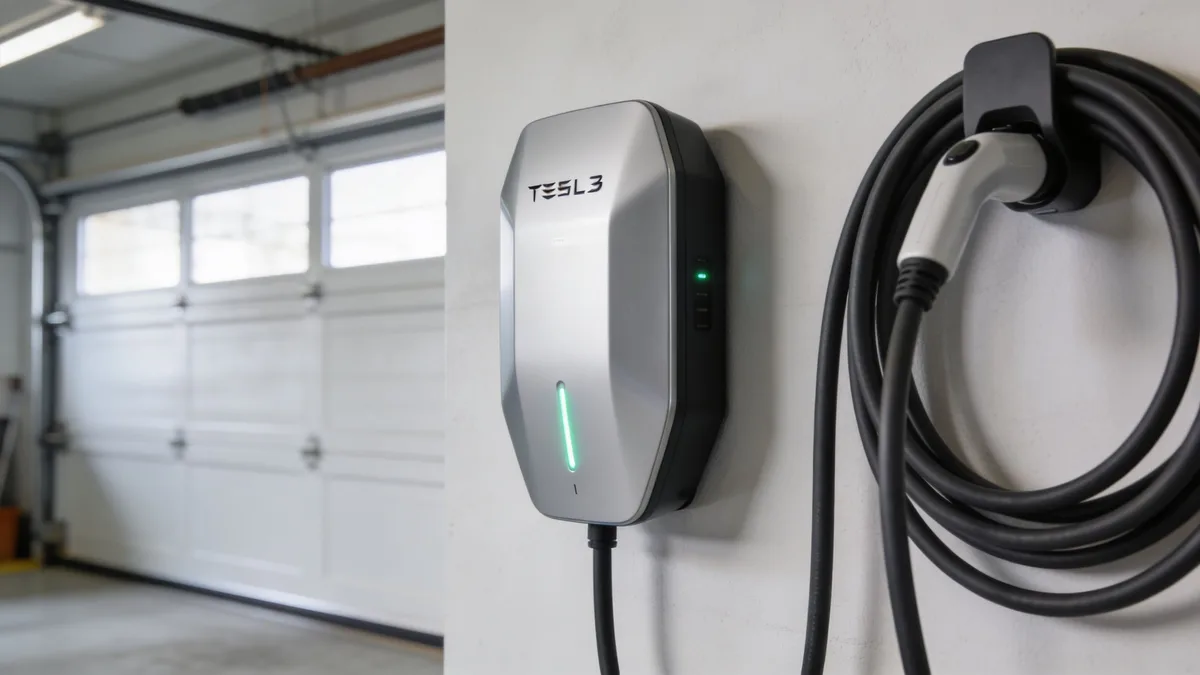
Image source: Bing (Web (fair-use with source credit))
Home AC charging is where most Model Y owners plug in nightly, and it's where most failures happen. The good news is that home AC problems are usually the easiest to fix.
Step 1: Check the breaker. Find the circuit labeled for the charger or the 240V outlet. If it's tripped, flip it fully off, then back on. Wait 30 seconds before plugging the car back in.
Per the National Electrical Code (NFPA 70), EV charging circuits require GFCI protection, which can trip from minor moisture or a loose connection. Nuisance tripping is common, especially with older installations.
Step 2: Inspect the outlet and adapter. If you're using a Mobile Connector with a NEMA 14-50 or NEMA 6-20 adapter, pull the plug and look at it. Check for discoloration, melted plastic, or a burnt smell. Loose outlets are a frequent culprit.
A faulty electrical accessory follows the same pattern: a quick visual check often catches what diagnostics miss.
Step 3: Read the Wall Connector status lights. The Tesla Wall Connector uses a row of LEDs to communicate its state. Here's what the patterns mean:
| Light Pattern | What It Means | What to Do |
|---|---|---|
| Solid green | Charging normally | Nothing needed |
| Pulsing green | Standby, ready | Plug in and check the car's port |
| Orange/yellow | Config or power fault | Power cycle the unit via the breaker |
| Red | Hardware fault | Contact Tesla support |
| No lights | No power reaching it | Check breaker, wiring, and GFCI |
Step 4: Check scheduled charging settings. Open the Tesla app and look for "Scheduled Departure" or "Scheduled Charging." If the car is waiting for a specific time window, it won't draw power when you plug in. This catches plenty of new owners off guard. Toggle scheduling off for one night to test.
Step 5: Reboot the car. If the breaker, outlet, and charger all look fine, reboot the Model Y. Hold both steering wheel scroll buttons and press the brake pedal until the screen goes black. Wait about 30 seconds, then release.
The car restarts and the charging controller resets. Aggregate user reviews confirm that a reboot resolves a meaningful percentage of home charging failures that aren't hardware-related.
Public DC Fast Charging: Supercharger and Third-Party Stations
When a Model Y won't charge at a Supercharger or a third-party DC station, the problem usually falls into one of three buckets: a payment issue, a station-side fault, or a car-side thermal restriction.
Payment and account issues. Tesla Superchargers require an active payment method on your account. If your card expired or your balance is overdue, the car will connect and then immediately stop with a red screen. Open the app, go to your account, and verify your payment info.
For third-party networks via the CCS adapter, you'll need a separate account with that provider and an active session.
Station-side problems. Individual Supercharger stalls can fail. A V2 station shares power between paired stalls, so if another car is drawing heavily next to you, your charge rate drops or the session fails entirely. Move to a different stall.
V3 and V4 stations don't share power this way, making them more reliable at busy locations. As of 2026, Tesla's network has expanded significantly, but older V2 urban stations still see more handshake failures than newer hardware.
Cold battery and preconditioning. If the outside temperature drops below about 40°F, the battery management system may refuse a fast charge until the pack warms up. The car will display "Battery Cold, Charging Limited." Navigating to a Supercharger in the car's system should trigger preconditioning automatically. If you drove there without using navigation, the battery may not be warm enough.
Park and wait 10 to 15 minutes, or drive a bit longer before your next stop. The cold doesn't care which system it affects. A safety-critical system that demands attention in freezing temperatures is a theme across the automotive world.
Third-party station compatibility. Not all CCS chargers play nicely with every Model Y. Charging speed and reliability vary depending on the station's power output and software version. If a session fails repeatedly at one station, try a different one.
Verify that your CCS adapter is clean and undamaged before blaming the car.
Charge Port and Car-Side Hardware Faults
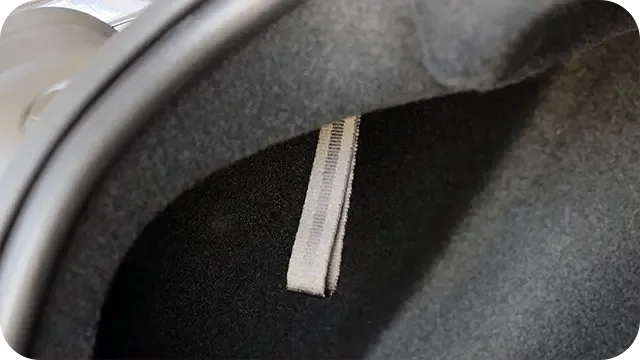
Image source: Bing (Web (fair-use with source credit))
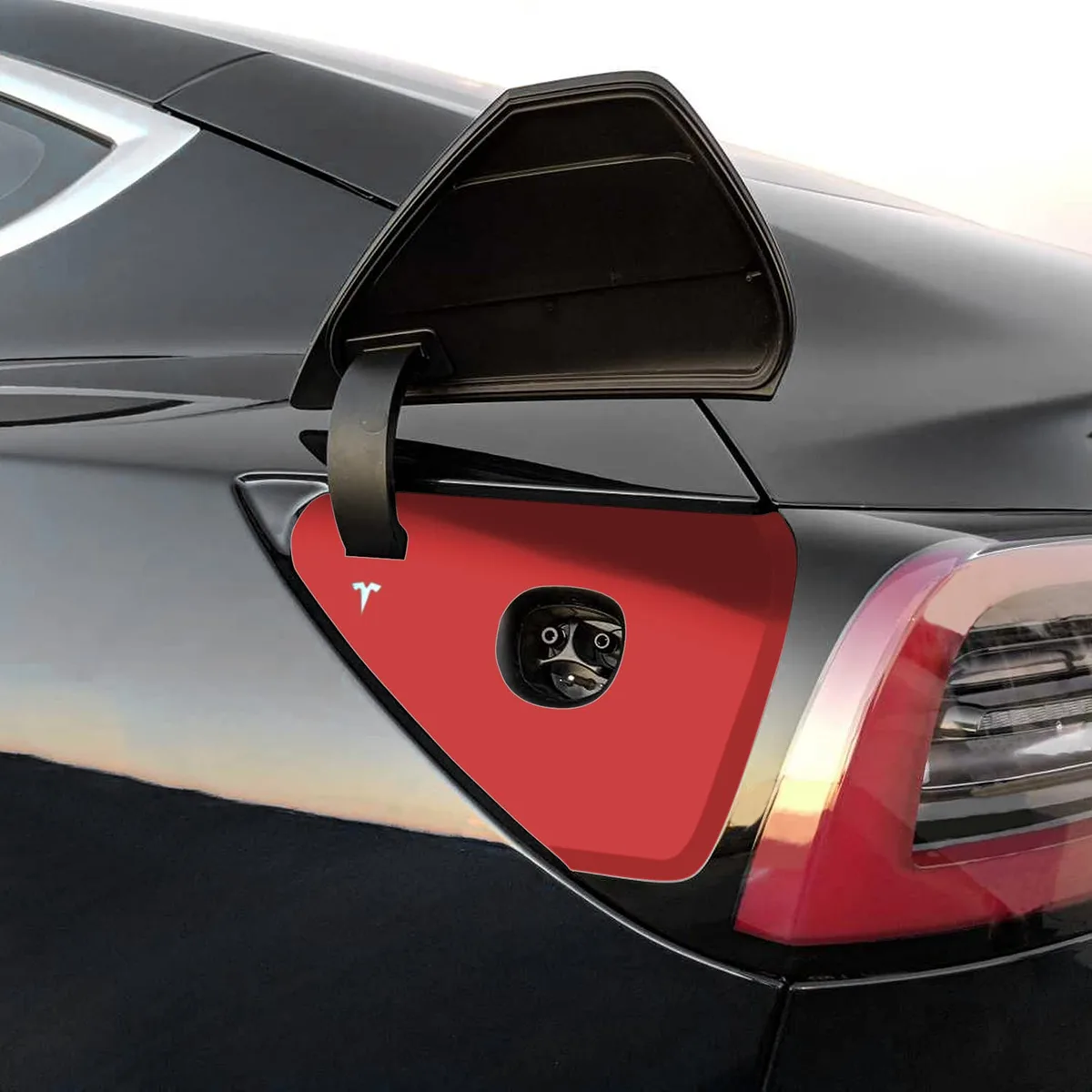
Once you've ruled out the house side and the station side, the problem sits between the charge port and the car's internal systems. This is where things get more physical.
The charge port latch. The Model Y charge port uses a motorized latch that locks the connector in place. You should hear a solid click when it engages. If the handle slides in with no resistance and there's no click, the latch may be stuck or the motor may have failed.
Try the manual release. Open the trunk, locate the emergency release cable, and pull it gently. This disengages the latch by hand.
Reinsert the connector afterward.
Frozen charge port in winter. In cold climates, moisture can freeze around the charge port door or the latch itself. The door may refuse to open, or the connector won't seat fully. Don't force it.
Use a hair dryer or a warm cloth to thaw the area. Some owners keep a small silicone cover over the port to prevent ice buildup between charges. A shifter that jams is frustrating for the same reason: a mechanical part that needs careful attention, not brute force.
Debris, corrosion, and alignment. Inspect the charge port with a flashlight. Look for dirt, lint, or debris inside the connector housing. Even a small amount of gunk on the pins can prevent a solid connection.
Clean it with compressed air or a dry, lint-free cloth. If you spot green or white corrosion on the pins, that's moisture damage. Corrosion means a service visit.
Contactor chatter. Rapid clicking from inside the car when you plug in means the high-voltage contactors are trying to close but failing. The battery management system is detecting a fault and refusing to complete the circuit. This is a hardware issue that requires Tesla mobile service or a visit to a service center.
It feels like a window that won't roll down: you hear the motor work, but the mechanism won't move.
Hidden Causes: 12V Battery, Software Glitches, and BMS Alerts
When the obvious stuff checks out, dig into two less visible culprits that cause a surprising number of charging failures: the 12V auxiliary battery and software glitches in the charging controller.
The 12V auxiliary battery. This small battery powers the car's electronics when the high-voltage pack is disconnected. A weak or dead 12V battery means the car can't wake up, the charge port won't respond, and the touchscreen may not turn on. Check it with a multimeter.
Anything below 12.4V at rest is suspect. Tesla uses a lithium-ion 12V unit in newer Model Ys, which lasts longer than traditional lead-acid batteries, but it still wears out eventually. Replacement is straightforward and can be handled at home or via mobile service.
Software glitches and OTA updates. Tesla pushes over-the-air updates that sometimes fix charging bugs. If your car hasn't updated in a while, check the Software tab for pending updates. Occasionally, an update itself causes a temporary charging hiccup.
If charging stopped right after an update, wait 24 hours and try again. The system often self-corrects. If it doesn't, a full power cycle forces a deeper reset: hold both steering wheel buttons and the brake for 60 seconds.
BMS alerts and contactor faults. The battery management system monitors every cell in the pack. If it detects an imbalance, it may refuse to charge as a safety measure. The touchscreen will display an alert.
Some BMS alerts resolve after a few charge cycles. Others require service. Don't ignore persistent BMS warnings.
They exist to protect the battery from permanent damage. A minor electrical failure that kills a horn is a mild annoyance. A BMS fault left unchecked can degrade your battery pack for good.
Common Mistakes That Make "Won't Charge" Worse
Some well-meaning fixes turn a simple problem into a costly one. Avoid these common errors:
- Using extension cords with the Mobile Connector. The manufacturer recommends direct connection. Extension cords can overheat and starve the car of power.
- Misreading the Wall Connector's light sequence. An orange light means a configuration fault, not a dead charger. Don't replace hardware before understanding the pattern.
- Confusing scheduled charging with a failure. If you plug in and nothing happens, check the app's schedule. The car might be waiting for off-peak rates.
- Assuming "charging starts then stops" is a hardware fault. In many cases, a reboot fixes it. Hardware replacement should be the last resort, not the first response.
- Forcing a frozen charge port. Heat thaws ice. Brute force cracks latches and damages alignment.
Final Decision Guide + FAQ
Use this quick-reference table to land on the right next action. Match your symptom to the likely cause, then follow the recommended step.
| Symptom | Likely Cause | Next Action |
|---|---|---|
| No light at the charge port | Dead 12V battery | Check 12V voltage, replace if below 12.4V |
| Red light, immediate stop | Breaker trip or GFCI fault | Reset breaker, test the outlet |
| Charging starts then stops | Software glitch or loose connection | Reboot the car, reseat the connector |
| Orange Wall Connector light | Config fault or power issue | Power cycle via the breaker |
| Cold weather refusal | Battery too cold for fast charge | Precondition via navigation, wait 15 min |
| Clicking from inside the car | Contactor or BMS fault | Schedule Tesla mobile service |
How long does a Tesla Model Y reboot take?
About 30 seconds to a minute. Hold both scroll buttons and the brake pedal until the screen goes black, then release. The car restarts, and the charging controller resets.
Most owners see the charger respond immediately after.
Can I drive my Model Y with a charging fault?
Yes, if the car is already running and the high-voltage battery has enough range. A charging fault usually doesn't prevent driving. If you see a BMS alert or contactor chatter, limit driving and schedule service promptly.
Why does my Model Y charge at home but not at a Supercharger?
Home charging and Supercharging use entirely different systems. A home failure points to your wall connector, outlet, or breaker. A Supercharger failure points to a payment issue, a station fault, or a battery too cold for fast charging.
How do I know if my 12V battery needs replacing?
Use a multimeter and measure at the terminal posts. Below 12.4V at rest is a warning sign. A reading under 12V usually means the battery can't hold charge.
If the touchscreen wakes slowly or the charge port doesn't respond, the 12V battery is the first suspect.
Should I schedule a service visit or try to fix it myself?
If the breaker, outlet, scheduled charging, and reboot don't resolve the issue, schedule a service visit. Mistakes in the electrical path can damage the car. Contact Tesla mobile service from the app, and mention the error message you saw on the touchscreen.