Image source: Bing (Web (fair-use with source credit))

49% off Today's Exclusive Deals
Limited-time Exclusive Deals. Check current discount on Amazon.
Check Price on Amazon As an Amazon Associate I earn from qualifying purchases.Quick Action Guide
| Have this | Try this first | If it fails |
|---|---|---|
| Phone with app | Tap the Unlock button | Use the key card |
| Key card | Hold it on the B-pillar for 2 seconds | Check the card's pairing |
| Key fob | Press the top button | Replace the CR2032 battery |
| Nothing | Log into the app on a friend's phone | Call Tesla Roadside Assistance |
First, Let's Get You Unlocked (Quick Answer)
Tap the Tesla app and hit Unlock. The car usually wakes within seconds. If that fails, hold your key card on the B-pillar for two seconds.
Here's the logic that solves 90% of lockouts: Check the app's connection status. Online means the unlock command should work. Offline means the car is asleep, lost signal, or the Bluetooth handshake failed.
Stop fighting the phone and grab the key card. It works even with a dead 12V battery and takes two seconds.
49% off Today's Exclusive Deals
Limited-time Exclusive Deals. Check current discount on Amazon.
Check Price on Amazon As an Amazon Associate I earn from qualifying purchases.- Phone with app signal → remote unlock works within seconds.
- Phone but app offline → wake the car by pressing the handle, then use the card.
- Key fob → check the fob's LED, replace the CR2032 if dead.
- Key card → hold steady on the B-pillar for 1, 2 seconds.
- Nothing → call Tesla Roadside Assistance.
When to stop troubleshooting: if the app is unresponsive, move to a physical credential. The car's Bluetooth stack may be stuck in a sleep state that only a tap can break.
What You're Actually Working With: Model Y's Unlock Systems
As of 2026, the Model Y uses three credentials. Each uses a different radio protocol. Each one fails in its own way.
Phone Key: Bluetooth Low Energy
The Tesla app uses Bluetooth Low Energy (BLE) for passive entry. It's the most convenient option, but it depends on your phone's permissions, battery mode, and background app refresh. A phone OS update is the most common source of failure: Bluetooth permissions reset without warning.
Key Fob: Dedicated Radio Frequency
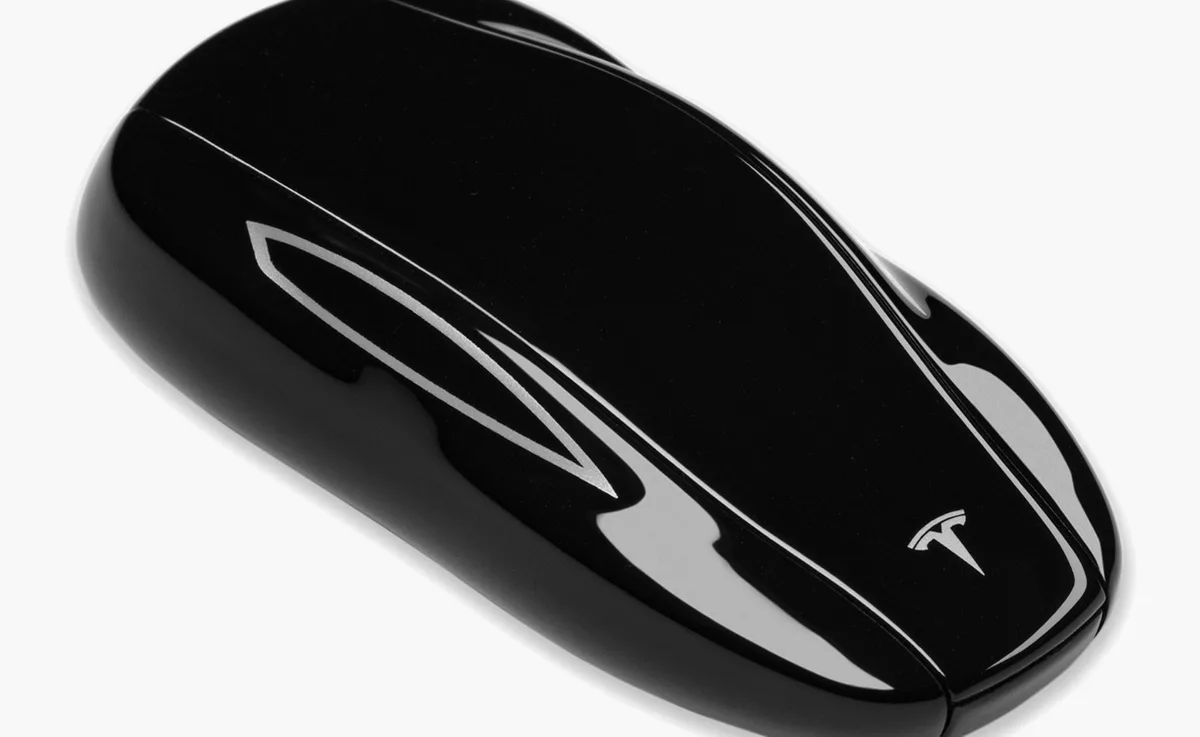
The optional fob runs on dedicated RF, independent of your phone and the car's cellular connection. Inside is a CR2032 coin cell. Tesla specifies one to two years of normal use per battery.
49% off Today's Exclusive Deals
Limited-time Exclusive Deals. Check current discount on Amazon.
Check Price on Amazon As an Amazon Associate I earn from qualifying purchases.When it dies, there is zero warning.
Key Card: Passive NFC
The key card is a passive NFC chip, like a contactless credit card. No battery, no handshake, no software dependencies. It works when the 12V system is weak and the car is in deep sleep.
Tesla's official guidance lists it as the trusted backup. The reader sits on the driver-side B-pillar.
| Credential | Radio tech | Works when car is asleep? | Typical failure |
|---|---|---|---|
| Phone Key | Bluetooth LE | Sometimes | App permission reset, battery saver |
| Key Fob | Dedicated RF | Yes | Dead CR2032 fob battery |
| Key Card | NFC | Yes | Misaligned tap, dirty sensor |
Step-by-Step: The Unlock Decision Workflow
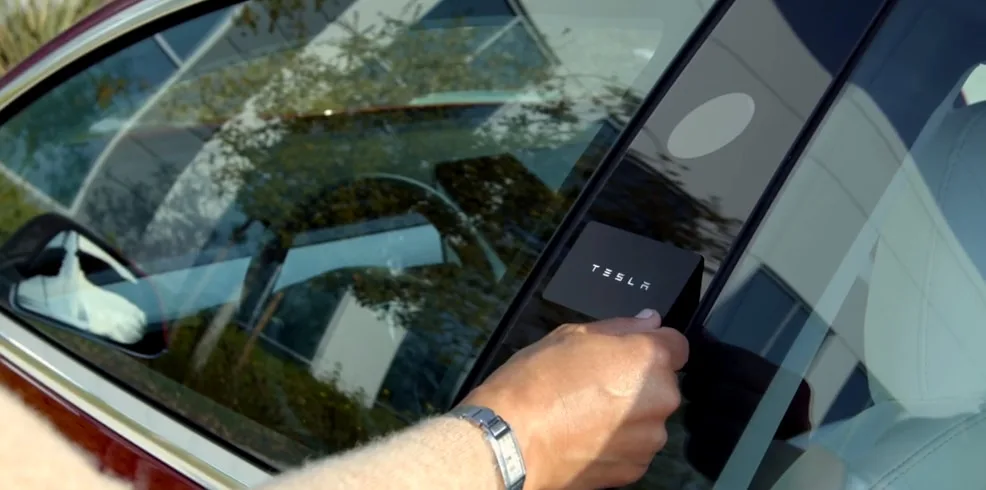
Image source: Bing (Web (fair-use with source credit))
Work through these branches in order. Stop when the door opens.
Starting Point: I Have My Phone With Me
- Force-quit the Tesla app and reopen it. A stalled session is common.
- Confirm Bluetooth is on and background refresh is enabled.
- Check the status line. If the car is "Asleep," tap Unlock anyway. That sends a wake command.
- Hold the phone near the driver's door for 2, 3 seconds. Proximity matters for BLE.
- Turn off Low Power Mode. Battery saver kills the key's radio beacon.
Starting Point: I Have the Key Fob
- Press the fob's unlock button once. Watch for flashing lights.
- No response? Replace the CR2032 battery.
- Fob has charge but the car is still asleep? Hold the fob flat on the B-pillar below the handle. That's the RF coupling trick.
Starting Point: I Have the Key Card
- Hold the card flat against the driver-side B-pillar for 1, 2 seconds.
- Don't swipe. The NFC reader needs a steady hold.
- Still nothing? Clean the card and sensor with a dry cloth, then retry.
- Failing again? The card may be deauthorized. Call Tesla Roadside Assistance.
Starting Point: I Have Nothing
- Call Tesla Roadside Assistance. They can unlock remotely if the car has signal.
- Borrow a friend's phone and log into your Tesla account.
- No signal and no phone? A mobile tech can jump the low-voltage system and open the doors.
Why This Happens: The Real Culprits Behind Unlock Failures
Knowing why the car locks you out makes the fix obvious.
App Session Expired or Logged Out
The Tesla app doesn't always refresh your auth token. If you haven't opened it in weeks, the unlock command silently fails. Force-logout, log back in, restart the app.
Phone OS Update Resetting Bluetooth Permissions
iOS and Android updates routinely revoke Bluetooth pairing or reset background refresh. Your key didn't break. The OS did.
Check app permissions after any phone update.
12V Battery Too Weak to Unlatch the Door
The door latch is electronically actuated. Below roughly 12.4V resting, the latch may not have enough juice to release. This is the most common cause of a car that wakes but won't open.
A weak 12V battery can also make brake lights act up and headlights behave erratically before total failure.
Vehicle Stuck in Deep Sleep After a Failed OTA Update
A botched over-the-air update can leave the computer stuck mid-state. The car lowers network activity and ignores BLE pings. The app shows "offline" or "asleep." The fob may also get ignored.
Poor Cellular Coverage or Interference
Concrete in underground garages blocks the car's modem or your phone's signal. The car is awake. The command just can't reach it.
Software Bugs
Specific app and firmware versions have documented unlock bugs. Tesla's release notes frequently fix phone key reliability. If you're on an old app build, update it.
Mistakes to Avoid When Your Model Y Won't Unlock
Stress leads to rushed moves that make things worse. Avoid these five errors.
Spamming the App's Unlock Button
Every tap sends a new wake request. Tap too many times and the app queues them, delaying the command. Tap once, wait ten seconds, reassess.
It's the digital equivalent of yanking a stuck window switch and expecting it to give in.
Swiping the Key Card Like a Payment Card
The B-pillar reader requires a stationary hold. Swiping gives the NFC field too little time. Hold it flat for a full 1, 2 seconds.
Assuming the Fob Battery Is Fine
A dying fob battery can still light an LED while being too weak for RF transmission. If the fob flashes but the car won't wake, replace the CR2032.
Jumping the 12V Battery the Wrong Way
The 12V battery sits behind the frunk's rear panel. Connect a jump pack to the wrong terminal and you can fry the vehicle's electronics. Follow Tesla's manual exactly: positive first, then the grounding stud.
Careless jumping is the electrical version of forcing a stuck gear lever into place.
Ignoring the "Offline" Status and Forcing Commands
If the app shows Offline, remote commands will fail. Repeated attempts drain your phone and queue junk requests. Move to the key card or fob first, then fix connectivity once you're inside.
How to Prevent This From Happening Again
Most lockouts are preventable. These steps take ten minutes now and save an hour of panic later.
Carry the key card, always. It fits in a wallet or behind a phone case. No battery, no software, no excuses.
If you don't carry the card, you're one dead phone away from a real headache.
Check app permissions after every phone update. Open the Tesla app settings, verify Bluetooth is on, confirm background refresh is enabled. This one step stops the most common failure.
Keep the 12V battery healthy. Test resting voltage with a multimeter. Healthy is 12.4 to 12.8V.
Replace the battery every three to four years. It's inexpensive insurance.
Park within home Wi-Fi range. The car downloads OTA updates reliably on Wi-Fi. Failed updates are a main trigger for a stuck deep-sleep state.
Turn off battery optimization for the Tesla app. Aggressive power saving kills the Bluetooth beacon on Android. On iOS, disable Low Power Mode and keep the app in the app switcher.
Keep two independent credentials available. Then you'll never need roadside help just to get in.
FAQs: Tesla Model Y Unlock Problems
The quickest answers to the questions we hear most often.
Why does the handle press out but the door stays shut?
The electromechanical latch released, but the low-voltage system didn't fully actuate. Push the handle fully in, then pull firmly once. If it still won't open, use the key card on the B-pillar.
A weak 12V battery is the most common cause.
Can I unlock my Tesla from the app without a cellular connection?
No. The app sends a command over the internet to the car's modem. No cellular or Wi-Fi signal means the command never arrives.
The Bluetooth phone key works within range instead. The key card works with zero connectivity.
How long does the Tesla key fob battery last?
Tesla specifies one to two years of normal use for the CR2032 cell. Cold weather drains it faster. When the fob stops waking the car, replace the battery before blaming the vehicle.
There is no low-battery warning.
Does the Model Y have a hidden manual keyhole?
No. Tesla removed the traditional lock cylinder entirely. The only physical entry methods are the key card, key fob, and phone key.
If all three fail, call Tesla Roadside Assistance.
Why does the key card work but my phone key doesn't?
The car's RF and NFC hardware is fine. The Bluetooth handshake failed. Common causes include reset Bluetooth permissions, battery saver, or a stale app session.
Re-pair the phone key in app settings, then test again.