Image source: Bing (Web (fair-use with source credit))

49% off Today's Exclusive Deals
Limited-time Exclusive Deals. Check current discount on Amazon.
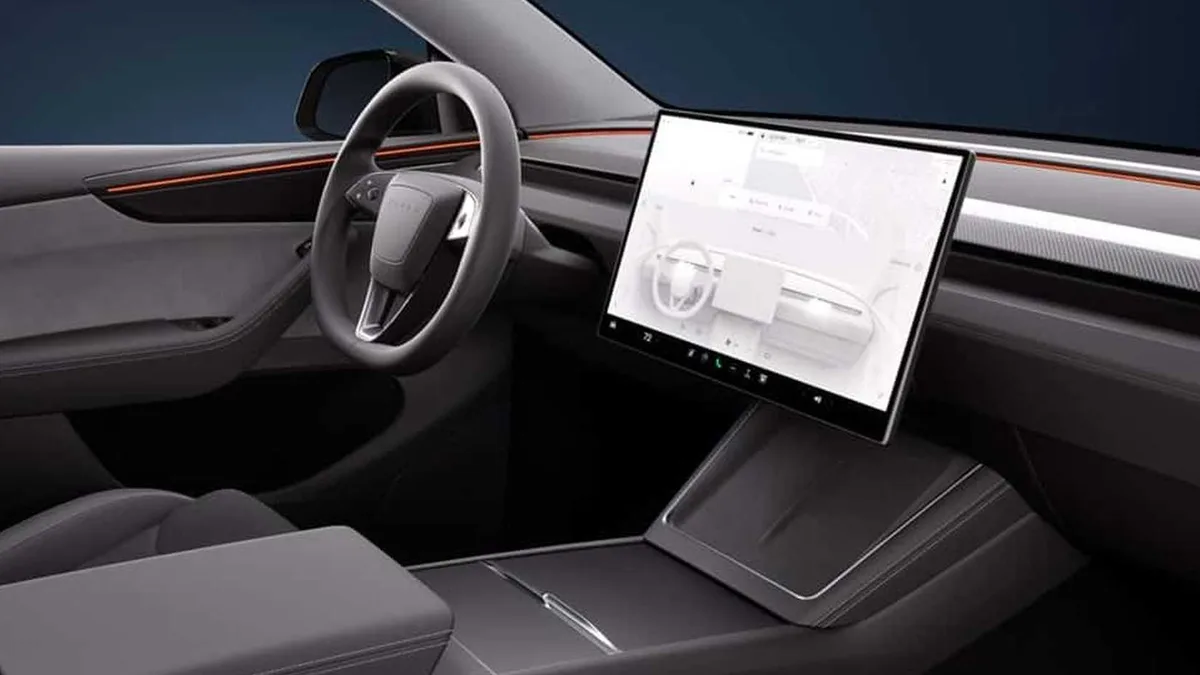
Check Price on Amazon As an Amazon Associate I earn from qualifying purchases.Your Model Y's touchscreen just went black while you were sitting in the driver's seat. No music, no map, no climate control. Your first thought is probably whether you're looking at a simple reset or a trip to the service center.
That's exactly the call this guide will help you make.
The Tesla Model Y touchscreen problem is usually a software glitch, not a hardware failure. As of 2026, the 15-inch display controls nearly every driving convenience, from HVAC to the rear-view camera. A straightforward two-button reset clears most of these issues in under a minute.
49% off Today's Exclusive Deals
Limited-time Exclusive Deals. Check current discount on Amazon.
Check Price on Amazon As an Amazon Associate I earn from qualifying purchases.We'll walk you through every fix in the order you should try them.
Quick Answer
Most Tesla Model Y touchscreen problems are software bugs, not dead hardware. Hold both steering-wheel buttons for 10 to 15 seconds. Wait for the Tesla logo.
Let the screen boot fully. If that fails, use Safety & Security to power off. Visit a service center only if glitches persist.
First Step: Match Your Screen Problem to the Right Fix
Don't guess. The correct fix depends on the specific symptom. We've grouped the most common failures into four buckets.
49% off Today's Exclusive Deals
Limited-time Exclusive Deals. Check current discount on Amazon.
Check Price on Amazon As an Amazon Associate I earn from qualifying purchases.Here's what aggregate owner reports and Tesla's official troubleshooting documentation show:
| Symptom | Likely cause | Best fix |
|---|---|---|
| Black screen on start-up | Software crash or failed boot | Scroll-wheel reset |
| Frozen display, no response to taps | UI process hung | Scroll-wheel reset |
| Stuck on Tesla badge (reboot loop) | Corrupted software state | Power-Off cycle, then update check |
| Slow, laggy interface | Old MCU (Intel Atom), low memory | Reset, then consider service evaluation |
| Touch works but screen is dim | Auto-brightness or thermal shutdown | Let it cool, adjust brightness |
If your screen is completely black: Start with the reset below. It takes 30 seconds and requires no special tools. If your screen is frozen but visible: Same move. You're clearing the software process, not affecting the car's drive systems.
Matching the symptom to the fix is the smart approach. Many owners jump straight to a service appointment. In most cases, a simple reboot resolves the issue quickly.
The Scroll-Wheel Reset: Your First and Best Move
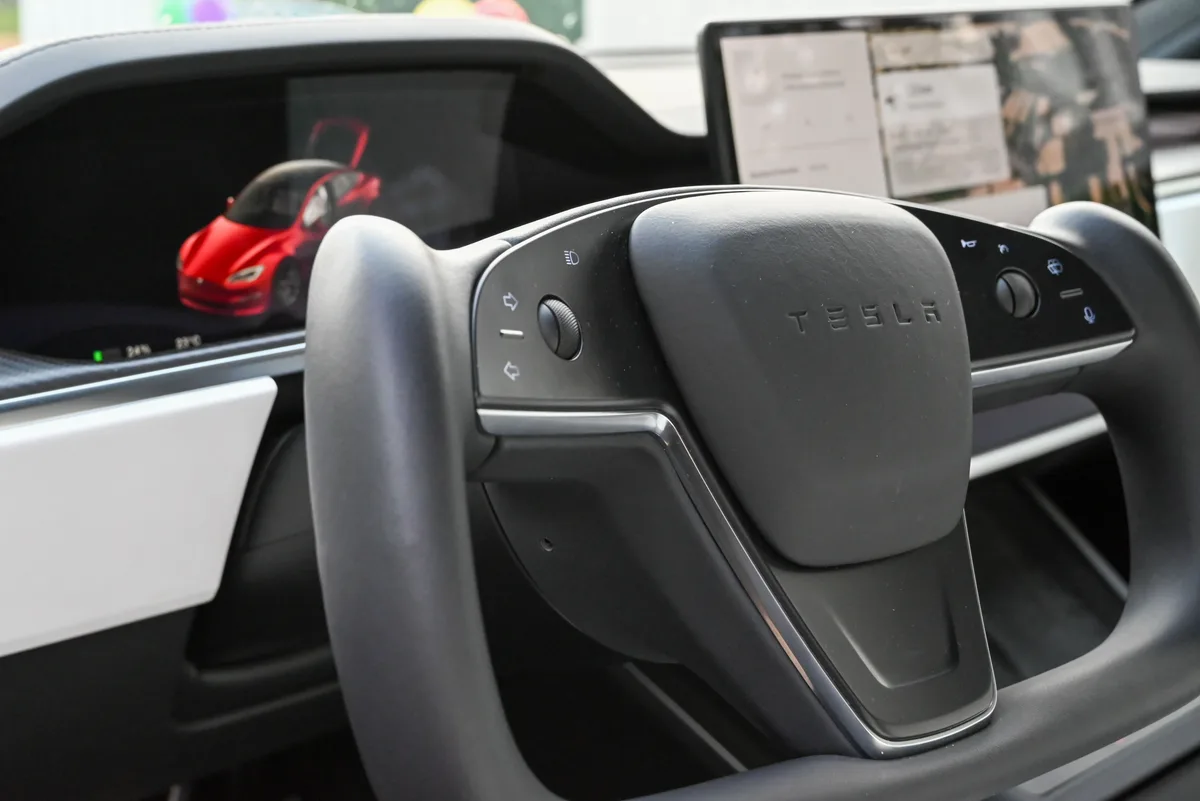
Image source: Bing (Web (fair-use with source credit))
This reset is the unofficial "Ctrl+Alt+Delete" for your Tesla. It reboots the infotainment computer without turning off the car's main driving systems. You can perform it while parked, and it's safe to do at a stoplight if you're quick.
How to Do It Correctly
- Press and hold both steering-wheel scroll buttons simultaneously. Not the left only, not the right only. Both.
- Keep holding for 10 to 15 seconds. The screen may flicker or go black. That's normal.
- Watch for the Tesla logo. When it appears, release the buttons.
- Wait 30 to 60 seconds. The screen needs time to boot fully.
A common mistake we see in owner forums: pressing the scroll wheels and tapping the touchscreen. That does nothing extra. The reset only requires the two wheels.
Also, don't let go the moment the screen goes dark. Hold until the logo shows up.
Manufacturer documentation confirms this doesn't affect driving, braking, or turn signals. The car remains drivable throughout. If the screen comes back and your map, music, and climate controls respond, you're done.
If it stays black, move to the next step.
Reset Didn't Work? Try the Power-Off Cycle and Check for Updates
If the scroll-wheel reset fails, the software state is deeper than a simple reboot can fix. Your next move is a full power-off cycle.
The Safety & Security → Power Off Method
- Tap Controls (the car icon) at the bottom of the screen.
- Select Safety & Security.
- Tap Power Off.
- Wait at least 2 minutes. Don't touch the screen, doors, or pedals.
- Press the brake pedal to wake the car.
This forces the entire vehicle computer to shut down completely. It's a deeper reset than the scroll-wheel method. This clears stubborn glitches that survive a dozen quick reboots.
Think of it as pulling the power cord on a desktop PC.
Why Pending Updates Cause UI Crashes
Tesla pushes over-the-air updates frequently, sometimes monthly. Pending updates sit in the background. If the update is partially downloaded or the install process crashes, the touchscreen is often the first casualty.
After the power-off cycle, check whether the update is still queued. Go to Controls > Software. If an update is waiting, install it when safe and parked.
A fresh install often patches the exact bug that caused your screen issue. If the software menu shows an error, contact Tesla support through the mobile app.
Is It the MCU? When a Glitch Becomes a Hardware Problem
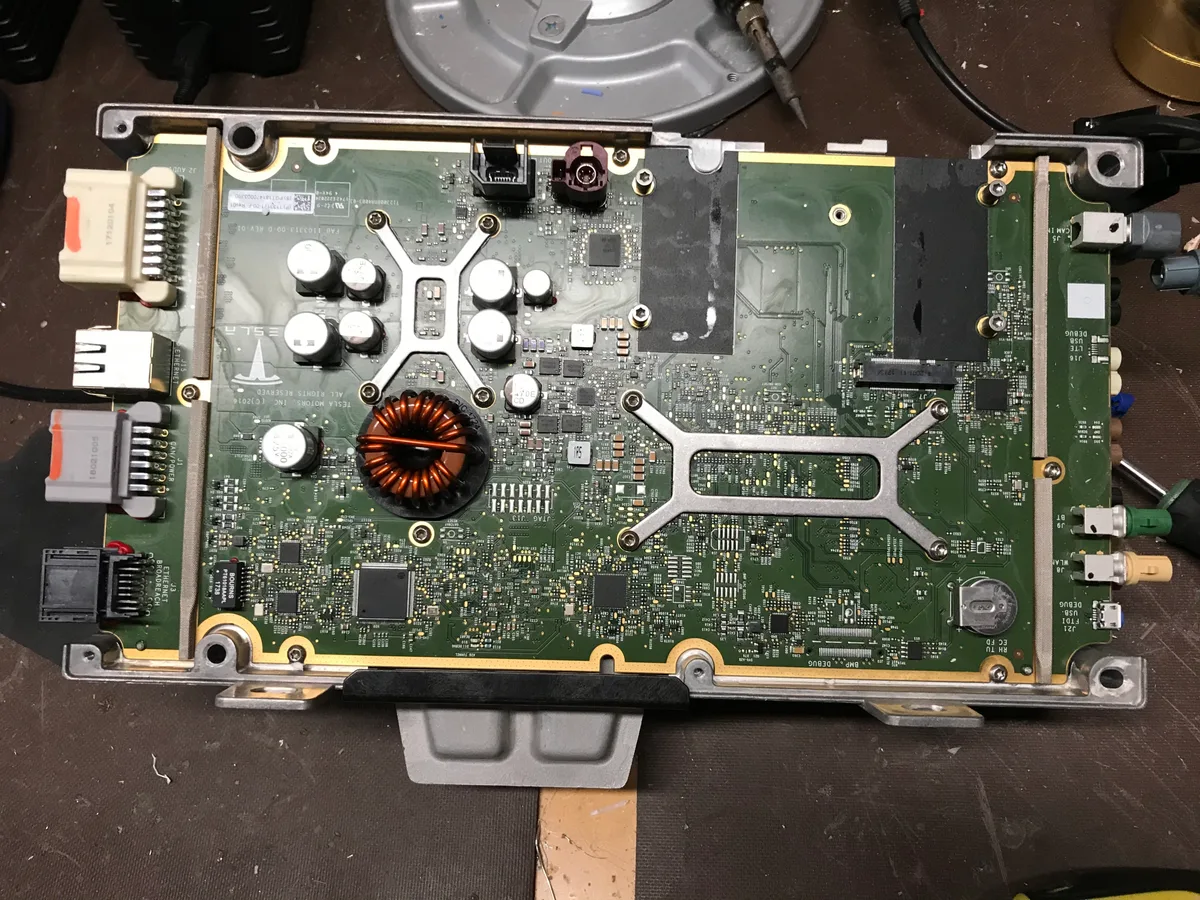
Image source: Bing (Web (fair-use with source credit))
If resets and updates don't fix recurring screen failures, you're looking at the Media Control Unit. The MCU is the computer behind the display. It's a sealed module, not something an owner can repair at home.
Intel Atom vs. AMD Ryzen: Why Older Builds Act Up More
Tesla has used two different MCU generations in the Model Y. It matters which one you have.
| MCU | Approx. build years | Known issues |
|---|---|---|
| Intel Atom | 2020 to 2023 | Slower boot, laggy UI, more frequent freezes |
| AMD Ryzen | 2023 onward | Faster, but occasional software bugs still occur |
The Intel Atom chip is less powerful. It shows its age with sluggish maps, delayed camera feeds, and random display deaths. Aggregate owner reviews report that Intel-based units are far more likely to show persistent touchscreen problems.
Warranty Reality: What Tesla Covers and What It Doesn't
Here's the good news. The new-vehicle limited warranty covers the display and MCU for 4 years or 50,000 miles, whichever comes first. If your Model Y is inside that window, a faulty MCU is typically replaced at no cost.
If you're out of warranty: Be honest with yourself about the symptoms. A one-time glitch after an update is not worth a repair bill. Recurring freezes, boot loops, and camera failures point to the MCU itself.
Book a service appointment through the Tesla app. Service can run diagnostics and confirm whether replacement is necessary. The repair cost varies by region and labor rates.
What Still Works When the Screen Is Down
You need to know this before panic sets in. A failed touchscreen does not mean you lose control of the car. Driving your Model Y to a safe location is entirely possible.
Steering-Wheel Scroll Wheels, the Mobile App, and Driving Safety
The physical controls remain active. The scroll wheels and their buttons can adjust cruise control, media volume, and wiper speed (on newer builds). A quick press often triggers voice commands.
The Tesla mobile app gives you remote access to unlock, lock, start, and adjust climate, independent of the screen.
How to Handle Climate Control and the Backup Camera
This is the tricky part. If the screen is dead, the HVAC system can't be adjusted from the cabin. In extreme weather, that's uncomfortable but not dangerous for short drives.
The rear-view camera feed also goes dark. That's a real safety consideration. You must rely on your mirrors instead.
The car's core safety systems, including ABS, airbags, and traction control, rely on separate hardware. This is different from a situation where your car's braking system fails, which is an immediate road-safety emergency. A screen outage is a convenience loss, not a driving-system loss.
Plan to have the work checked by a professional if you're uncertain. When a system as complex as the MCU needs repair, OEM diagnostics are the safest route. If you're also noticing other electrical oddities, like power windows that won't respond or faulty turn signal operation, those deserve attention too.
Common Mistakes Model Y Owners Make With Touchscreen Troubleshooting
The biggest mistake is assuming the screen problem is unique to you. It almost certainly isn't. Owner forums, Tesla community groups, and aggregate repair data show the same handful of errors repeating across thousands of cases.
Mistake 1: Cleaning the screen with glass spray. Ammonia-based cleaners and abrasive cloths can damage the anti-glare coating. Tesla's manual recommends a dry microfiber cloth only. Wet the cloth if you must, but never spray directly on the display.
Mistake 2: Repeating the scroll-wheel reset too fast. Owners who fail the first reset sometimes hammer the buttons five or six times in a row. This locks the MCU in a partial boot state. Do the reset once.
If it fails, move to the Power-Off method instead.
Mistake 3: Ignoring the update cycle. If your Model Y has a pending software update, skipping it to try another reset makes no sense. The update may fix the exact bug causing your freeze. Install it first.
Mistake 4: Delaying service because "it fixed itself." Intermittent screen failures that resolve on their own are still a sign of underlying MCU degradation. The National Highway Traffic Safety Administration tracks vehicle safety complaints precisely because intermittent faults worsen over time.
If you're noticing grinding or squeaking noises alongside electrical glitches, don't wait. Electrical gremlins and braking anomalies on the same vehicle warrant an immediate service visit.
FAQs: Tesla Model Y Touchscreen Problems
Can I Drive a Tesla With a Black Screen?
Yes. The Model Y remains drivable with a dead touchscreen. Steering, acceleration, braking, and turn signals all operate independently.
Use your side mirrors since the backup camera won't display. Pull over safely, perform a reset, then assess.
How Long Does a Tesla Screen Reboot Take?
The scroll-wheel reset takes 10 to 15 seconds to trigger, then 30 to 60 seconds to fully boot. The Power-Off method takes a minimum of 2 minutes before you press the brake to wake the car. Budget roughly 3 minutes total for the deeper reset.
Is a Touchscreen Replacement Covered Under Warranty?
If your Model Y is within the 4-year or 50,000-mile basic warranty, display and MCU defects are typically covered at no cost. Tesla service will run diagnostics through Service Mode to confirm the fault. Out-of-warranty replacements vary by region and labor rates.
What Causes the Screen to Freeze After an Update?
Partially downloaded OTA files or corrupted install packages are the most common culprits. Tesla's update process runs in the background. If the car loses Wi-Fi mid-download or the install encounters a conflict, the display is the first system to show symptoms.
Should I Use Service Mode to Diagnose the Problem?
Owner-accessible Service Mode lets you view basic diagnostic info, but it doesn't allow ECU-level resets. It's useful for confirming your software version and checking for error logs. For deeper hardware diagnostics, Tesla service technicians have tools you won't have access to at home.
Can Extreme Weather Affect the Tesla Display?
Yes. Extreme heat can cause the screen to dim or temporarily black out as a thermal-protection measure. Extreme cold slows boot times.
Both conditions resolve when temperatures normalize. If the screen stays dark in mild weather, that's a different issue.
Decision Guide: What to Do Next Based on Your Symptom
You've read the fixes. Here's the final flowchart to match your exact situation to the right action. No guesswork needed.
If the screen is black but the car is on: Perform the scroll-wheel reset. Hold both buttons 10 to 15 seconds. Wait for the logo.
If the screen comes back, monitor for recurrence over the next week. One-time black screens rarely signal hardware failure.
If the screen is frozen but still visible: Same scroll-wheel reset. If that fails, use Safety & Security → Power Off. After the 2-minute wait, press the brake and check whether the UI responds.
If the screen is stuck on the Tesla logo in a reboot loop: Skip the scroll-wheel reset. Go straight to the Power-Off method. After the full cycle, check for pending software updates and install them while parked.
If the screen works but is extremely slow: Check your MCU type in Settings > Software. Intel Atom units show their age here. A reset may help temporarily, but persistent lag on older hardware points to a future service visit.
If screen problems keep coming back after multiple resets: Book a service appointment through the Tesla app. Recurring failures indicate MCU degradation, not a software bug. Tesla service can confirm with diagnostics and handle the replacement if covered under warranty.
Here's a quick reference table for the full decision flow.
| Symptom | Try this first | If that fails | Final step |
|---|---|---|---|
| Black screen | Scroll-wheel reset | Power-Off cycle | Service appointment |
| Frozen display | Scroll-wheel reset | Power-Off cycle | Service appointment |
| Reboot loop | Power-Off cycle | Install pending update | Service appointment |
| Slow, laggy UI | Scroll-wheel reset | Check MCU type | Service evaluation |
| Recurring failures | Power-Off + update | Book service | MCU diagnostics |
The pattern is simple. Software fixes first. Hardware evaluation last.
If you follow this sequence, you avoid unnecessary service costs and solve the majority of Tesla Model Y touchscreen problems on your own.