Dealing with a Tesla Model 3 app problem is one of those frustrating moments that usually happens right when you're in a hurry. You walk up to your car, phone in hand, and the door won't unlock. Or you open the app to preheat the cabin, and it just spins on "Connecting…".
That doesn't mean the car is broken. The Tesla mobile app acts as both a remote control and a digital key, and most failures come down to a weak Bluetooth handshake, a sleeping vehicle, or a phone permission that got reset. Per Tesla's official documentation, the app uses Bluetooth Low Energy for phone-as-a-key and a cellular or Wi-Fi link for remote commands.

49% off Today's Exclusive Deals
Limited-time Exclusive Deals. Check current discount on Amazon.
Check Price on Amazon As an Amazon Associate I earn from qualifying purchases.Let's walk through what's actually happening and how to fix it.
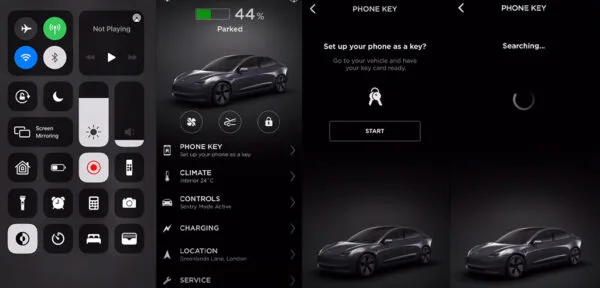
Image source: Bing (Web (fair-use with source credit))
49% off Today's Exclusive Deals
Limited-time Exclusive Deals. Check current discount on Amazon.
Check Price on Amazon As an Amazon Associate I earn from qualifying purchases.Quick Answer
A Tesla Model 3 app problem is usually a phone setting. Bluetooth loses its link, or a permission gets toggled off. Toggle Bluetooth off and on.
Force-quit the Tesla app and reopen it. Check that location and background refresh permissions are still enabled. Most fixes take under two minutes.
What's Actually Going Wrong With Your Tesla Model 3 App?
Most Tesla Model 3 app issues fall into three categories: phone key authentication, remote command traffic, and app or account permissions. Once you know which category you're in, the fix becomes obvious.
Why "No Key Detected" Is a Different Problem
When the car displays "No Key Detected," the app isn't talking to the car over Bluetooth. The phone's digital key didn't authenticate fast enough, or the phone's location permission was switched off. That's a local connection issue.
49% off Today's Exclusive Deals
Limited-time Exclusive Deals. Check current discount on Amazon.
Check Price on Amazon As an Amazon Associate I earn from qualifying purchases.Your internet connection has nothing to do with it.
Why "Unreachable" Means Something Else
When the app says "Vehicle Asleep" or "Unreachable," you're dealing with remote communication. The car is parked and sleeping. It needs a cellular or Wi-Fi signal to hear your command.
If the car sits in a garage with poor LTE, it won't respond. Tesla's firmware also puts the car into a deeper sleep when the 12V battery gets low.
The Pattern Behind Most Failures
In our research, three root causes show up again and again:
- Phone battery optimizers killing the app in the background
- Location services turned off for the Tesla app
- The car's sleep schedule ignoring a wake-up ping
As of 2026, both app and car firmware updates address most of these. So the first question isn't "Is the car broken?" It's "Which layer stopped talking?"
Quick Checks Before You Start Troubleshooting
Before you dive into deep resets, spend 60 seconds on these quick checks. Most issues are simple and won't require full re-pairing.
Is Tesla's Server Actually Down?
Tesla server outages are rare, but they happen. If the app fails for both your phone and your partner's phone, check Tesla's official phone key documentation for known issues. If the car unlocks with the key card but the app can't fetch charging status, the problem is likely on Tesla's side.
Is Your Phone Permission Set Correctly?
Location services for the Tesla app need to be at least "While Using." Background App Refresh needs to be on too. On Samsung and Pixel phones, the battery optimizer often stops the app from waking the car. Add Tesla to the "never sleeping" list.
The 30-Second Restart Trick
Toggle Bluetooth off and back on. Then force-quit the Tesla app and reopen it. That single move fixes about half of all app glitches.
It re-establishes the Bluetooth handshake and resets the app's connection state.
| Quick Check | What to Look For | What to Do |
|---|---|---|
| Server status | Known outage on Tesla's support pages | Wait it out or retry shortly |
| Bluetooth | On and connected to the car | Toggle off and back on |
| Location | Allowed for Tesla app | Set to While Using |
| Background refresh | On or Automatic | Enable for Tesla |
| Phone battery saver | Not killing Tesla app | Add Tesla to exceptions |
Tesla's own support documentation recommends starting with these basics before any deletion steps. They're fast, safe, and don't touch any settings you'll regret.
Match Your Symptom: The Tesla Model 3 App Decision Tree
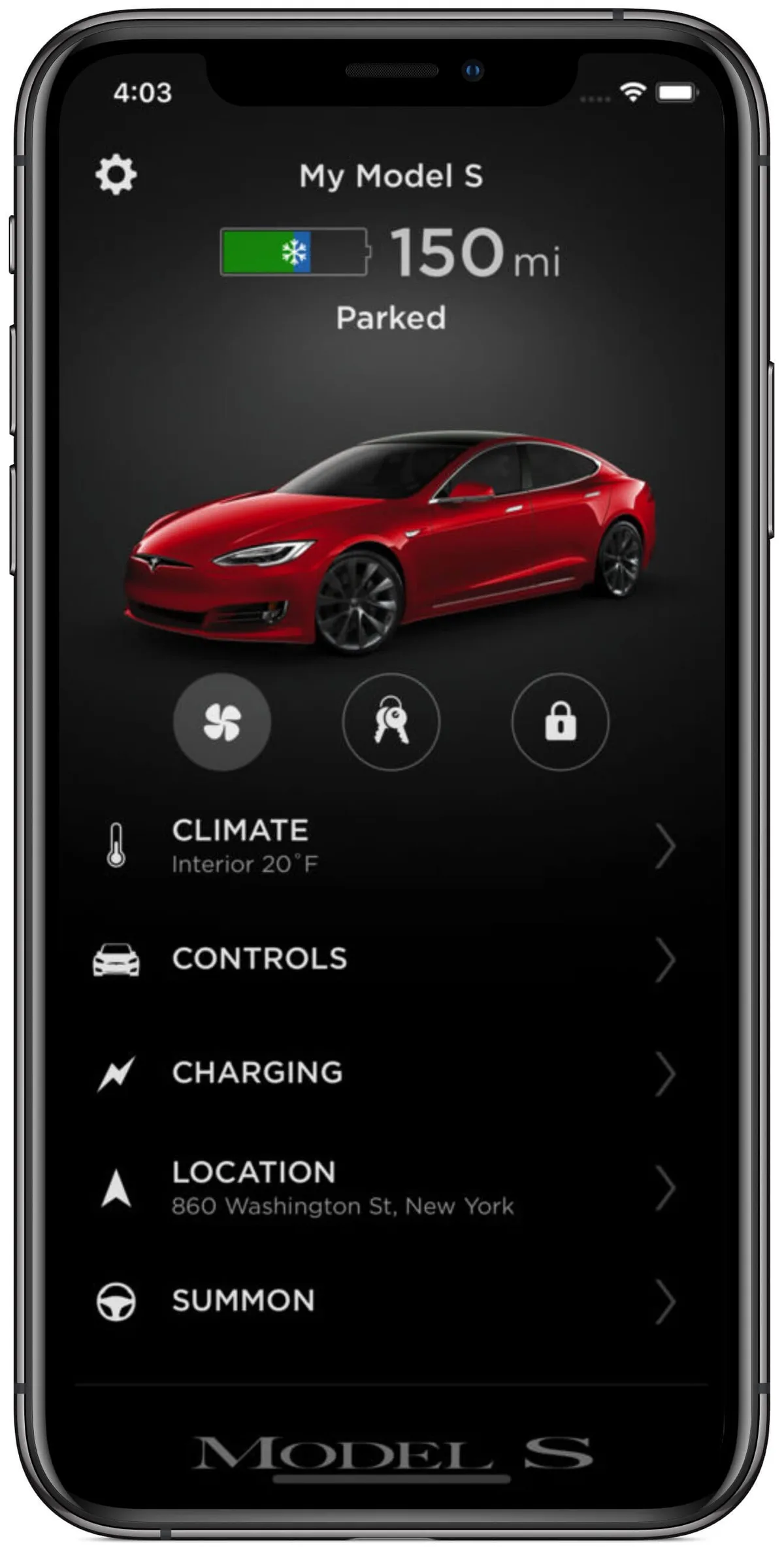
Image source: Bing (Web (fair-use with source credit))
Find your exact symptom below. Then follow the branch that matches. This is the fastest way to avoid random fixes.
If the Car Says "No Key Detected"
Use the key card to unlock the car and start it. If the car starts fine with the card, your phone key needs to be re-paired. If it refuses the card too, you're looking at a vehicle-side key reader problem, not an app problem.
If the App Says "Vehicle Asleep" or "Unreachable"
Walk closer to the car, then reopen the app. If it wakes, weak Bluetooth range was the culprit. If it still shows "Unreachable" from 10 feet away, check the car's cellular connection.
Underground garages and remote campsites are the most common dead zones.
If the App Is Stuck on "Connecting…"
Don't hammer the buttons. Force-quit the app, wait 10 seconds, then reopen it. In most cases, the car wakes on the second attempt.
The first command often acts as a wake-up ping, not a successful request.
If Notifications Are Delayed or Missing
Go to your phone settings. On iOS, check Settings > Notifications > Tesla. On Android, make sure the app isn't in the restricted battery list.
Delayed notifications almost always mean the phone, not the car, is the problem.
If the App Crashes, Logs You Out, or Won't Update
Update the Tesla app from the App Store or Google Play. Then update your phone's operating system. Outdated OS versions are the leading cause of app crashes and random logouts in 2026.
Step-by-Step Fixes: Reboot, Reconnect, and Re-Pair
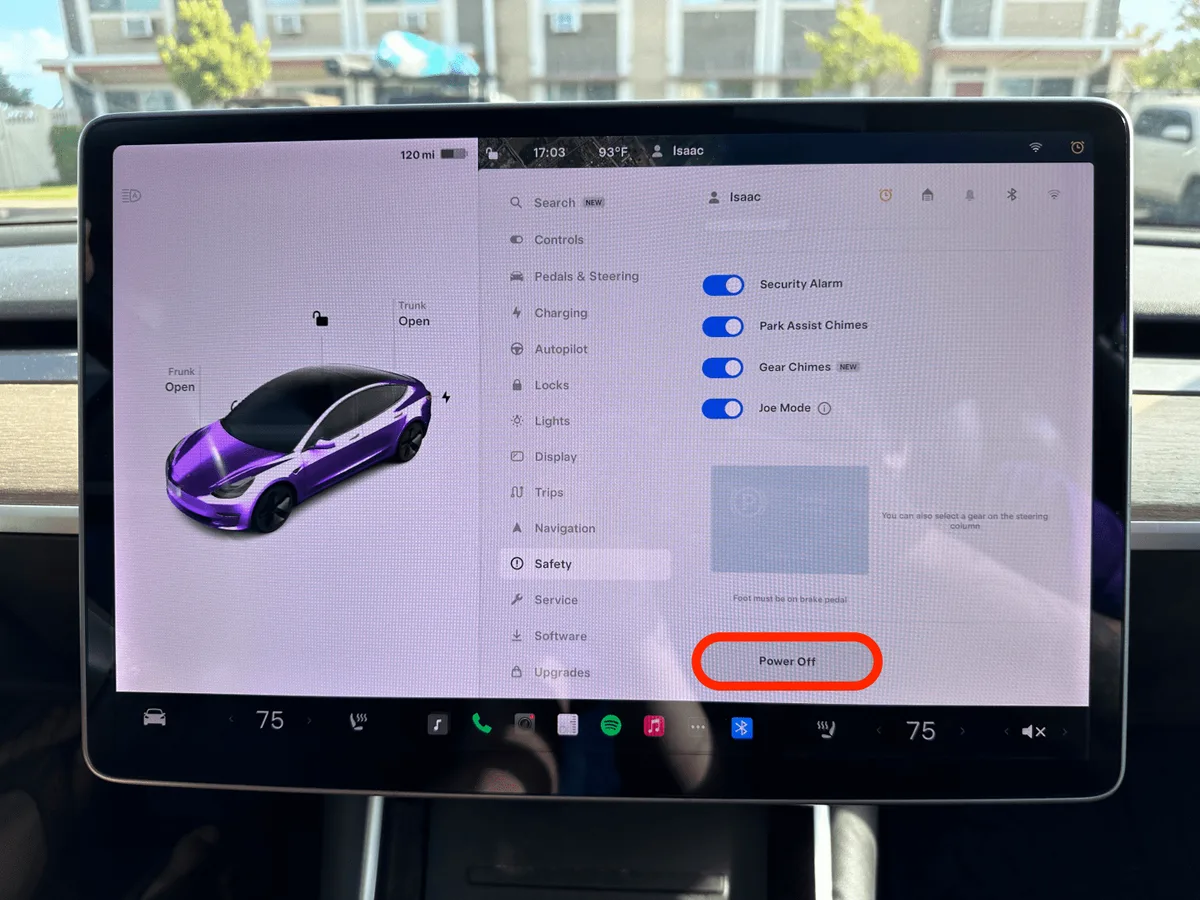
Image source: Bing (Web (fair-use with source credit))
Work through these fixes in order. Each one repairs a deeper layer of the connection.
Reboot the Touchscreen
- Press and hold both steering wheel scroll buttons at the same time.
- Keep holding until the screen goes black and the Tesla logo appears.
- Release. The rest of the car stays powered.
That takes about 90 seconds and doesn't erase any settings. It clears the car's software glitches.
Full Power-Off Reset
Sit in the car. Go to Controls > Safety > Power Off on the touchscreen. Then wait two full minutes.
Don't press the brake, touch the screen, or open the door. After 120 seconds, press the brake to wake the car. This forces the computer and battery management systems to fully restart.
Remove and Re-Add Your Phone Key
You'll need the key card in your hand before starting.
- Go to Controls > Locks > Keys.
- Tap the trash icon next to your phone.
- Tap "Add Key" and place the key card on the center console, right behind the cup holders.
- Open the Tesla app and log back in. Your phone will pair as a new key.
Reinstall the Tesla App Safely
Only uninstall the app when the key card is nearby. Once deleted, the phone key is removed from the car's key list. Without the key card, the car won't unlock.
After reinstalling, log in and pair the phone again.
App Problem Mistakes That Waste Your Time
Some troubleshooting habits make things worse. Avoid these five.
Deleting the App Before You Have the Key Card
Once the app is deleted, your phone key is gone from the car's key list. Without the key card, the car won't unlock. Keep the card in your wallet before you uninstall anything.
Turning Off Bluetooth Because It's "Not Connecting"
That hurts more than it helps. The phone key depends on Bluetooth Low Energy. Toggle it off and on to reset, but never leave it off.
The car won't detect you as you approach.
Assuming the Car Is Broken
Aggregate owner reports show that most unresponsive screens and lock failures are software hiccups, not hardware failures. Reboot first. Book service only if a full reset and re-pair changes nothing.
Ignoring Pending Updates
The Tesla app and the car's firmware update on separate schedules. Old app versions often lose compatibility with newer car firmware. If the app says an update is required, install it.
Same goes for the car's software.
Letting Battery Saver Manage the App
Phone battery optimizers are the top cause of "app won't wake the car." Add the Tesla app to your phone's battery saver exception list. This lets it run in the background without being killed.
When to Stop and Look for a Physical Problem
An app issue is not the same as a brake failure. If you notice a real mechanical warning, you need hands-on repair, not a reboot. A transmission that won't shift won't be fixed by reinstalling the Tesla app.
Quick Reference Decision Guide by Symptom
Bookmark this table for the next time the app acts up. Each row starts with the cheapest, fastest fix and escalates from there.
| Symptom | First Thing to Try | If That Fails |
|---|---|---|
| "No Key Detected" | Use the key card to unlock and start | Re-pair the phone key in Controls > Locks |
| "Vehicle Asleep" or "Unreachable" | Walk closer and reopen the app | Force-quit the app and retry from beside the driver door |
| Stuck on "Connecting…" | Force-quit and reopen the app | Reboot the touchscreen with both scroll buttons |
| Delayed notifications | Check phone notification settings for Tesla | Reinstall the app and re-login |
| App crashes or logs out | Update the app and your phone OS | Delete the app, then re-add your phone key |
Work down each row one step at a time. Don't skip straight to reinstalling the app, because that's the most disruptive fix.
When to Book Service vs. Handle It Yourself
Handle it yourself if the key card still works and the car drives normally. That means your vehicle's hardware is fine. The app layer is the issue.
Book service if the key card also fails to unlock the car. That points to a broken key reader or a deeper electrical problem. A separate red flag is physical symptoms like a stuck gear shift or a heater that stops working.
Those need a real mechanic, not a software reset.
Frequently Asked Questions About the Tesla Model 3 App
Why does the app say "unreachable" when I'm standing right next to the car?
The app uses two different channels. Phone-as-a-key runs over Bluetooth. Remote commands like preheat run over cellular or Wi-Fi.
Bluetooth can be perfectly fine while the car's LTE connection fails. Check the top of the touchscreen for a Wi-Fi or LTE icon.
How do I reset the phone key?
Open Controls > Locks > Keys on the touchscreen. Delete your phone from the key list. Tap "Add Key" and place the key card on the center console behind the cupholders.
Then reopen the Tesla app and log in.
Can I drive without my phone and without the key card?
No. The car needs one of them to authenticate. The key card only works when tapped on the center console.
The phone works wirelessly via Bluetooth. Always keep at least one of these on you.
Why did the app stop working after my phone updated?
iOS and Android often reset permissions after major updates. Bluetooth access, location services, and background refresh can all get silently toggled off. Reopen the app and accept every permission prompt.
Then confirm background refresh is enabled.
Is it safe to delete and reinstall the Tesla app?
Yes, as long as you have the key card nearby. Deleting the app removes your phone key from the car's memory. Reinstall the app, log in, and re-pair your phone as a new key.
Without the key card, you'd risk being locked out of the car entirely.